
Unlock Intercom and Common Area Doors with the Grata App
Summary
How to unlock supported common area doors▾
- Scroll to Common Areas beside Digital Key when your building enables shared-door unlocks.
- Tap the door you want — examples include Front Door, Side Door, Elevator, Gym, or Parking when your building lists them.
- Tap Unlock beside the door, or open the door row first if your building uses a detail screen.
- Move closer to the reader if the app prompts you.
- Some entrance doors open a LIVE intercom or video screen before unlock. Confirm you recognize the visitor or that it is safe to unlock before continuing.
- Not every building shows video; some show only the door name and Unlock.
- Tap Unlock on the live entry screen or list row.
- Wait for the app or door hardware to confirm before you walk away.
Where this may work▾
- Common area doors may include the front entrance, side door, back door, garage, amenity doors, elevator access, or other shared access points configured by your building.
- Some buildings use intercom-connected entrances or LIVE entry screens for visitor or front-door access.
- Residents should only see doors they are permitted to access.
- Door names and available access points vary by building.
- Only unlock for people you recognize or expect.
What your phone may need▾
- Some doors may require Bluetooth to be enabled on your phone.
- Some doors may require an active internet connection.
- Some doors may require you to be close to the door or reader.
- Your Grata account must be signed in with the correct building and resident record.
- Property management controls which doors appear for your account and which access methods are enabled.
Why some doors may not appear▾
- A door may not appear if it is not enabled for resident control in your building.
- Signing into the wrong account or building will show the wrong set of doors.
- Your unit permissions may not include access to every building door.
- Doors may be added or changed by property management — contact them if a door you expected is missing.
If the door does not unlock▾
- Confirm Bluetooth is enabled if your building uses Bluetooth-based door access.
- Confirm the Grata app has Bluetooth or Nearby devices permissions enabled on your phone.
- Confirm you are close to the correct door or reader.
- Check your internet connection if the app is not loading or responding.
- Try an approved backup method if available — keypad PIN, fob, physical key, or front desk.
- Contact property management if a door is missing from your app, if an Unlock button fails repeatedly after you confirm your connection and proximity, or if you believe your access permissions are incorrect.
Step-by-Step Instructions
1Step 1: Start from the Grata Smart Living home screen
- Sign in to your resident account.
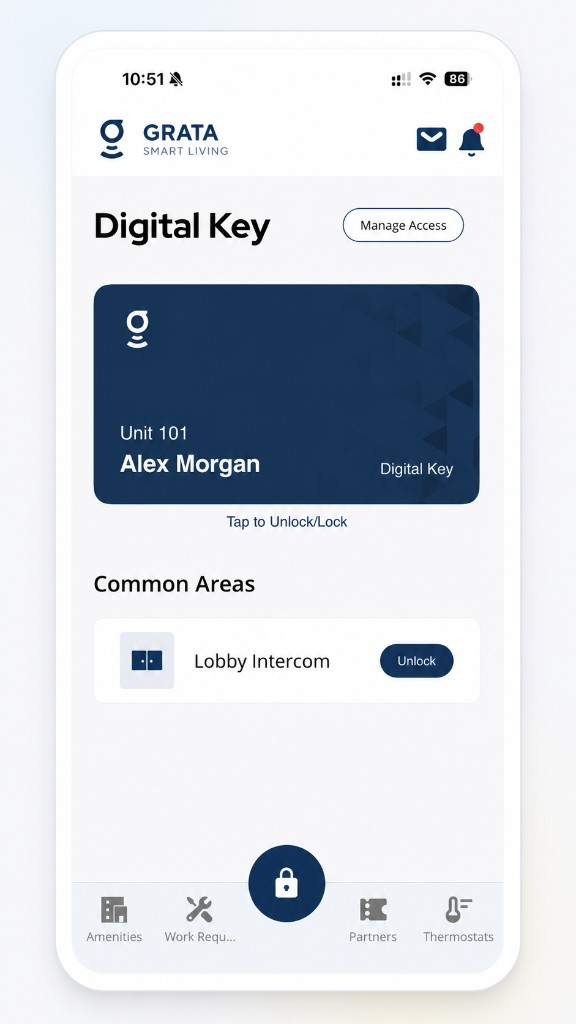
Start from the Grata Smart Living home screen.
2Step 2: Use your on-screen door control
- Use the Digital Key / door area on the home screen, or tap Lock on the bottom bar and pick a door—labels vary by building.
3Step 3: Tap Unlock
4Step 4: Pick the door you want to unlock
5Step 5: Wait for the app to complete the unlock action
6Step 6: Open the door
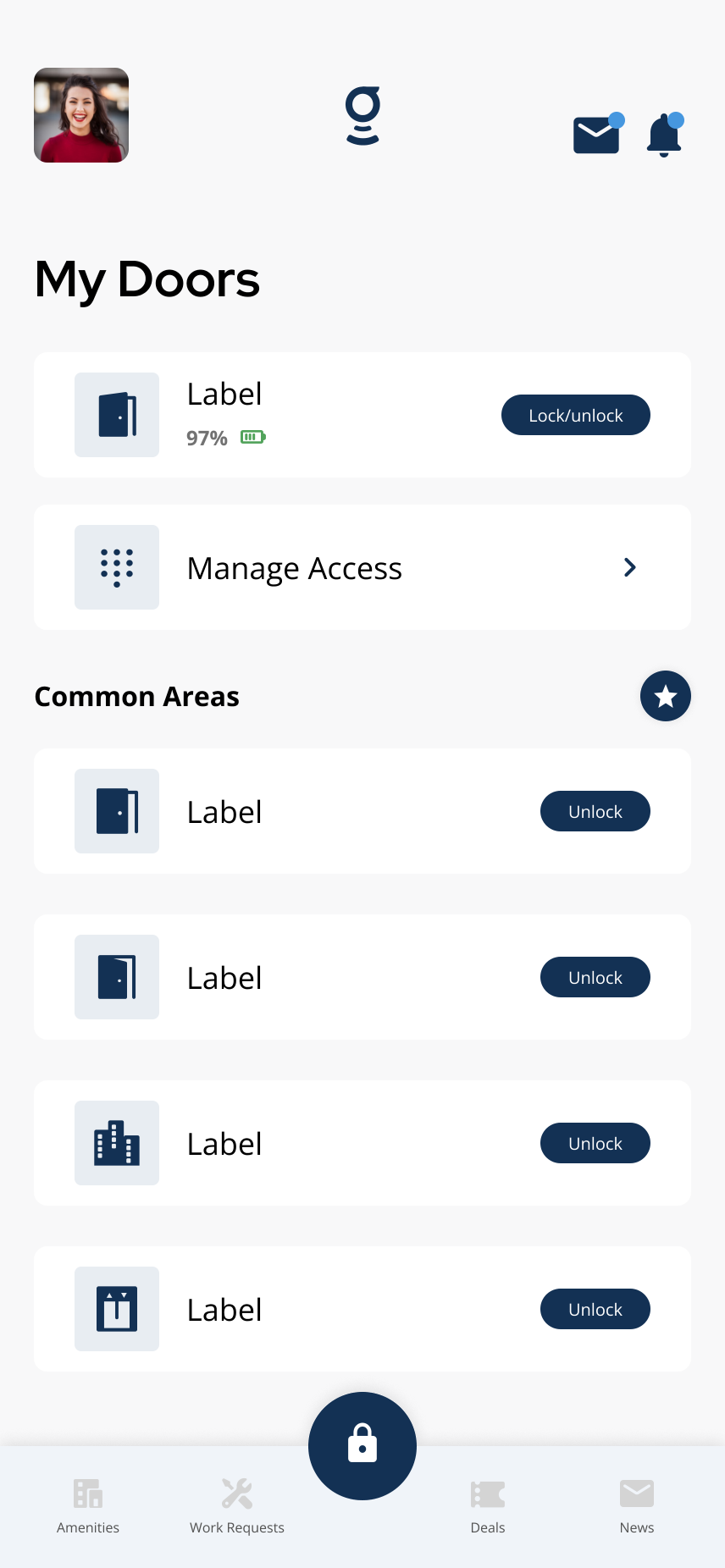
Pick the common area door you want to open.
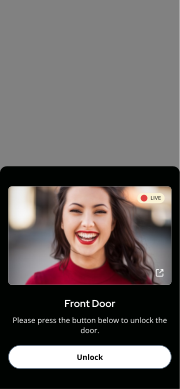
Example **LIVE** entry screen — your building may or may not show video.
Related articles
Lock or Unlock a Door with the Grata App
1 min read
Use this guide to lock or unlock doors and confirm access status.
Bluetooth / Range Troubleshooting
1 min read
If mobile unlock is inconsistent, the issue is often Bluetooth, phone permissions, distance from the lock or r...
Door Access FAQ
2 min read
Digital Key, offline unlock, PINs, intercom/common doors, Bluetooth issues, lock battery, and access recovery...
Digital Key Overview
4 min read
For **Digital Key** and reader-based unlocks, stand near the door or reader when prompted—**Digital Key** may...
Organize Common Area Doors on the Home Screen
1 min read
Use this guide to complete resident tasks in the Grata app.
View Your Intercom PIN
1 min read
Use this guide to set up, enter, or troubleshoot PIN-based door access.