
Organize Common Area Doors on the Home Screen
Section: Doors & AccessCategory: Common AreasHow-to1 min read
Summary
You may be able to choose favourite common-area doors so they appear higher in the Common Areas section on the Grata Smart Living home screen. Use this feature when you want faster access to specific common doors from the home screen.
Common area doors may include lobby, garage, amenity areas, elevators, side or back entrances, or any doors your building has configured in the app. Door visibility depends on your permissions and building setup. Organizing doors only changes the order they appear in the app — it does not change your actual access permissions.
Step-by-Step Instructions
1Step 1: Start from the Grata Smart Living home screen
- From the Grata Smart Living home screen, scroll to Common Areas.
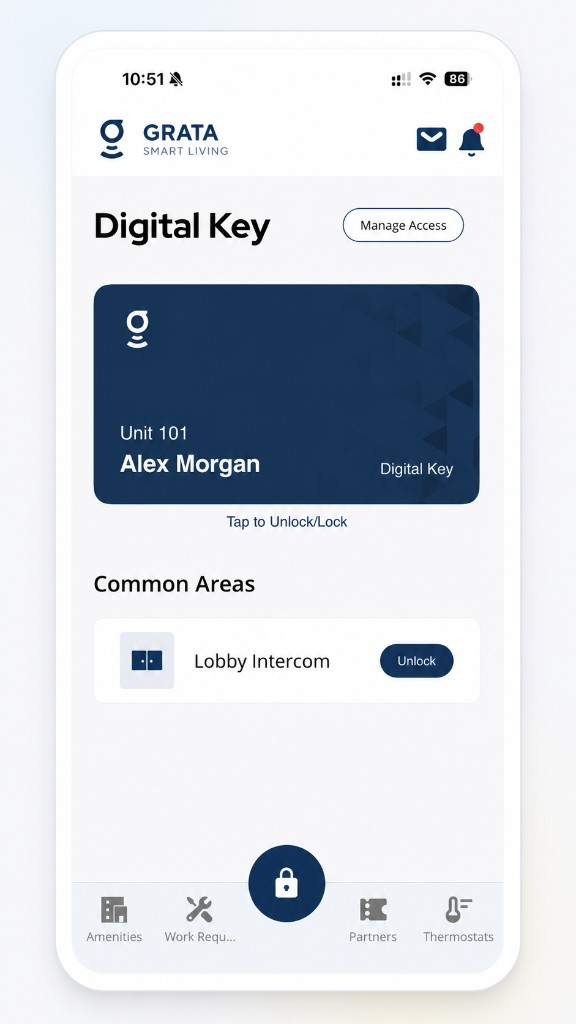
Common Areas on the home screen.
2Step 2: Open favourites or organize
- Tap the star or Select Favourites / Organize Your Homepage option if your building shows it.
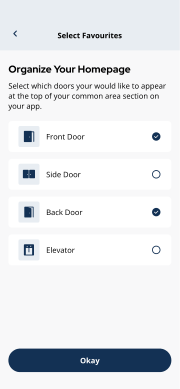
Choose which doors appear near the top of Common Areas.
3Step 3: Select which doors should appear
- Pick the doors you want to prioritize. This only changes the order shown for Common Areas, not your permissions.
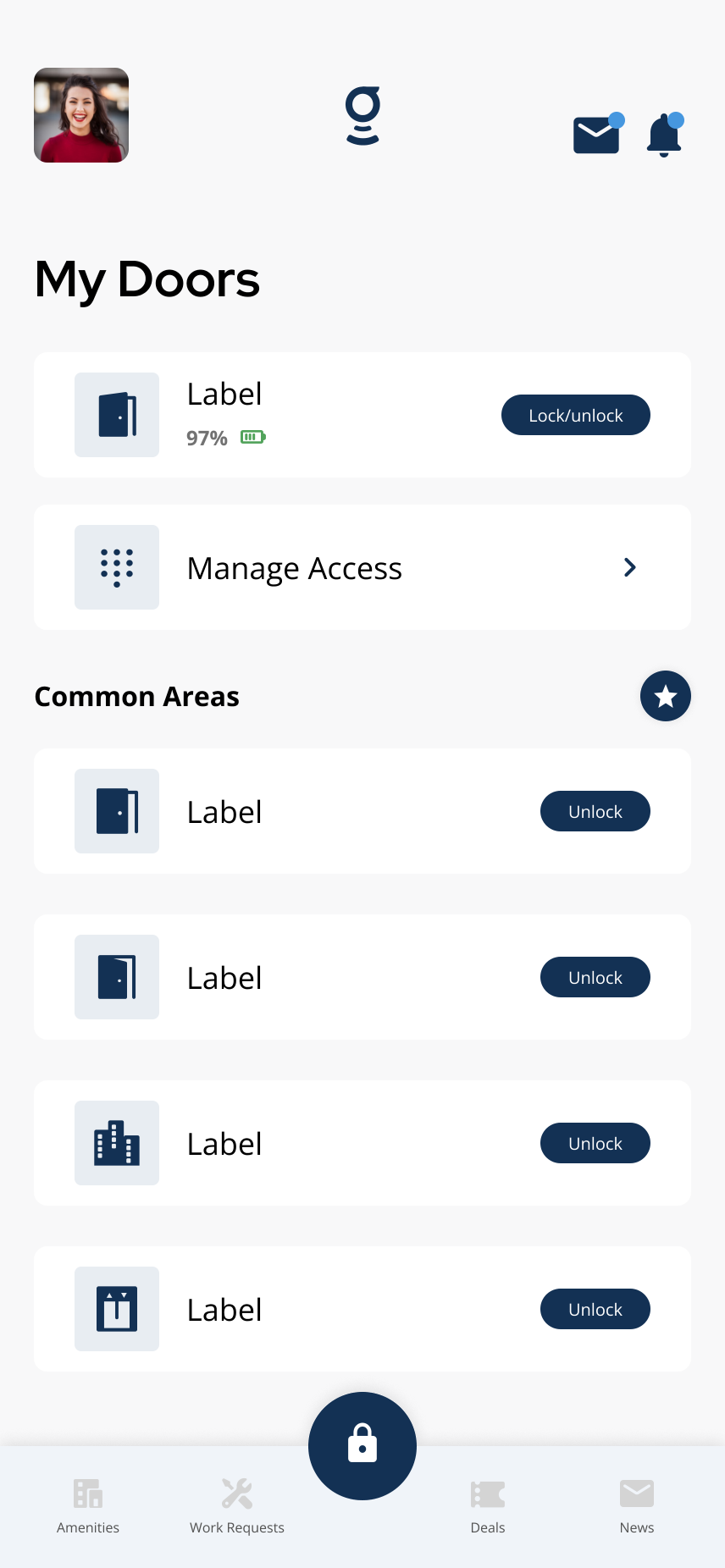
Example Common Areas list — door names depend on your building.