
Lock or Unlock Door with a PIN Code
Summary
Step-by-Step Instructions
1Step 1: Check your PIN in the app
- Open the Grata app and go to Manage Access to confirm your current PIN if needed.
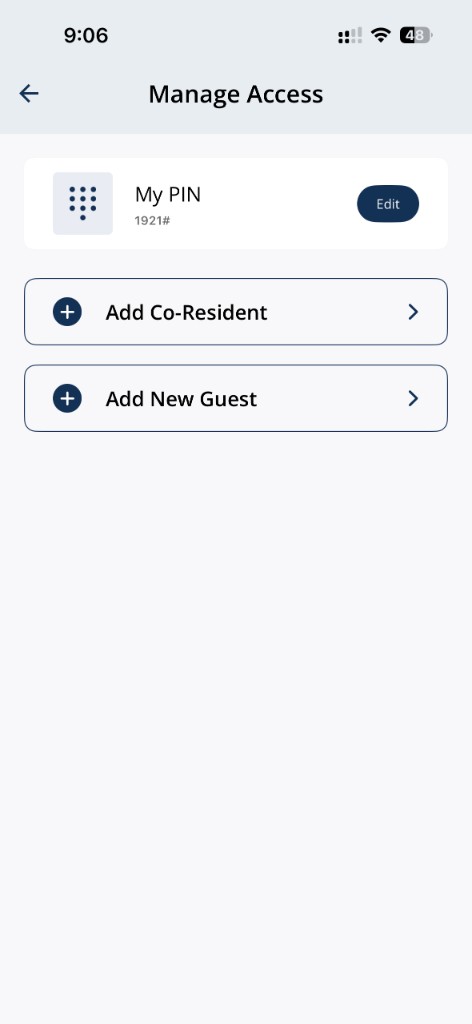
Find My PIN under Manage Access when you need to confirm your current code.
2Step 2: Go to the keypad at the door
- Stand at the supported entry for your building.
3Step 3: Wake the keypad before entering your PIN
- Touch or palm the lock face until the PIN pad lights up.
4Step 4: Enter your approved PIN and press
- Enter your PIN digits, then press right away.
5Step 5: Wait for unlock confirmation before opening the door
- Listen or watch for the lock to unlock before pulling the handle.
6Step 6: If it still fails after correct entry
- Pause before retrying if you may have hit the lockout window (often after several wrong attempts).
- Use PIN Troubleshooting in the Grata App for deeper checks.
If PIN access does not work
- My PIN is missing from Manage Access when it should appear.
- The app saves a new PIN but the lock never accepts it at the door.
- The PIN works in testing but the door still will not open after following this article.
- You get a message that the PIN cannot be created or is already in use.
Important Notes
- Some lock models or lock settings may vary by property.
- Residents should not change master PINs unless Grata or property management explicitly allows it.
- If the PIN does not work, confirm the correct PIN and contact property management or support.
Tips
- Enter the PIN slowly and confirm each digit before pressing #.
- If the keypad does not respond, wake the keypad again before retrying.
Related articles
View or Find Your PIN Code
1 min read
Check your current door PIN from Manage Access — and create a new one if you've forgotten the old.
Change Your Suite Lock PIN Code
1 min read
Change your suite lock PIN from Manage Access in the Grata Smart Living app. You may need to stand near your u...
PIN Code Security
4 min read
Keep PIN access secure—keep your resident PIN private, use guest PINs for visitors, change your PIN when neede...
PIN Troubleshooting in the Grata App
4 min read
Fix common PIN issues—wrong codes, unresponsive keypads, missing My PIN, expired guest PINs, sync delays, and...
Manage Access Overview
1 min read
Manage Access is home for My PIN, Intercom PIN, co-residents, and guest invites—open the linked article for ea...