
Lock or Unlock a Door with the Grata App
Section: Doors & AccessCategory: Digital KeyHow-to1 min read
Summary
This article shows how to lock or unlock supported doors using Digital Key in the Grata app.
Available doors may include your suite door, building entrances, common area doors, intercom-connected doors, elevator access, amenity access, or other access points depending on your building setup. Door availability depends on your resident permissions and what your property team has enabled.
Not every door can be controlled from the app. Some doors may require you to be physically near the lock or reader for Bluetooth unlock to work. Door access also depends on connectivity, lock hardware, and building configuration.
If a door does not appear or does not unlock, check your internet or Bluetooth connection, confirm you are near the door if required, and verify that the door is enabled for your account. Property management controls which doors a resident can access.
Step-by-Step Instructions
1Step 1: Start from the Grata app home screen
- From the Grata app home screen, use the Digital Key card near the top of the screen.
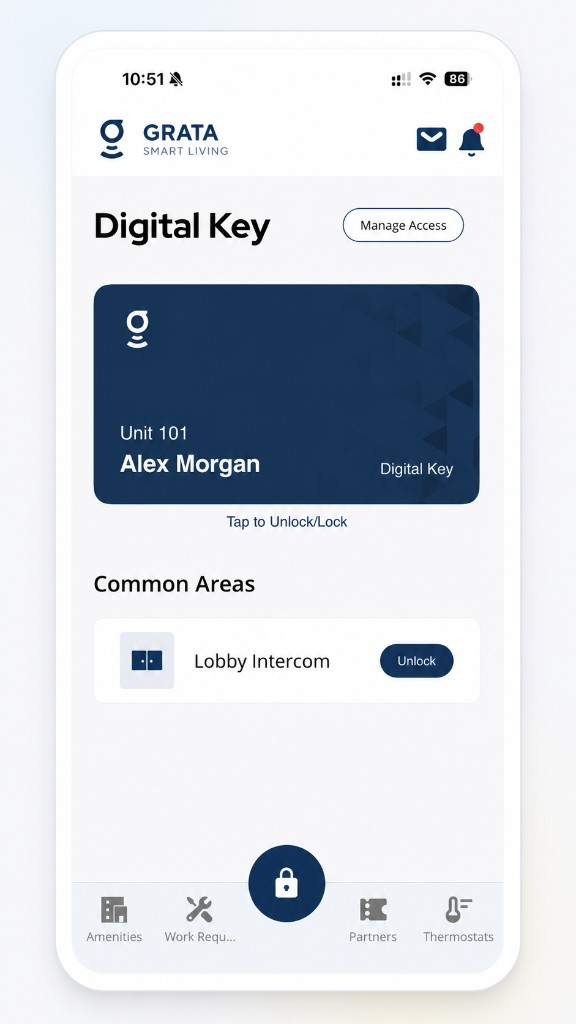
Start from the Grata app home screen.
2Step 2: Tap the Digital Key card to lock or unlock
- Tap Tap to Unlock/Lock on the Digital Key card and follow any prompts.
3Step 3: If the app asks you to hold near the reader
- Move close to the lock or reader and hold the back of your phone near it until the app finishes.
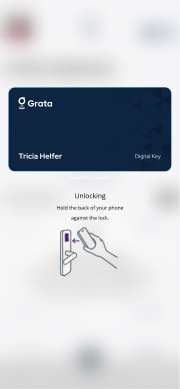
Some doors prompt you to hold near the reader or lock.
4Step 4: Wait for the app to confirm the door status
- Wait until the app shows that the door is locked or unlocked.
If Digital Key does not appear or complete
- Digital Key never appears or never completes after you follow these steps.
Related articles
Lock or Unlock Door with a PIN Code
1 min read
Unlock your door with your PIN when your phone isn't an option — wake the keypad, enter your code, press #, an...
Use Digital Key Offline
1 min read
Use this guide to unlock with Digital Key when your phone loses internet in the Grata Smart Living app. Digita...
Digital Key Overview
4 min read
For **Digital Key** and reader-based unlocks, stand near the door or reader when prompted—**Digital Key** may...
Digital Key
1 min read
Use this guide to complete resident tasks in the Grata app.
Bluetooth Not Working
1 min read
Use this guide to complete resident tasks in the Grata app.