
Contact Support from the Grata App
Summary
Step-by-Step Instructions
1Step 1: Open the Grata app
- Open the Grata app on your phone and tap the top-left icon to open the Profile menu.
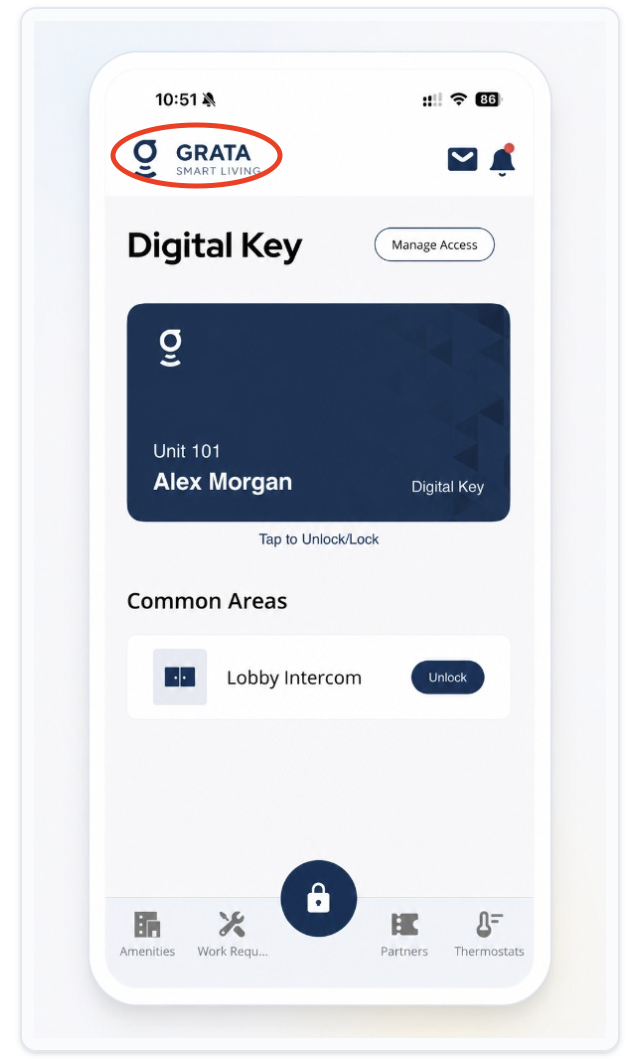
Tap the top-left icon from the Grata app home screen.
2Step 2: Open Software Support
- On the Profile menu, tap Software Support.
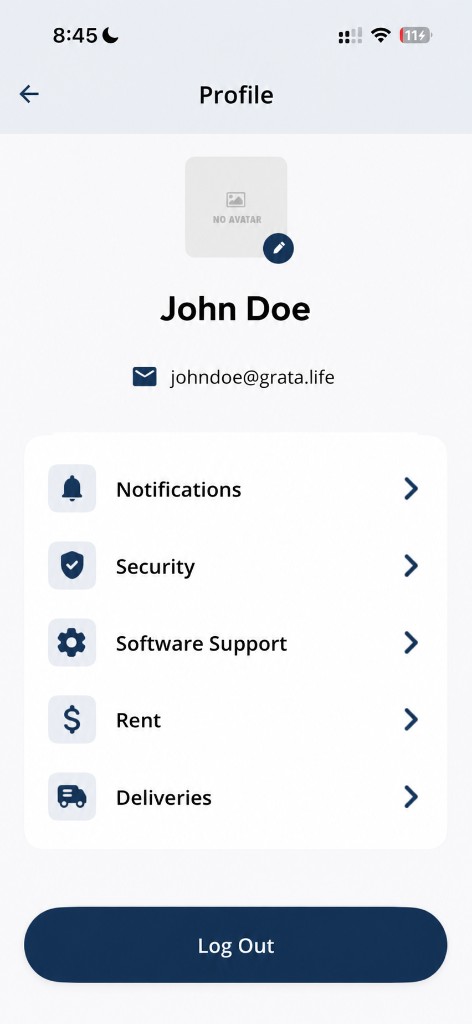
Tap Software Support from the Profile menu.
3Step 3: On the Software Support screen, tap Email Support to send a support request.
- On the Software Support screen, tap Email Support to send a support request.
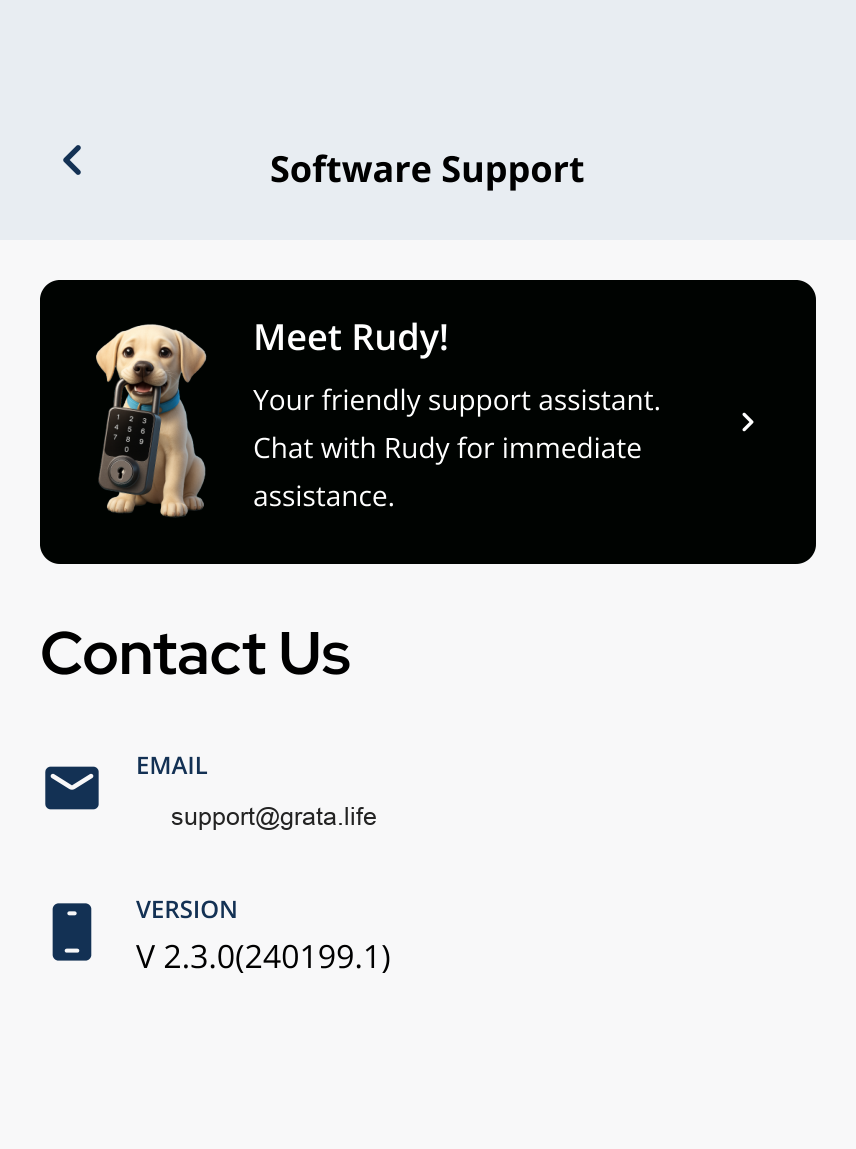
Tap Email Support to contact your building team or .
4Step 4: Describe your issue clearly
- Include your building name, unit number, what happened, and what you already tried.
- Attach screenshots or error messages if available.
- Send from an email address you can reply on.
5Step 5: Watch for follow-up
- Your building team or support channel will respond based on their process and hours.
What to include in your support request
- Your building name and unit number.
- A clear description of the issue.
- What you already tried.
- Your App Version — find it in Software Support > App Version.
- Screenshots or error messages if relevant.
Important Notes
- For emergencies, follow your building's emergency process. Do not use this support flow for urgent safety issues.
Related articles
Report Incorrect Account Information
1 min read
If building, unit, or resident details are wrong and cannot be edited, report them to your building team.
Open Rudy AI Support in the Grata App
1 min read
Open Meet Rudy from Profile > Software Support—Rudy helps with common questions about the Grata Smart Living a...
Find App Version in the Grata App
1 min read
Find your Grata App Version from Profile > Software Support when support asks which build you use, or check yo...
Profile Overview
1 min read
Update account details, passwords, notification settings, and support options from Profile.
Who to contact for help
2 min read
Use this guide to complete resident tasks in the Grata app.