
My PIN Is Not Working
Summary
Route 1: Wake the keypad correctly
- At the door, touch or palm the keypad or screen until the PIN prompt, backlight, or tone appears.
- Wait for the lock to finish waking before you enter any digits.
- Enter the code slowly and carefully — avoid duplicate presses from gloves, bags, or two people typing at once.
- Press # immediately after the fourth digit when your building requires it.
Route 2: Confirm your PIN in the app
- Open the Grata app and tap Manage Access on the home screen.
- Compare what you are typing at the door with the code shown for the correct entry type:
- My PIN — your resident suite or unit door code.
- Intercom PIN — a separate code for intercom or entry-panel use when your building shows one.
- Guest PIN — a temporary code created under Manage Guests for a visitor.
- Temporary PIN — short-lived codes your building may issue for move-in, vendors, or service visits.
- Some buildings use different codes for different doors — confirm the door label matches the PIN type you are testing.
Route 3: Wait out a temporary security lockout
- If you already tried several wrong codes, the lock may temporarily disable PIN entry as a security measure.
- Wait 5–15 minutes (often about 10 minutes after more than five failed attempts) before trying again.
- Do not keep guessing random numbers — each failed attempt can extend the lockout window.
- If you are unsure whether a lockout is active, pause and retry once with the confirmed code from Manage Access.
Route 4: Check for recent PIN changes and sync
- If you or a co-resident recently edited My PIN, reopen Manage Access and confirm the saved code matches what you expect.
- Stand beside the suite door with Bluetooth on so the updated PIN can sync when your building requires proximity.
- Fully close the Grata app, restart your phone, and sign in again — especially after a recent app update or credential change.
- Recheck Manage Access after reopening the app so you are viewing the latest PIN values.
Route 5: Check guest PIN expiration
- Open Manage Access > Manage Guests and confirm the guest entry still exists and has not passed its end date or time window.
- Temporary guest PINs may expire automatically — create a new guest PIN or extend access when the app allows it.
- Remember that guest PINs are for visitors; do not type a guest code when you mean to use your resident My PIN.
Route 6: Try another access method
- If your building supports it, try Digital Key from the home screen and tap Tap to Unlock/Lock while near the door.
- Try a physical credential or fob if your building issued one.
- If mobile unlock works but the keypad PIN does not, the issue is likely keypad-specific — focus on wake sequence, lockout timing, and whether the PIN synced after a recent edit.
When to contact property management
- My PIN or guest tools never appear in Manage Access when you expect them.
- The keypad never wakes after repeated touch or palm attempts.
- The lock still rejects a confirmed correct PIN after any lockout window ends.
- Nothing happens at the door even with a confirmed correct entry and working Digital Key.
- You believe your PIN changed or your access was removed without your action.
- The same PIN fails at multiple doors you should be able to open.
Important Notes
- Fully close the Grata app, restart your phone, and sign in again — especially after a recent app update or credential change.
- Try a physical credential or fob if your building issued one.
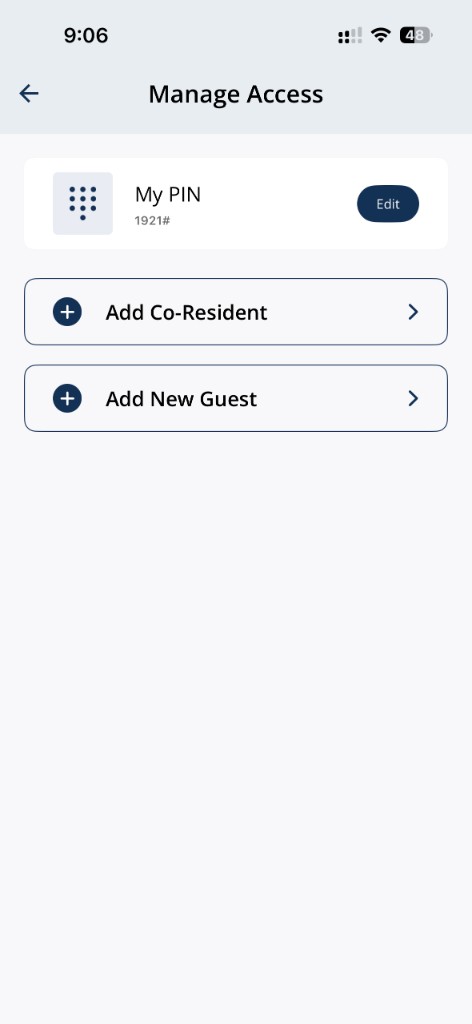
Confirm **My PIN** and guest access options in **Manage Access**.
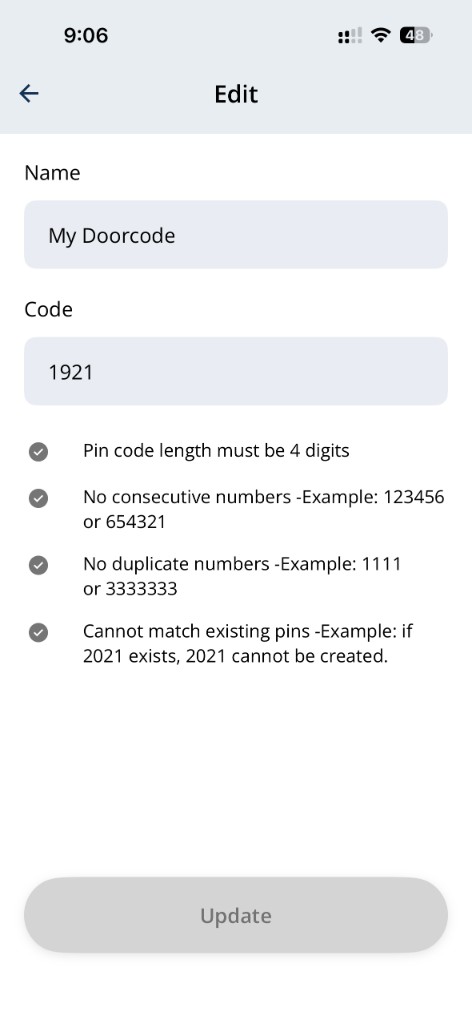
Confirm your updated **My PIN** saved correctly before retrying at the door.
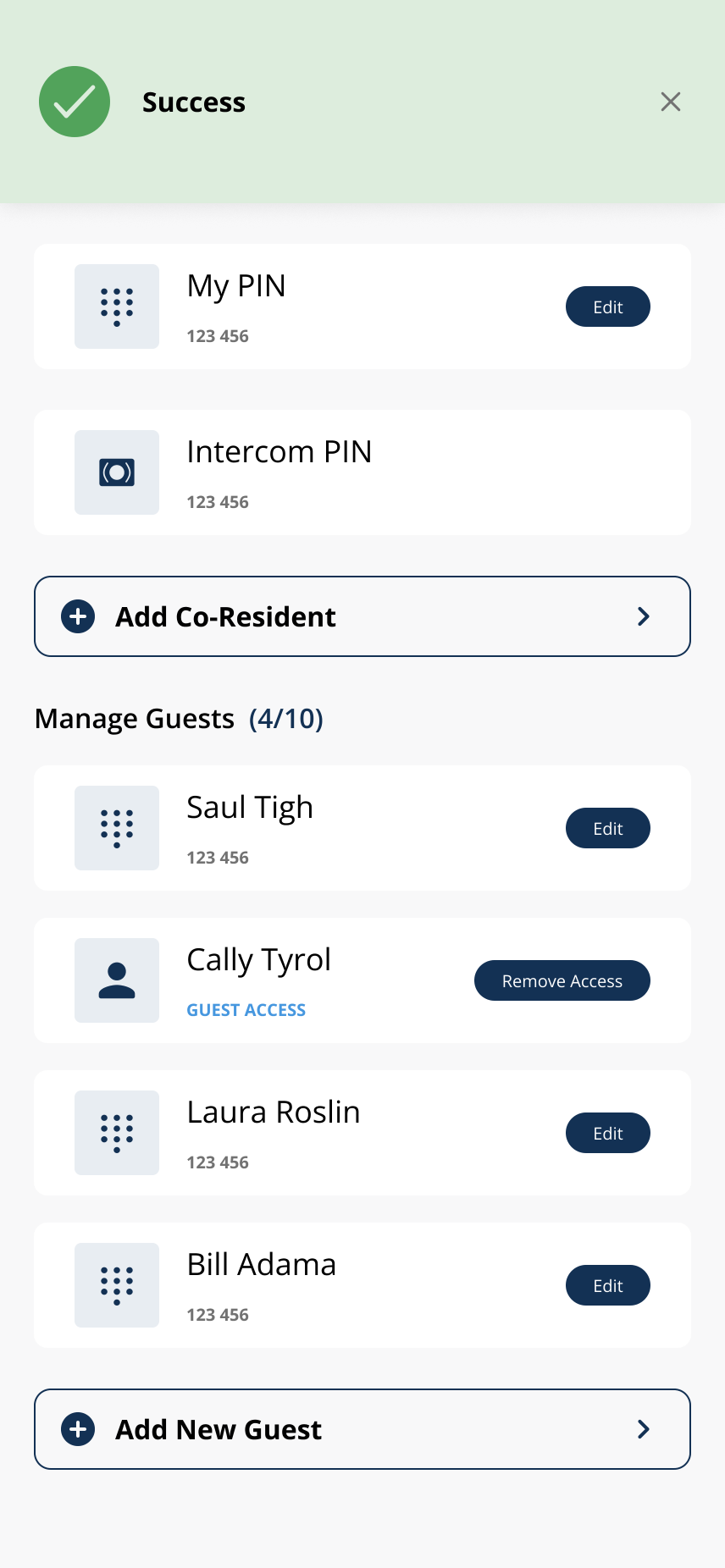
Guest PINs may expire — confirm dates or create a new code when needed.
Tips
- Enter the code slowly and carefully — avoid duplicate presses from gloves, bags, or two people typing at once.
Related articles
Lock or Unlock Door with a PIN Code
1 min read
Unlock your door with your PIN when your phone isn't an option — wake the keypad, enter your code, press #, an...
Bluetooth / Range Troubleshooting
1 min read
If mobile unlock is inconsistent, the issue is often Bluetooth, phone permissions, distance from the lock or r...
PIN Troubleshooting in the Grata App
4 min read
Fix common PIN issues—wrong codes, unresponsive keypads, missing My PIN, expired guest PINs, sync delays, and...
Contact Property Management or Support
1 min read
Reach your property management team or Grata support straight from the app — Rudy AI, Email Support, or your b...
Manage Access Overview
1 min read
Manage Access is home for My PIN, Intercom PIN, co-residents, and guest invites—open the linked article for ea...