
PIN Troubleshooting in the Grata App
Summary
My PIN does not unlock the door▾
- Confirm you entered the correct PIN from Manage Access > My PIN.
- Wake the keypad before typing.
- Stand near the lock if you recently updated your PIN so the change can sync.
- Wait several minutes after repeated failed attempts before trying again.
- Do not keep guessing random codes.
- Try another approved access method if your building provides one, such as Digital Key.
The keypad is not responding▾
- Tap or palm the keypad to wake it before entering digits.
- Check whether the lock battery may be low.
- Enter the PIN slowly and deliberately.
- If the keypad stays completely unresponsive, try another access method if available and contact property management if the hardware may need attention.
My PIN disappeared from Manage Access▾
My guest PIN stopped working▾
- Guest PINs may expire automatically when their access window ends.
- Open Manage Access > Manage Guests and confirm the guest entry still exists.
- Create a new guest PIN if the previous one expired or was removed.
- Use Create Guest PIN or Guest App for visitors — do not share your resident PIN.
- Remove old guest access when a visit ends.
I changed my PIN but the lock still rejects it▾
- Some locks need time to sync PIN updates from the app.
- Stay near the lock with Bluetooth on after changing your PIN.
- Retry after fully closing and reopening the app.
- Confirm the saved PIN in Manage Access matches what you are typing at the door.
- Avoid repeatedly entering incorrect codes while waiting for sync.
The app will not save my PIN changes▾
- Confirm your phone has an internet connection.
- Reopen Manage Access and tap Edit beside My PIN again.
- Make sure the PIN meets every rule shown on the Edit My PIN screen.
- Avoid simple PINs such as 1234 or 0000 when your building allows you to choose the code.
- Retry later if the lock or system appears temporarily offline.
What happens after too many incorrect attempts?▾
- Repeated failed attempts may temporarily disable PIN entry at the keypad.
- Wait several minutes before trying again.
- Do not keep guessing random codes — each failed try can extend the lockout.
- After the wait period, retry once with the confirmed PIN from Manage Access.
- PIN behavior depends on your building setup and lock hardware.
When to contact property management▾
- No access method works at the door after you follow the guidance above.
- The keypad stays completely unresponsive.
- My PIN disappears repeatedly from Manage Access.
- Guest access fails repeatedly after you confirm dates and permissions.
- PIN updates never sync to the lock after you stood near the door and retried.
- You believe your access permissions are incorrect for your unit or role.
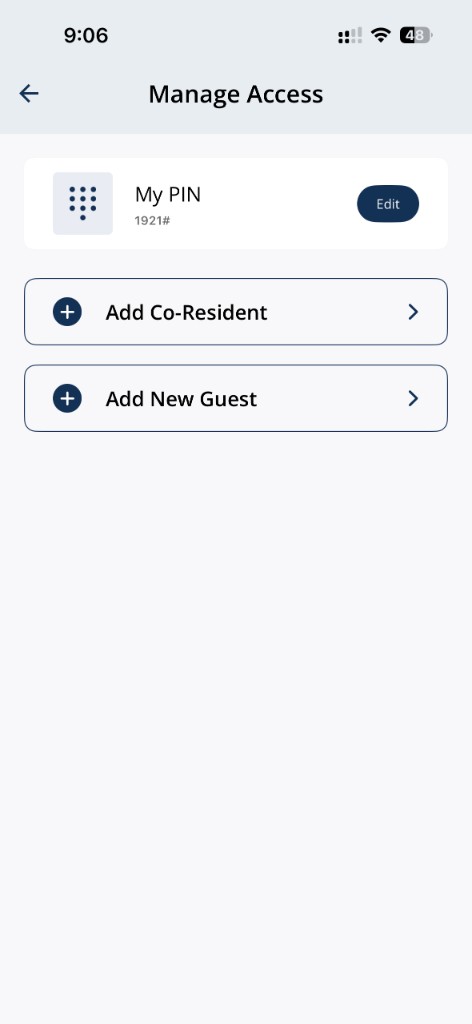
Confirm your PIN in **Manage Access > My PIN** before troubleshooting at the door.
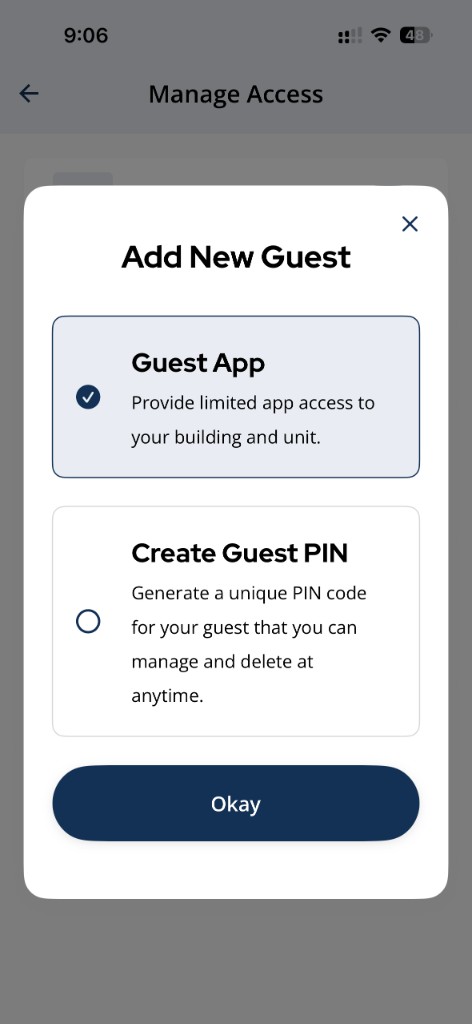
Use **Add New Guest** to create a new guest PIN or invite via **Guest App**.
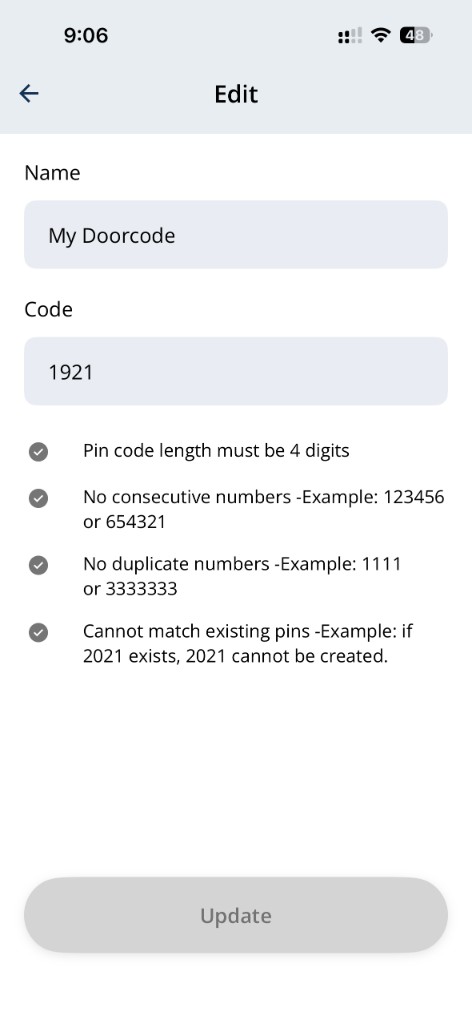
Review PIN validation rules on the **Edit My PIN** screen.
Related articles
Lock or Unlock Door with a PIN Code
1 min read
Unlock your door with your PIN when your phone isn't an option — wake the keypad, enter your code, press #, an...
What Happens If the Lock Battery Dies?
2 min read
If your smart lock battery dies, app unlock and PIN access may stop working—use a physical key or mechanical b...
My PIN Is Not Working
1 min read
When your PIN won't open the door, confirm the correct code in Manage Access, wake the keypad, check for locko...
Change Your Suite Lock PIN Code
1 min read
Change your suite lock PIN from Manage Access in the Grata Smart Living app. You may need to stand near your u...
PIN Code Security
4 min read
Keep PIN access secure—keep your resident PIN private, use guest PINs for visitors, change your PIN when neede...
Create a Guest PIN
1 min read
Create a named guest PIN from Manage Access > Add New Guest > Create Guest PIN.