
Create a Guest PIN
Summary
Step-by-Step Instructions
1Step 1: Open Manage Access
- From the Grata Smart Living home screen, tap Manage Access, then tap Add New Guest.
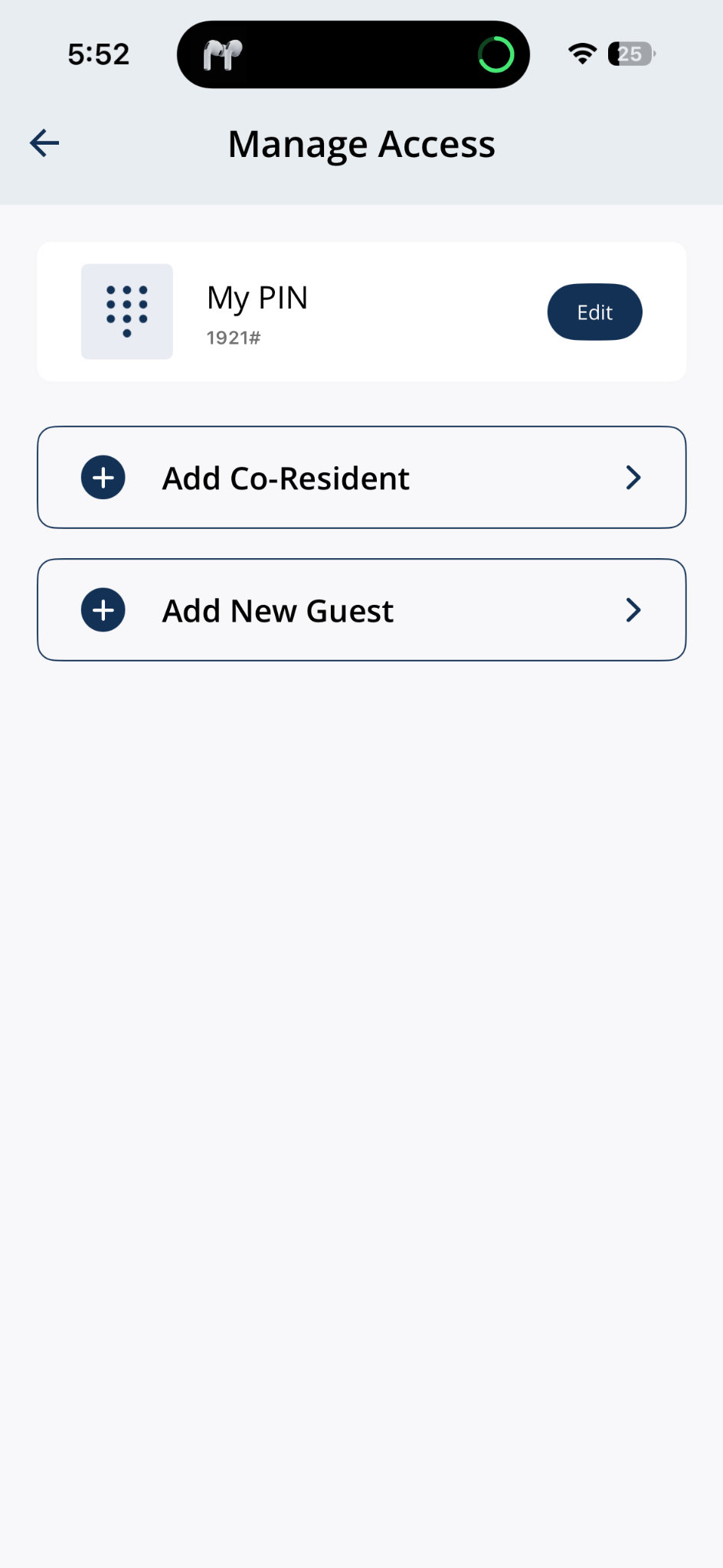
Open Manage Access and tap Add New Guest.
2Step 2: Choose Create Guest PIN
- Select Create Guest PIN, then tap Okay.
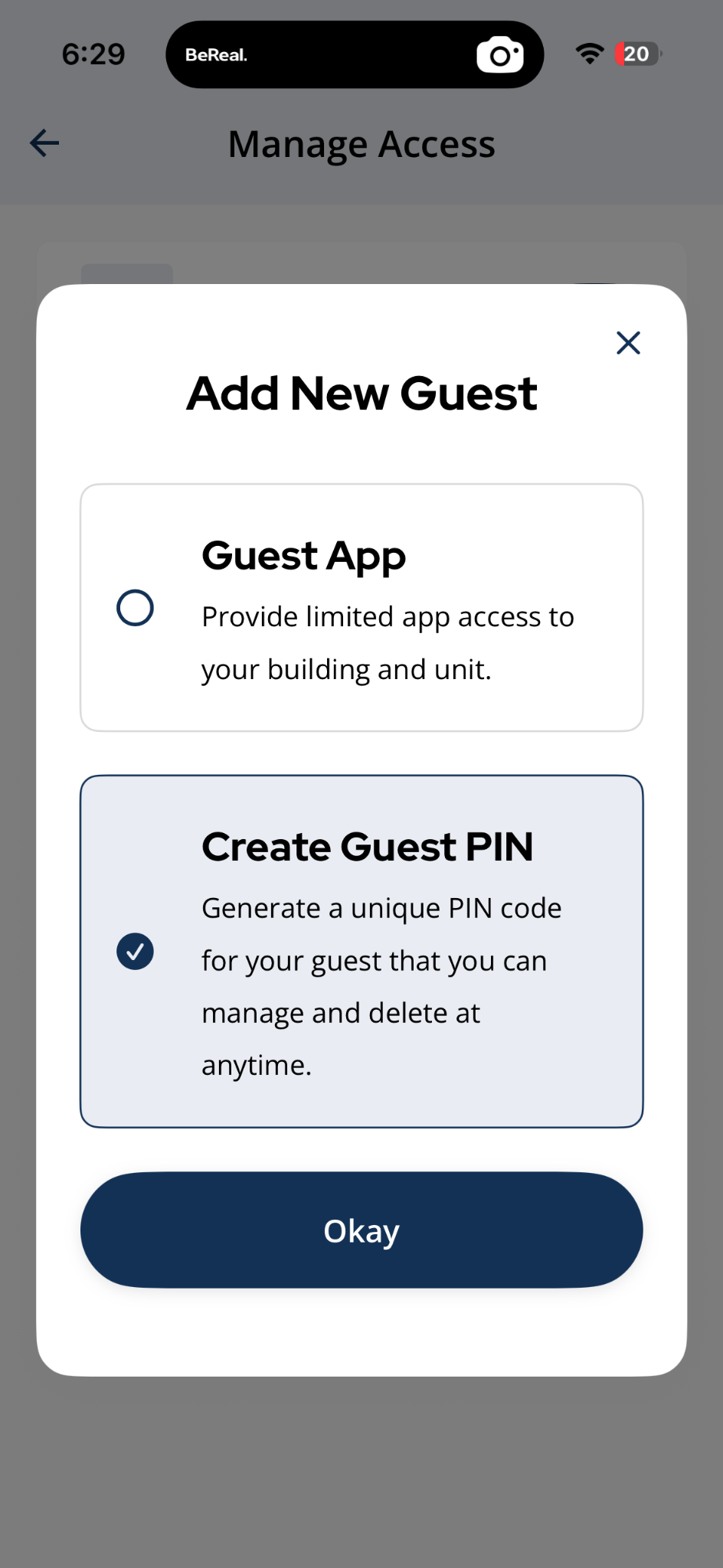
Choose Create Guest PIN, then tap Okay.
3Step 3: Enter the guest's name and PIN code
- Enter a Name and Code. All four PIN rules must show green checkmarks before you can confirm — the PIN must be 4 digits, have no consecutive numbers, no repeated digits, and must not match an existing PIN.
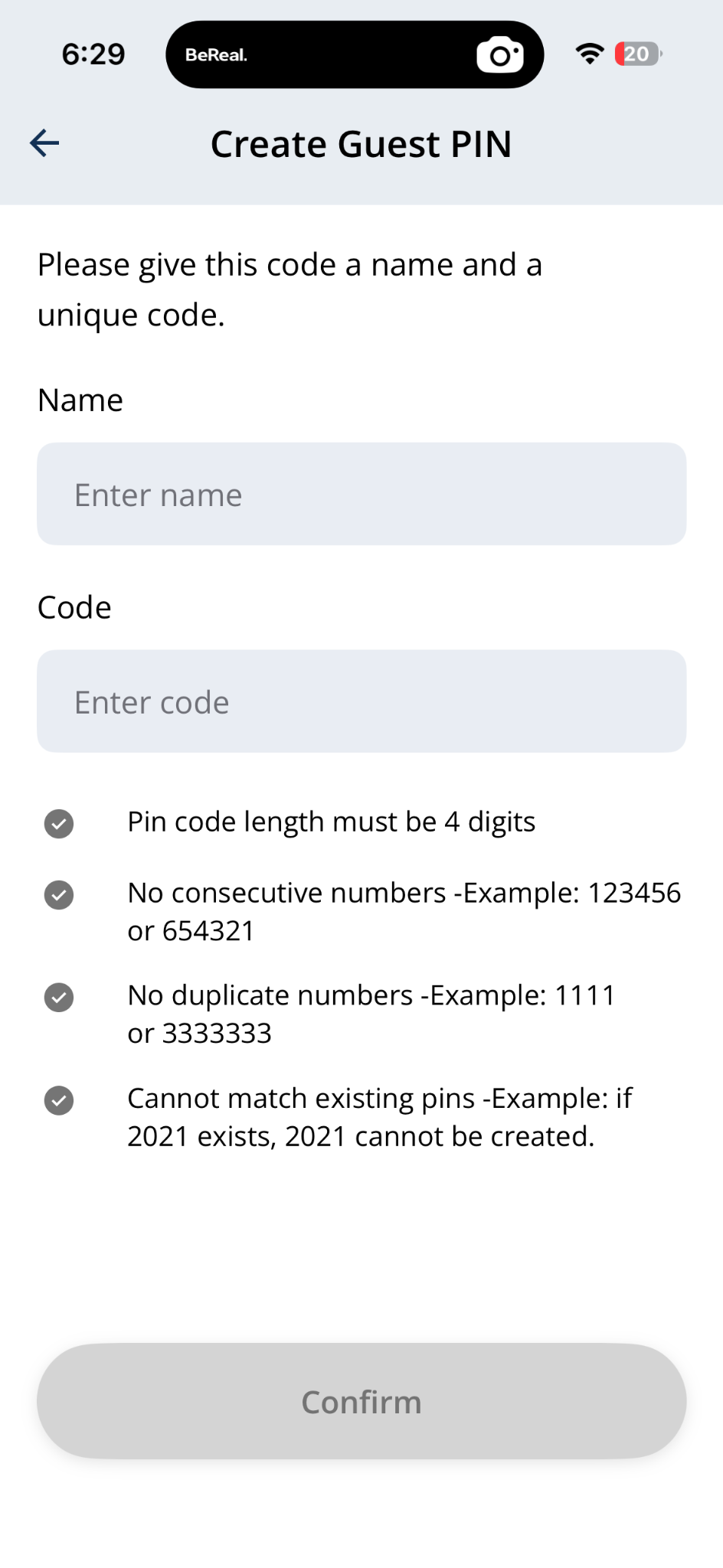
Enter a name and 4-digit PIN — all PIN rules must pass before you can confirm.
4Step 4: Verify the PIN rules and tap Confirm
- When all PIN rules are green and Confirm is active, tap Confirm to save the guest PIN.
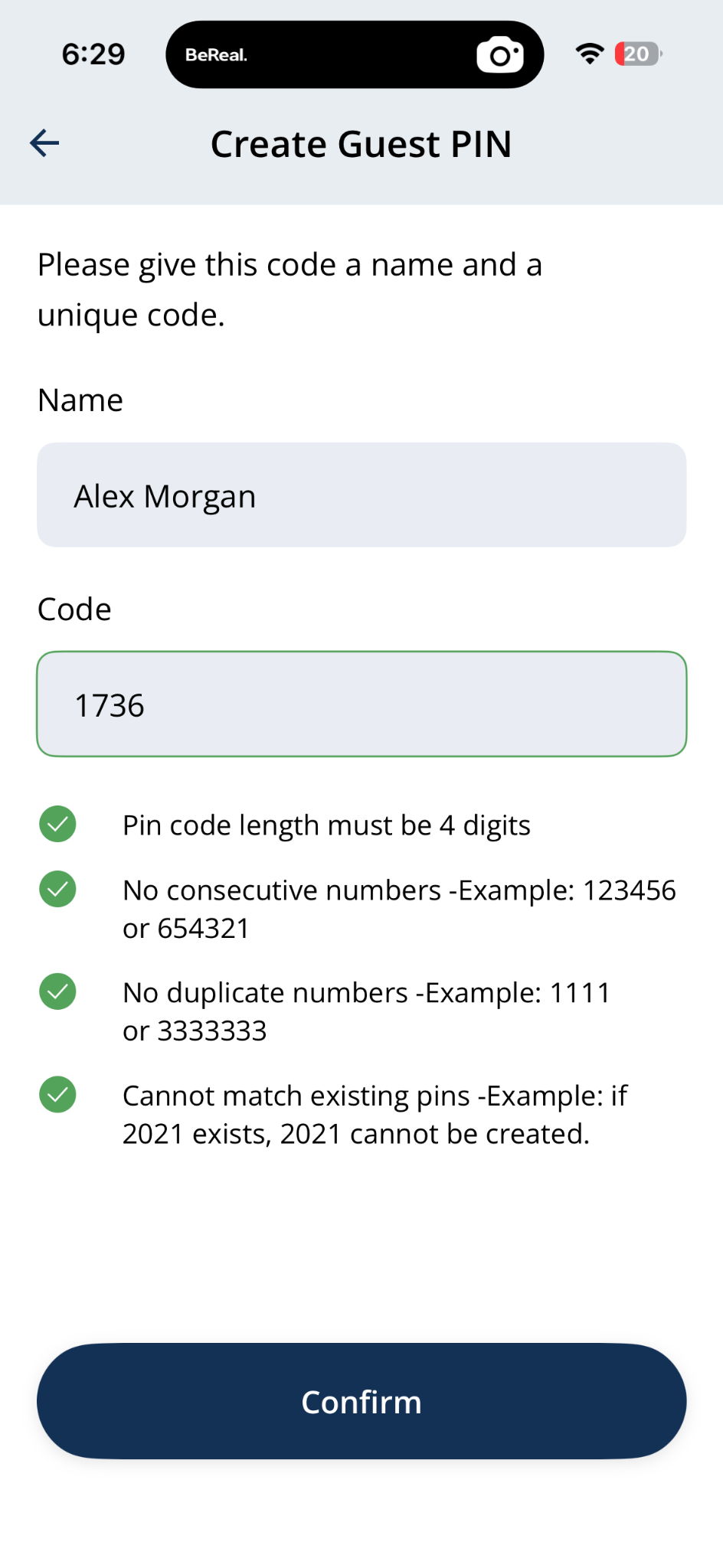
All rules green and Confirm active — tap to save the guest PIN.
5Step 5: Stand next to your lock if prompted
- If the app asks you to stand next to your lock, move close to the door so the guest PIN can sync.
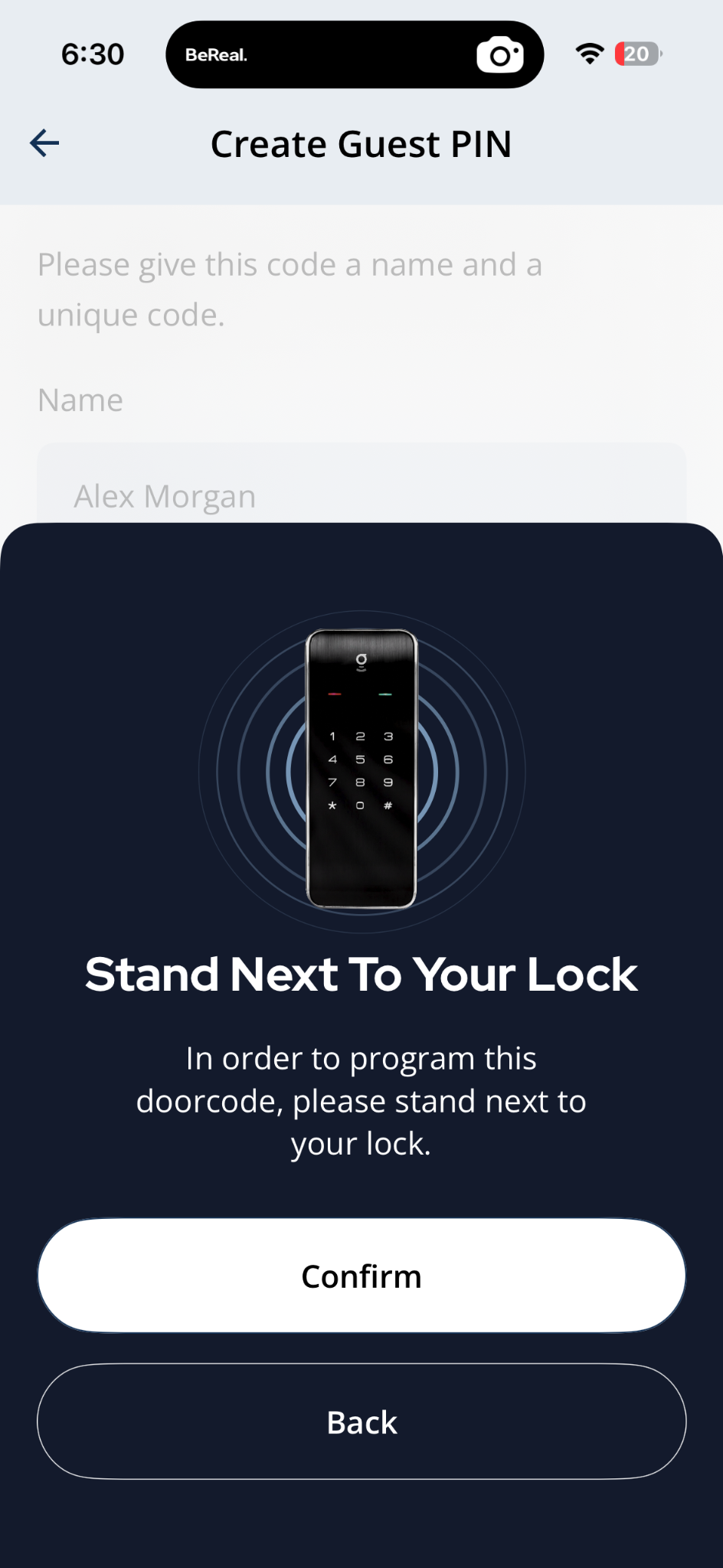
Stand near the lock so the app can program the guest PIN.
6Step 6: Confirm success and with the guest
- When Manage Access shows a Success banner and lists the new guest, the PIN is ready.
- Tell the guest the PIN code and which keypads or doors it works on.
- Remove or update the guest PIN when the visitor no longer needs access.
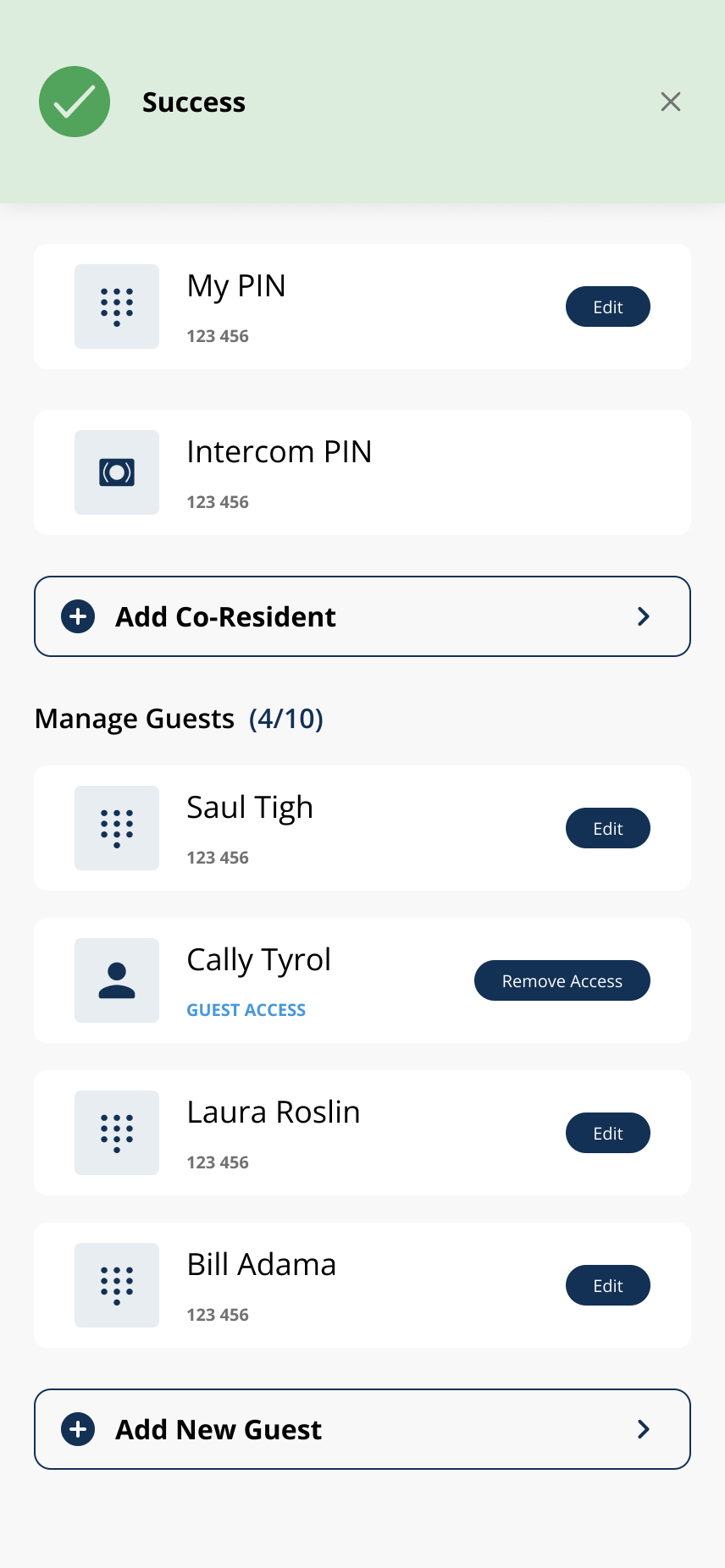
The guest PIN is confirmed and appears in Manage Guests.
Related articles
View or Find Your PIN Code
1 min read
Check your current door PIN from Manage Access — and create a new one if you've forgotten the old.
Add a New Guest in the Grata App
2 min read
From Manage Access, choose Guest App or Create Guest PIN when adding a new guest.
Guest PIN vs Guest App
1 min read
Choose the right way to invite a guest — a PIN code is fastest, the Grata Guest app is more secure for longer...
Remove Guest Access
1 min read
End a guest's access early — works the moment you tap, no notice required.
Delete a Guest PIN
1 min read
Use this guide to set up, enter, or troubleshoot PIN-based door access.
Edit a Guest PIN
1 min read
Change an existing guest PIN from Manage Access > Manage Guests > Edit—not your personal My PIN. Stand near th...