
Edit Guest Access Dates or Times
Section: Guest AccessCategory: GuestsHow-to1 min read
Summary
Update guest details from Manage Access > Manage Guests > Edit, using only the fields your building shows (for example Name, Code, or schedule fields). Use this when you need to extend or shorten guest access dates, adjust access times, or fix other guest details.
Step-by-Step Instructions
1Step 1: Start from the Grata Smart Living home screen
- From the Grata Smart Living home screen, tap Manage Access.
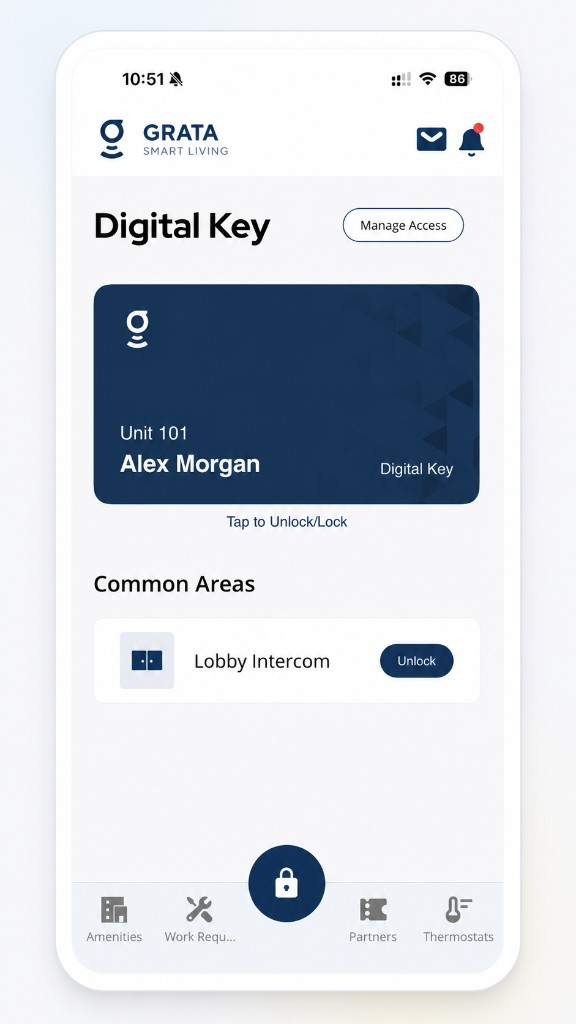
From the Grata Smart Living home screen, tap Manage Access.
2Step 2: Find the guest access you want to edit
- On Manage Access, open Manage Guests, find the guest entry, then tap Edit.
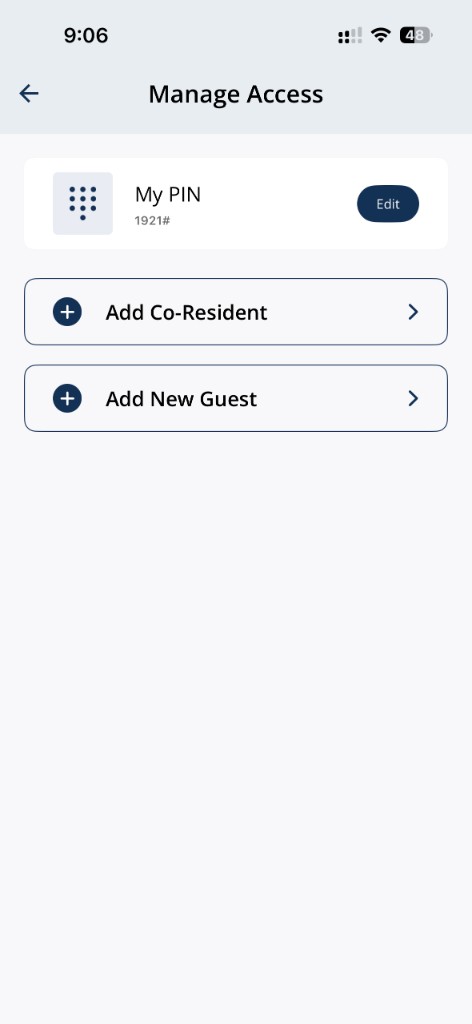
Manage Access; open Manage Guests and tap Edit on the guest you need. The sample screen may show My PIN instead of a guest list.
3Step 3: Update the available guest access details
- Change only the fields your building shows (for example Name, Code, Update, or date and time fields when available).
4Step 4: Tap Update to save when the button is available.
- Tap Update to save when the button is available.
5Step 5: Follow any lock programming prompt
- If the app asks you to Stand Next To Your Lock, move close and complete the step so the lock can be programmed.
6Step 6: Confirm the guest access updated
- Return to Manage Guests and confirm the guest entry reflects your changes (or that a Success message appears).
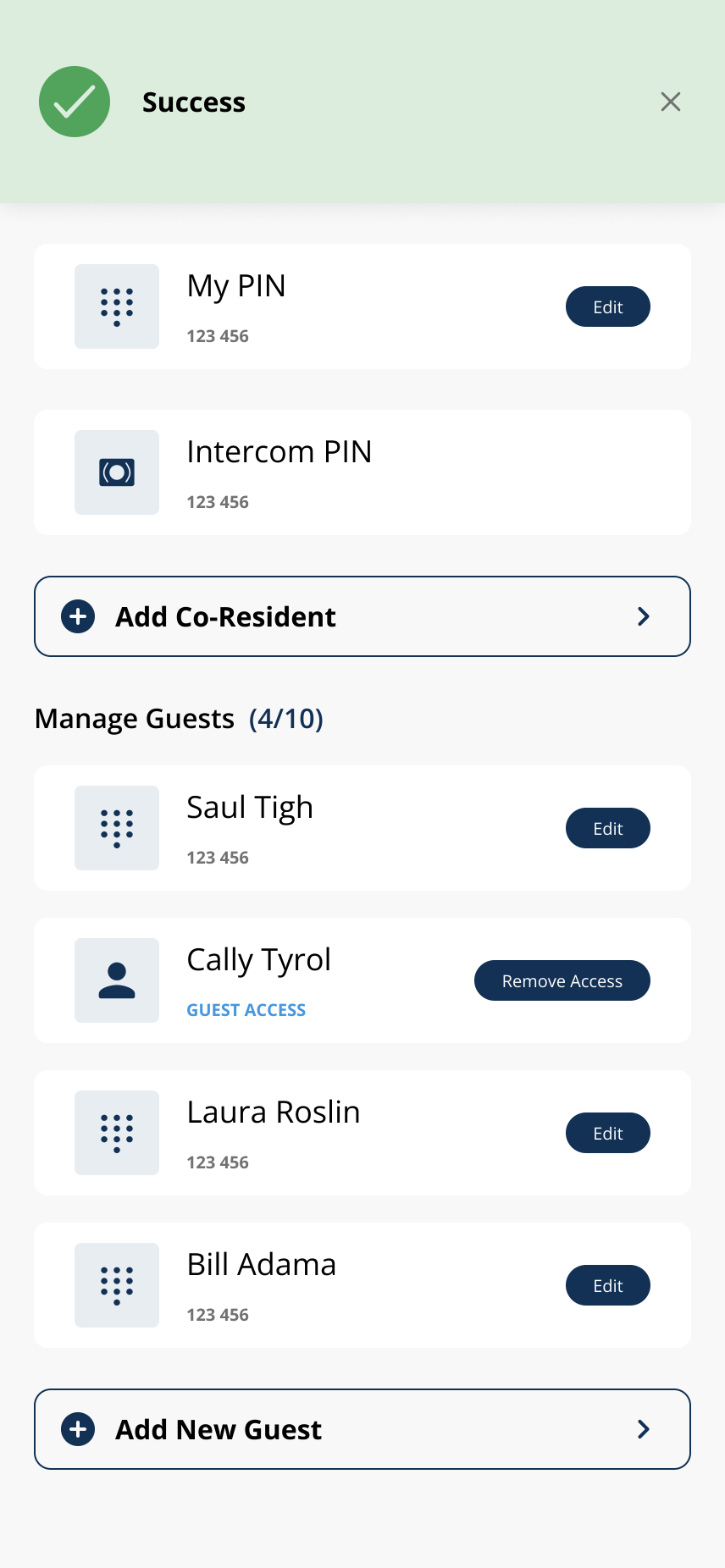
Example success after updating guest access—wording may vary.
Related articles
Create a Guest PIN
1 min read
Create a named guest PIN from Manage Access > Add New Guest > Create Guest PIN.
Remove Guest Access
1 min read
End a guest's access early — works the moment you tap, no notice required.
Edit a Guest PIN
1 min read
Change an existing guest PIN from Manage Access > Manage Guests > Edit—not your personal My PIN. Stand near th...