
What If My App Is Not Unlocking My Door?
Summary
Route 1: Move closer and check Bluetooth
- Confirm Bluetooth is enabled on your phone.
- On some phones, Location permission may also be required for Bluetooth-based access — check the Grata app in your device settings.
- After changing permissions, fully close and reopen the app, then retry once.
- If the app shows Hold Near Reader or similar, stay in place until the progress or success message finishes.
Route 2: Restart the app and check connectivity
- Force-close the Grata app — not only minimize it.
- Reopen the app, confirm you are still signed in to the correct account, and retry the unlock from Digital Key or Common Areas.
- Some unlock workflows — especially LIVE intercom or cloud-connected locks — need Wi-Fi or cellular data.
- Switch between Wi-Fi and cellular if one connection is weak, then retry once.
Route 3: Try another access method
- Enter your resident My PIN at the keypad if your building supports PIN access.
- Use a fob or credential if your building issued one.
- Use a physical key or mechanical backup if your lock or building provides one — options vary by property.
- If a backup method works, the issue is likely app or Bluetooth specific.
Route 4: Check recent access changes and restart your phone
- New move-in permissions, PIN updates, guest credential changes, or building-side access edits may take time to sync.
- Stand near the lock with Bluetooth on after a recent PIN or access change, then retry once — not repeatedly in a row.
- Temporary Bluetooth or app-session glitches often clear after a full phone restart.
- After rebooting, open the Grata app, sign in if needed, and retry near the door.
When to contact property management
- No access method works at the door after all of the above steps.
- Digital Key or expected doors never appear when your building said mobile access would be enabled.
- The app confirms unlock but the physical door does not open.
- You believe your access was removed or changed without your knowledge.
Step-by-Step Instructions
1Step 1: Start from the Grata Smart Living home screen
- Sign in to your resident account.
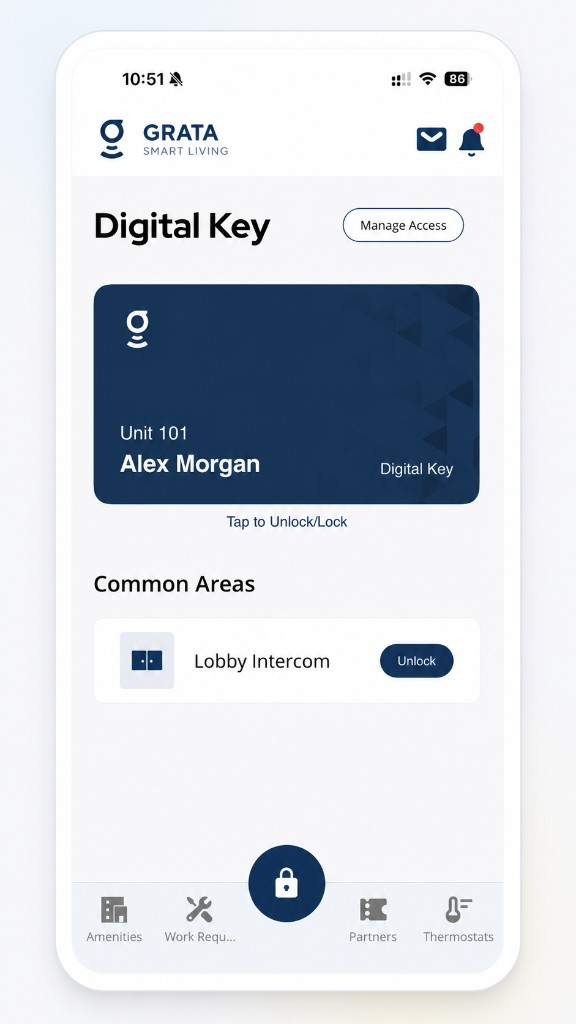
Start from the Grata Smart Living home screen.
2Step 2: Use your on-screen door control
- Use the Digital Key / door area on the home screen, or tap Lock on the bottom bar and pick a door—labels vary by building.
3Step 3: Tap Unlock
4Step 4: Pick the door you want to unlock
5Step 5: Wait for the app to complete the unlock action
6Step 6: Open the door
Important Notes
- Use a fob or credential if your building issued one.
- New move-in permissions, PIN updates, guest credential changes, or building-side access edits may take time to sync.
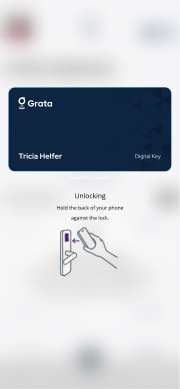
Move close when the app asks you to hold near the reader.
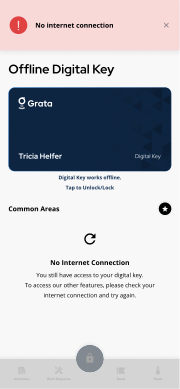
If you see offline or no-internet messaging, connectivity may be blocking unlock even when **Digital Key** appears.
Related articles
Lock or Unlock a Door with the Grata App
1 min read
Use this guide to lock or unlock doors and confirm access status.
Bluetooth / Range Troubleshooting
1 min read
If mobile unlock is inconsistent, the issue is often Bluetooth, phone permissions, distance from the lock or r...
My PIN Is Not Working
1 min read
When your PIN won't open the door, confirm the correct code in Manage Access, wake the keypad, check for locko...
Access Permission Error
1 min read
If you see an access permission error, your account may not have the right building, unit, role, or access per...
Contact Property Management or Support
1 min read
Reach your property management team or Grata support straight from the app — Rudy AI, Email Support, or your b...
Use Digital Key Offline
1 min read
Use this guide to unlock with Digital Key when your phone loses internet in the Grata Smart Living app. Digita...
Digital Key Overview
4 min read
For **Digital Key** and reader-based unlocks, stand near the door or reader when prompted—**Digital Key** may...