
Edit a Guest PIN
Summary
Step-by-Step Instructions
1Step 1: Open Manage Access
- From the Grata Smart Living home screen, tap Manage Access.
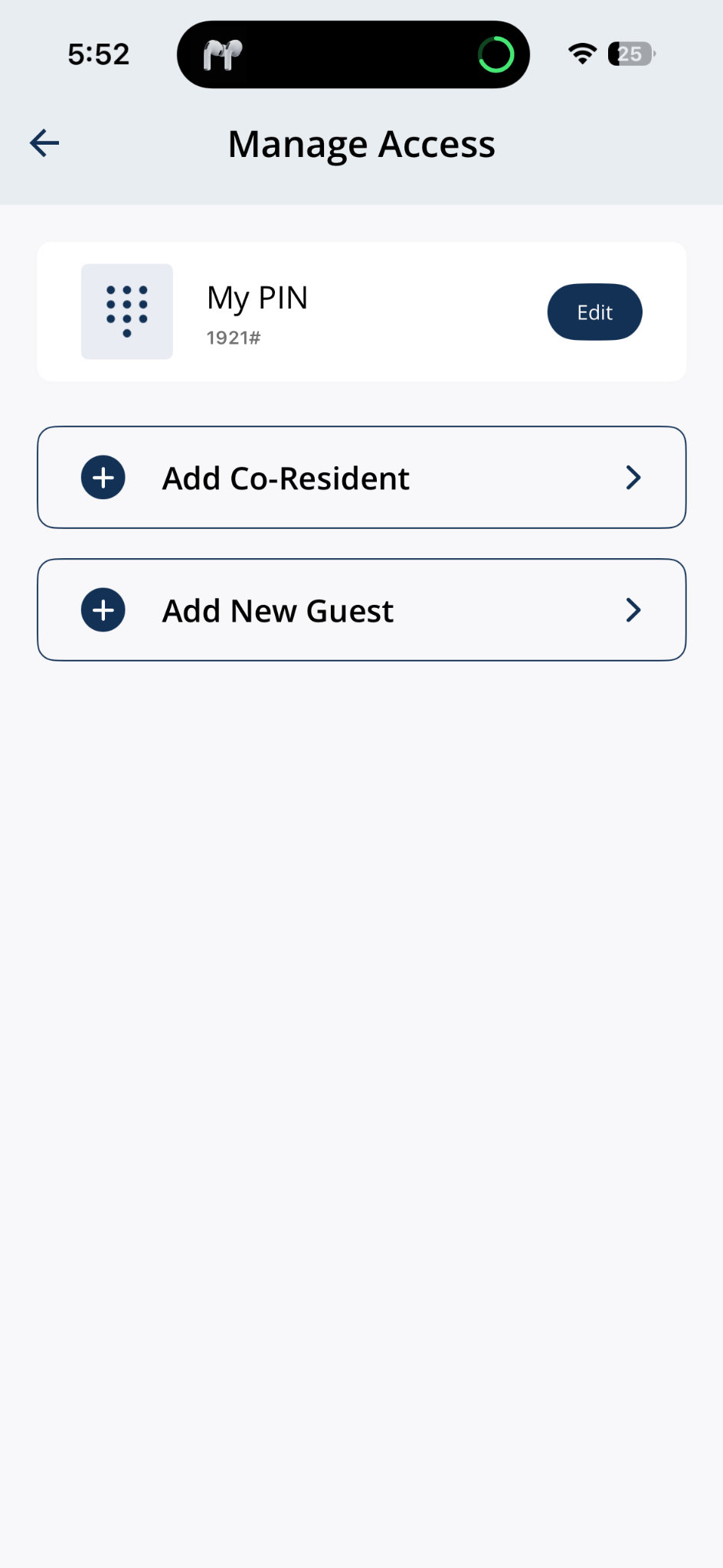
Open Manage Access from the home screen.
2Step 2: Find the guest PIN and tap Edit
- Scroll to Manage Guests and tap Edit beside the guest PIN you want to update.
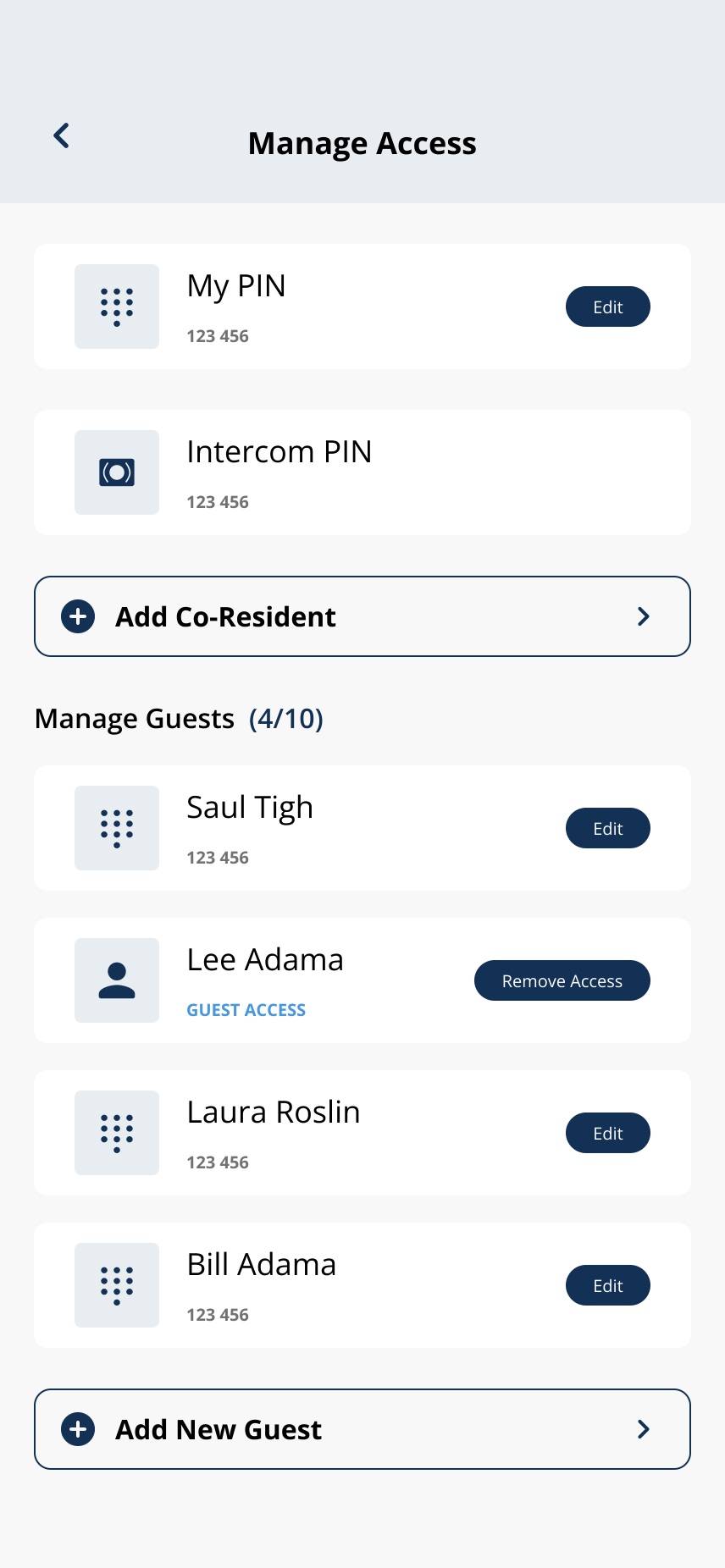
Tap Edit beside the guest whose PIN or details you want to change.
3Step 3: Update the guest PIN or details
- Change the Name, Code, expiry date, or time window as needed.
- Only the updated PIN with the intended guest.
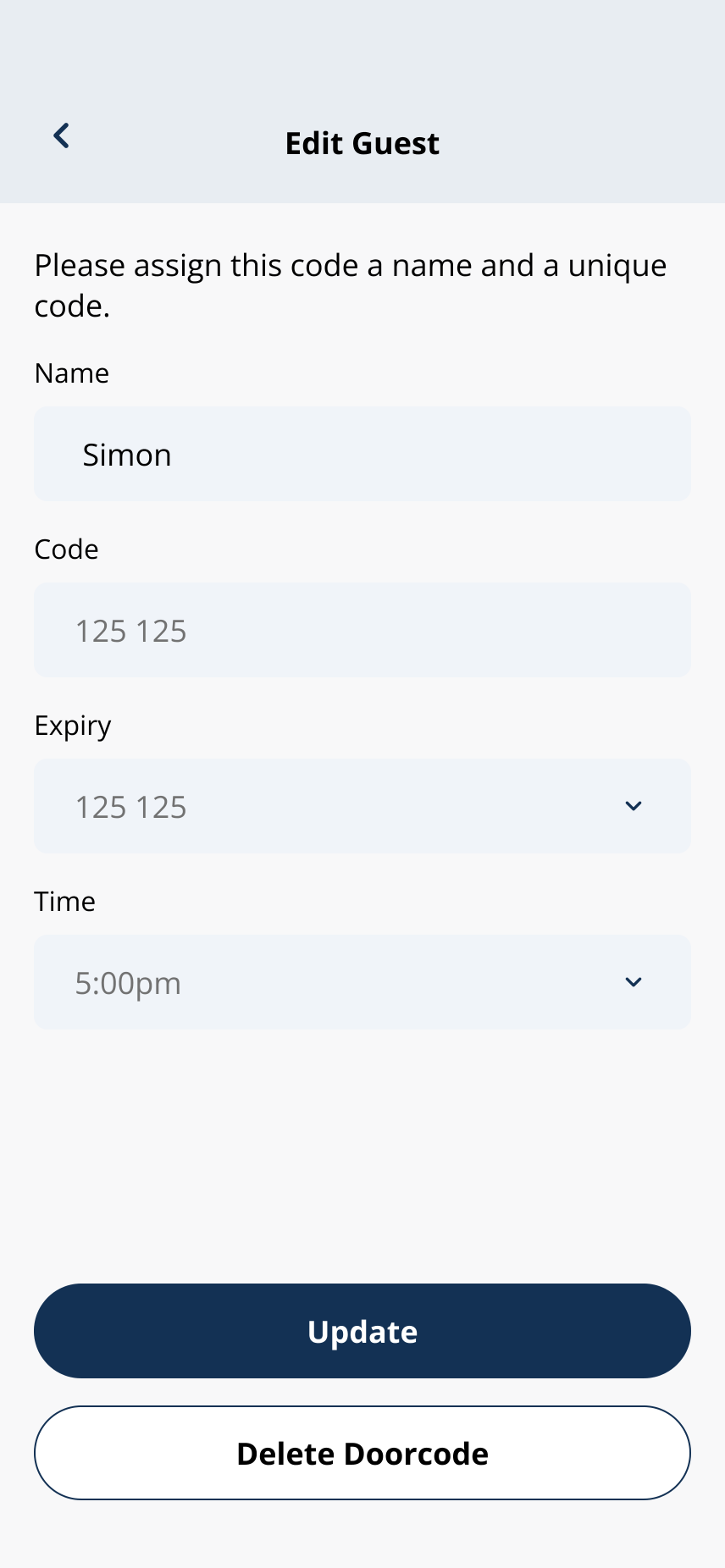
Update guest name, PIN, or access schedule — then tap Update.
4Step 4: Tap Update when it is active to save your changes.
- Tap Update when it is active to save your changes.
5Step 5: Stand near the lock if prompted
- If the app shows Stand Next To Your Lock, move close to the door and tap Confirm so the updated guest PIN can sync.
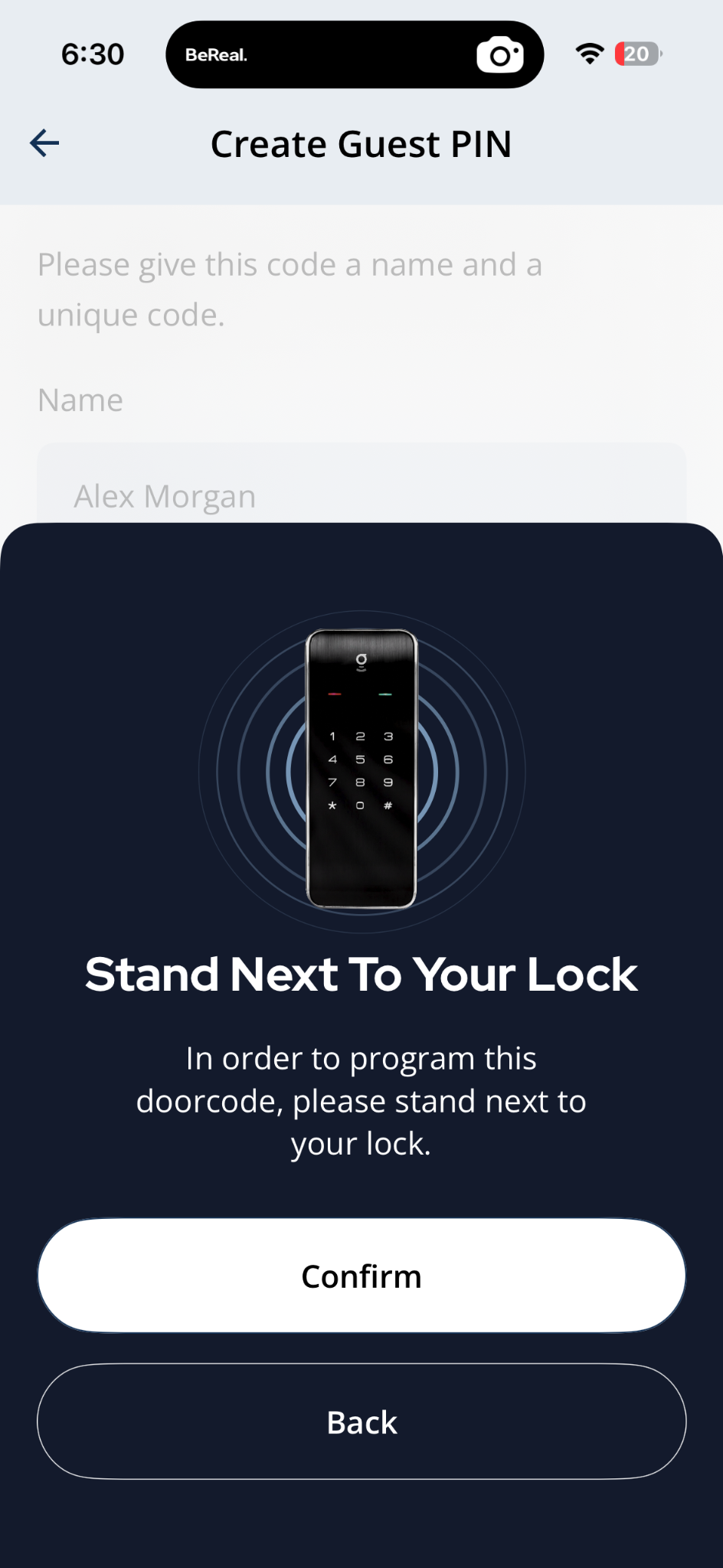
Stand near the lock when the app asks you to program the updated guest PIN.
Related articles
Add a New Guest in the Grata App
2 min read
From Manage Access, choose Guest App or Create Guest PIN when adding a new guest.
Create a Guest PIN
1 min read
Create a named guest PIN from Manage Access > Add New Guest > Create Guest PIN.
Remove Guest Access
1 min read
End a guest's access early — works the moment you tap, no notice required.
Edit Guest Access Dates or Times
1 min read
Adjust when a guest's access starts or ends — extend a visit, shorten it, or change the schedule entirely.
Manage Access Overview
1 min read
Manage Access is home for My PIN, Intercom PIN, co-residents, and guest invites—open the linked article for ea...
Delete a Guest PIN
1 min read
Use this guide to set up, enter, or troubleshoot PIN-based door access.