
Remove Guest Access
Section: Guest AccessCategory: GuestsHow-to1 min read
Summary
Use Manage Access > Manage Guests > Remove Access in the Grata app to revoke a guest's access. Removing guest access prevents that guest from entering again — this applies whether they had a guest PIN or app-based access through a Grata guest account.
Step-by-Step Instructions
1Step 1: Open Manage Access
- From the Grata Smart Living home screen, tap Manage Access.
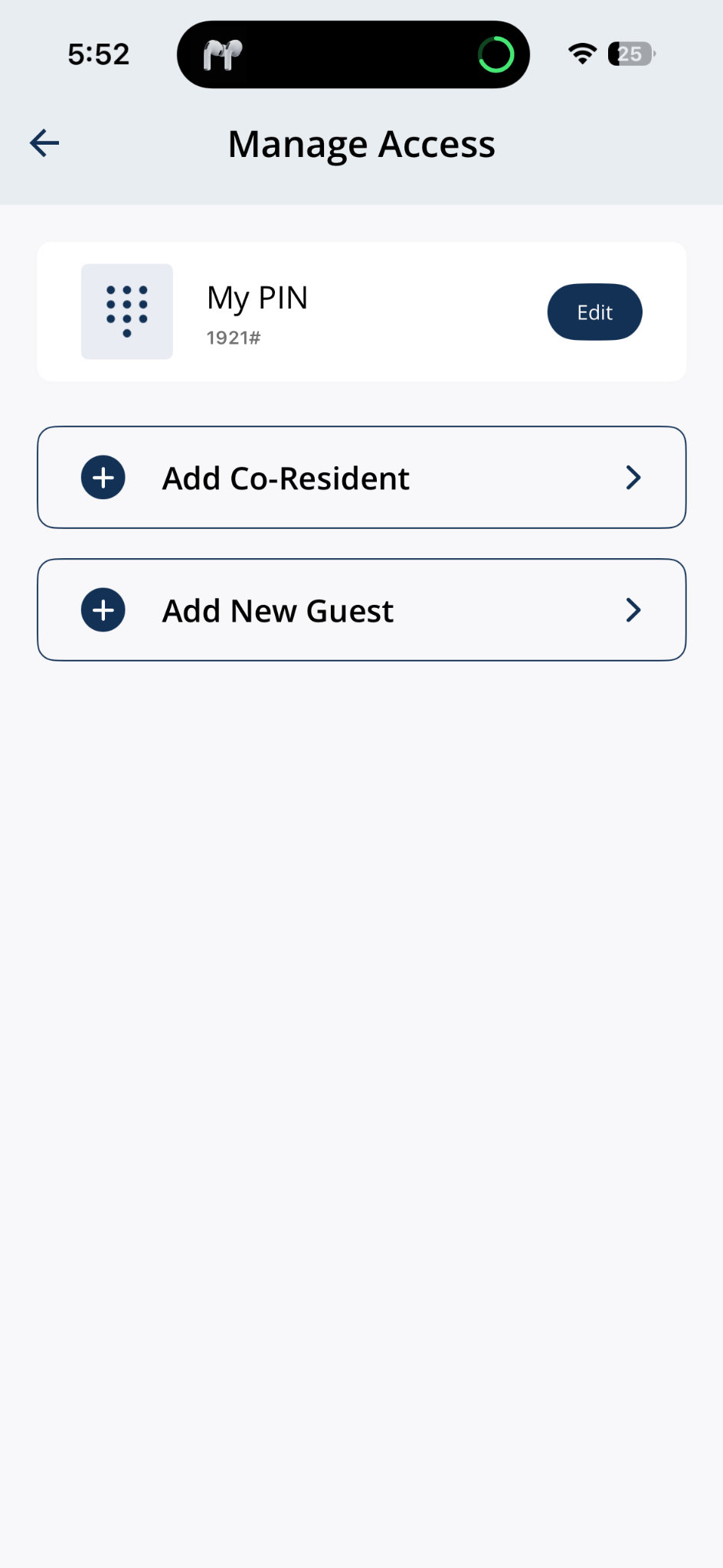
Open Manage Access from the home screen.
2Step 2: Find the guest in Manage Guests
- Scroll to Manage Guests and find the guest entry you want to remove.
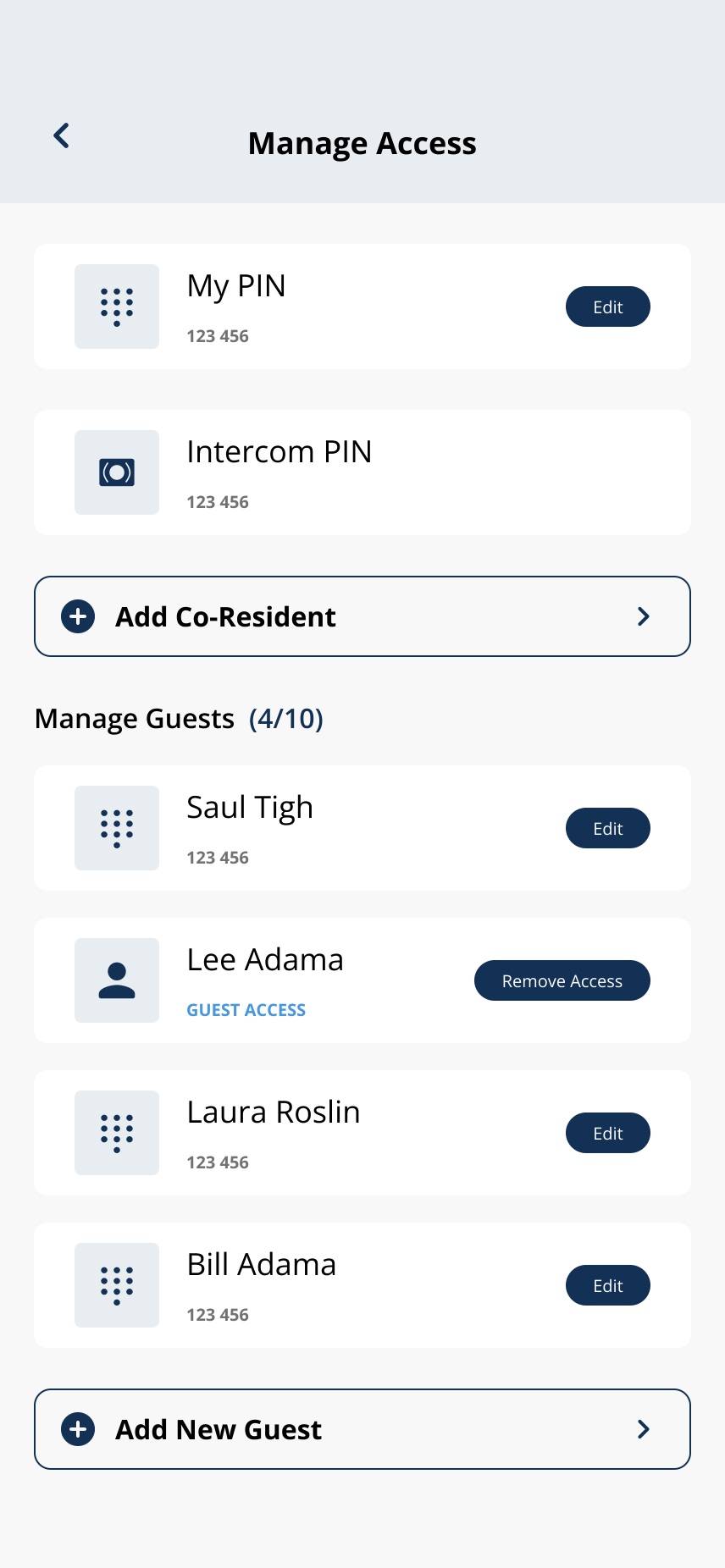
Scroll to Manage Guests and find the guest entry.
3Step 3: Tap Remove Access
- Tap Remove Access beside the guest entry.
4Step 4: When the confirmation appears, tap Okay if you are sure you want to remove this guest's access.
- When the confirmation appears, tap Okay if you are sure you want to remove this guest's access.
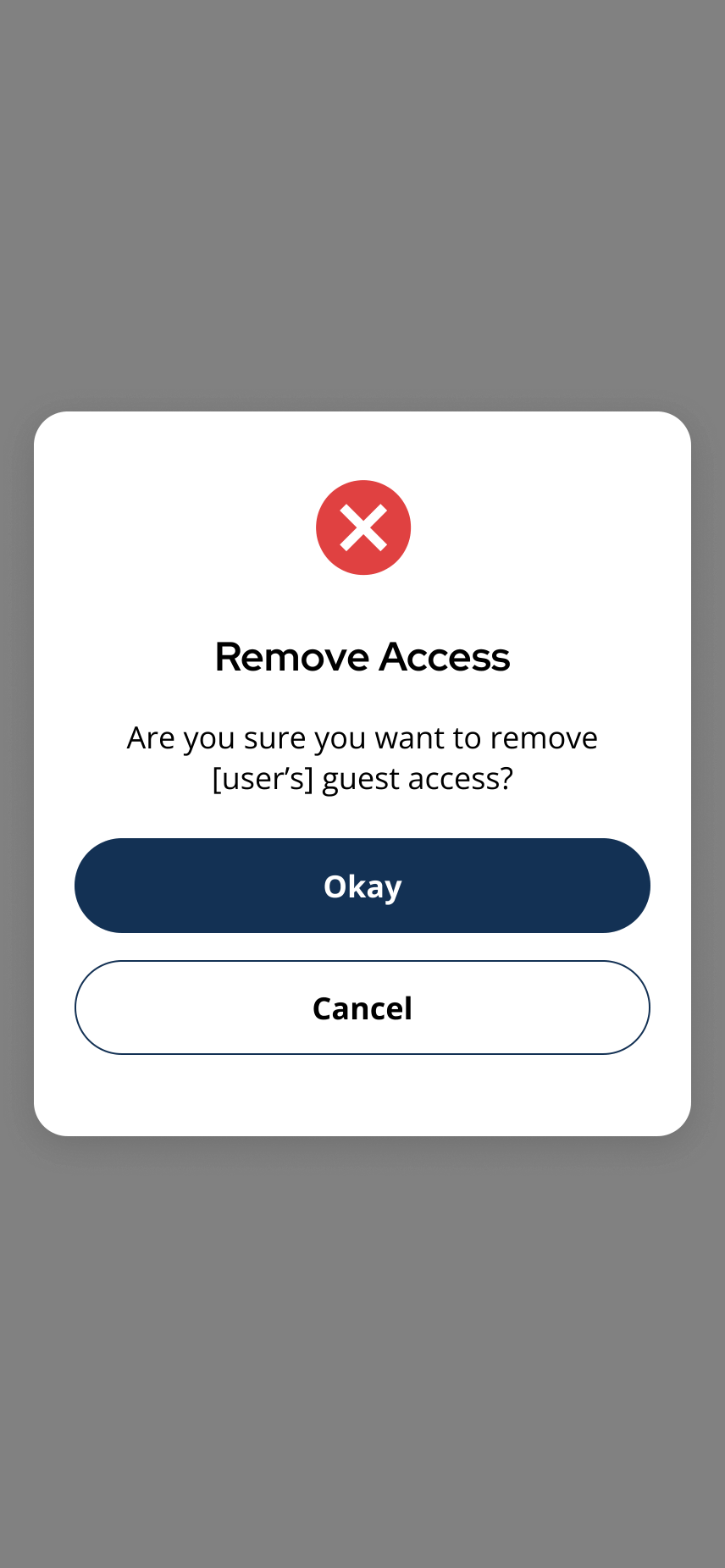
Confirm you want to remove this guest's access.
5Step 5: Confirm the guest was removed
- The app shows a Success banner and the guest entry is updated or removed from the list.
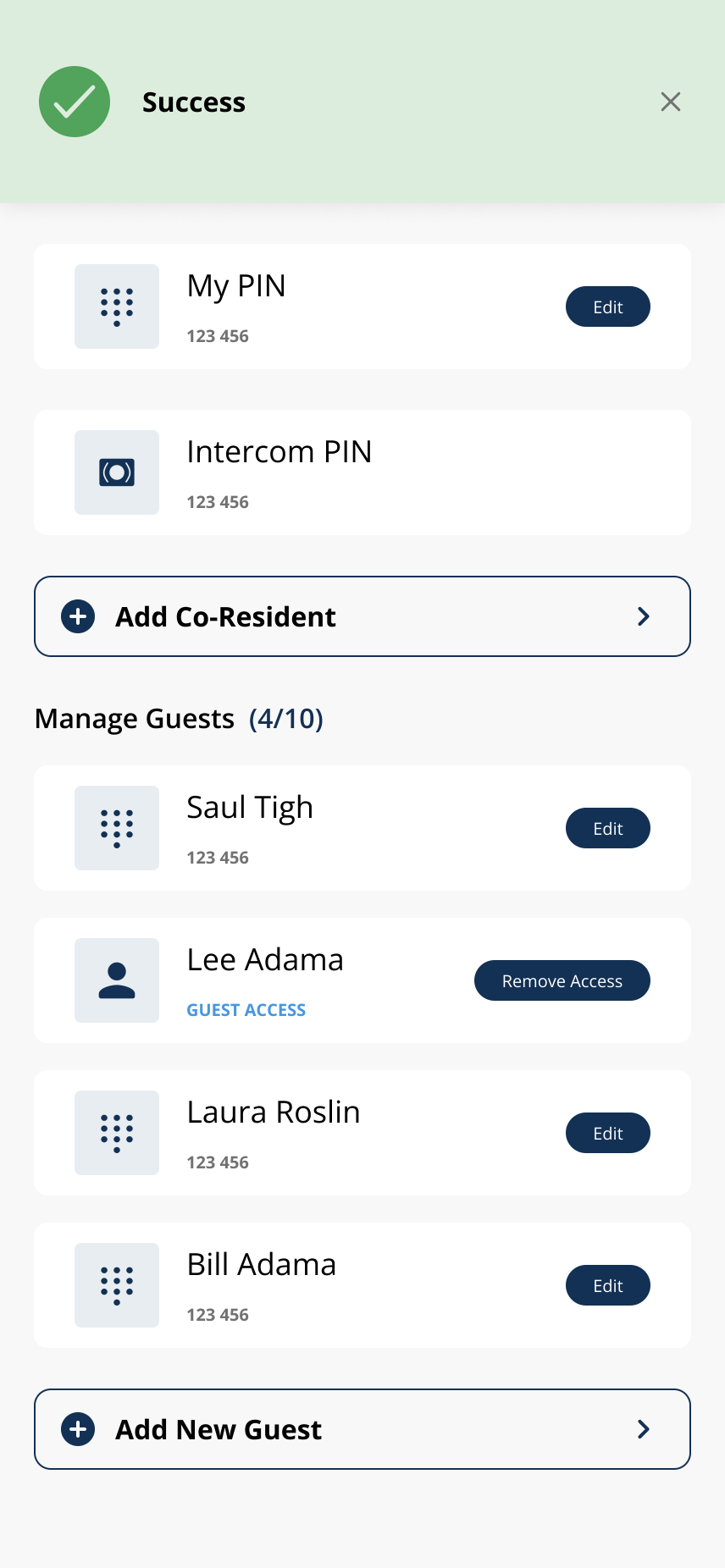
The guest's access has been removed and the list updates.
Related articles
Create a Guest PIN
1 min read
Create a named guest PIN from Manage Access > Add New Guest > Create Guest PIN.
Guest Limit Reached in the Grata App
1 min read
Some buildings cap active guests, guest PINs, or temporary access entries. Remove inactive guests under Manage...
Delete a Guest PIN
1 min read
Use this guide to set up, enter, or troubleshoot PIN-based door access.
Edit a Guest PIN
1 min read
Change an existing guest PIN from Manage Access > Manage Guests > Edit—not your personal My PIN. Stand near th...