
Delete a Guest PIN
Summary
Step-by-Step Instructions
1Step 1: Open Manage Access
- From the Grata Smart Living home screen, tap Manage Access.
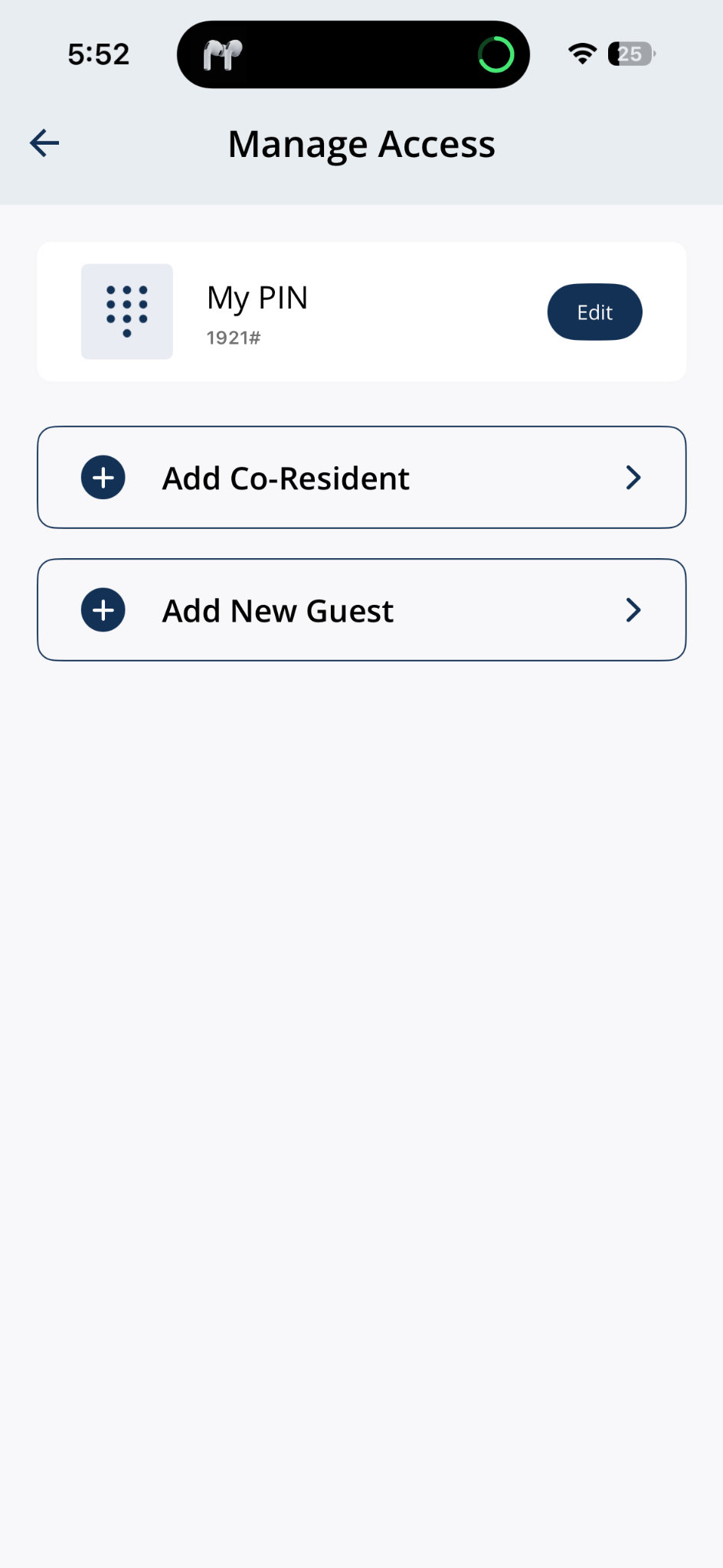
Open Manage Access from the home screen.
2Step 2: Find the guest PIN in Manage Guests
- Scroll to Manage Guests and find the guest entry you want to delete. Tap Edit beside the guest.
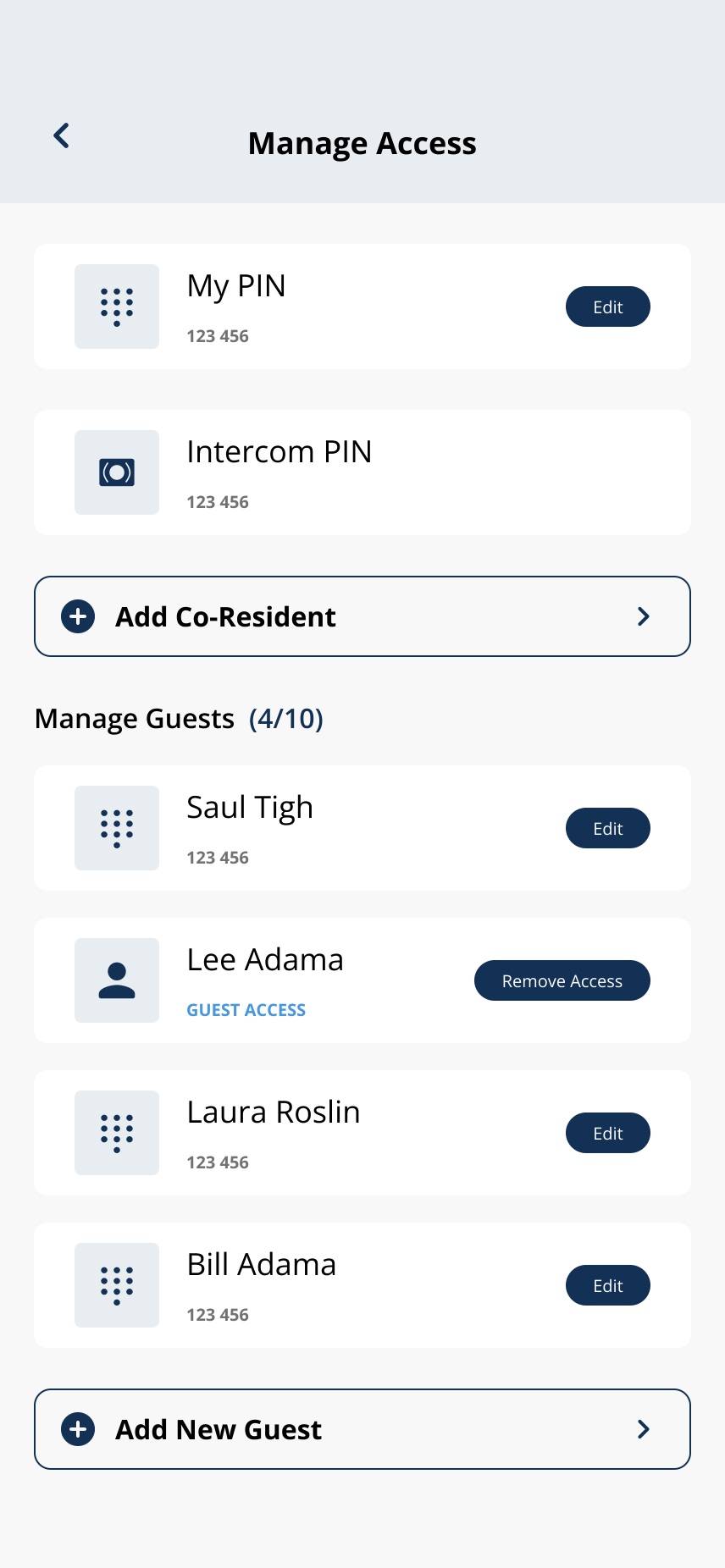
Scroll to Manage Guests and tap Edit beside the guest PIN you want to remove.
3Step 3: Delete the guest PIN
- Tap Delete Doorcode at the bottom of the edit screen. Some app screens may still use the label "door code" — this refers to the same guest PIN.
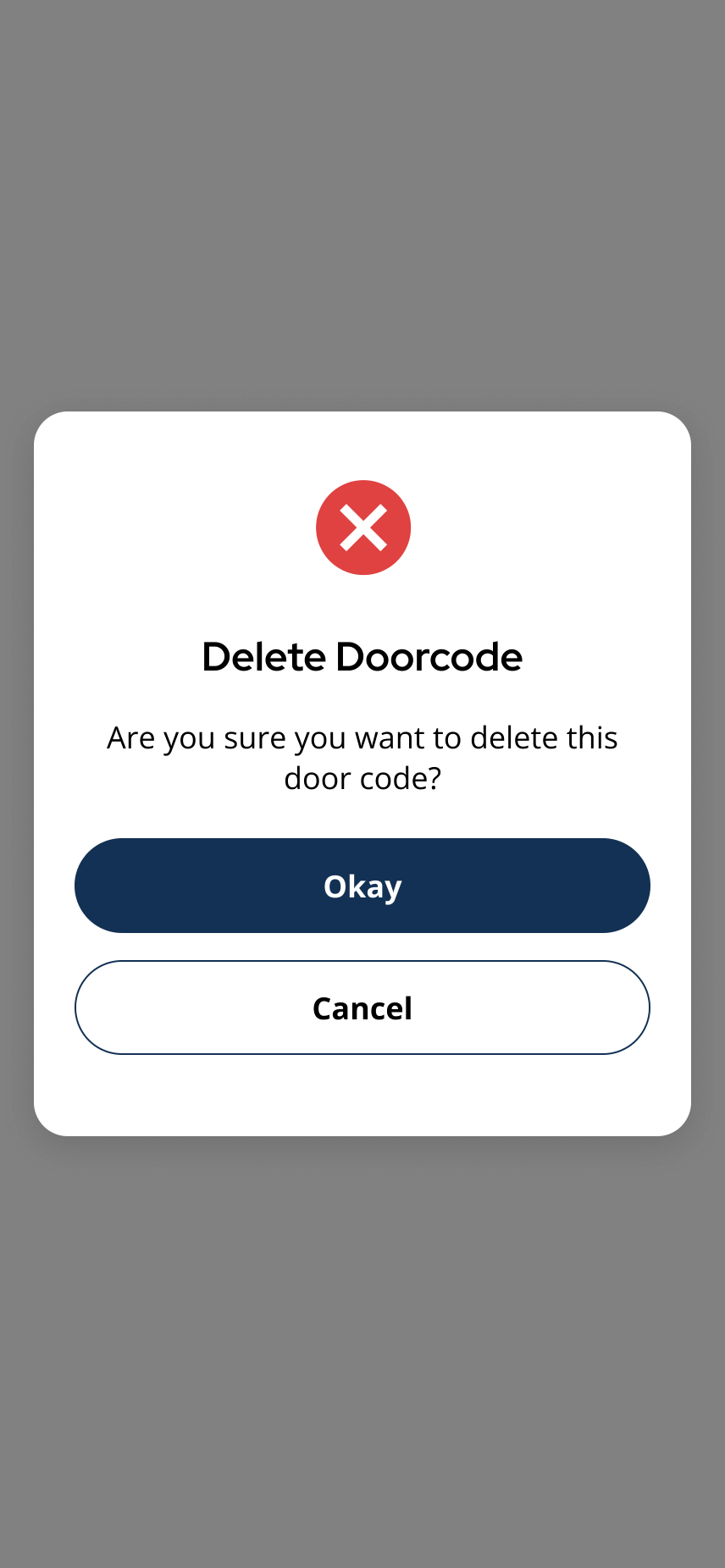
Confirm you want to delete the guest PIN.
4Step 4: Tap Okay on the confirmation prompt if you are sure you want to remove this guest PIN.
- Tap Okay on the confirmation prompt if you are sure you want to remove this guest PIN.
5Step 5: Confirm the guest PIN is removed
- The app shows a Success banner and the guest no longer appears in Manage Guests.
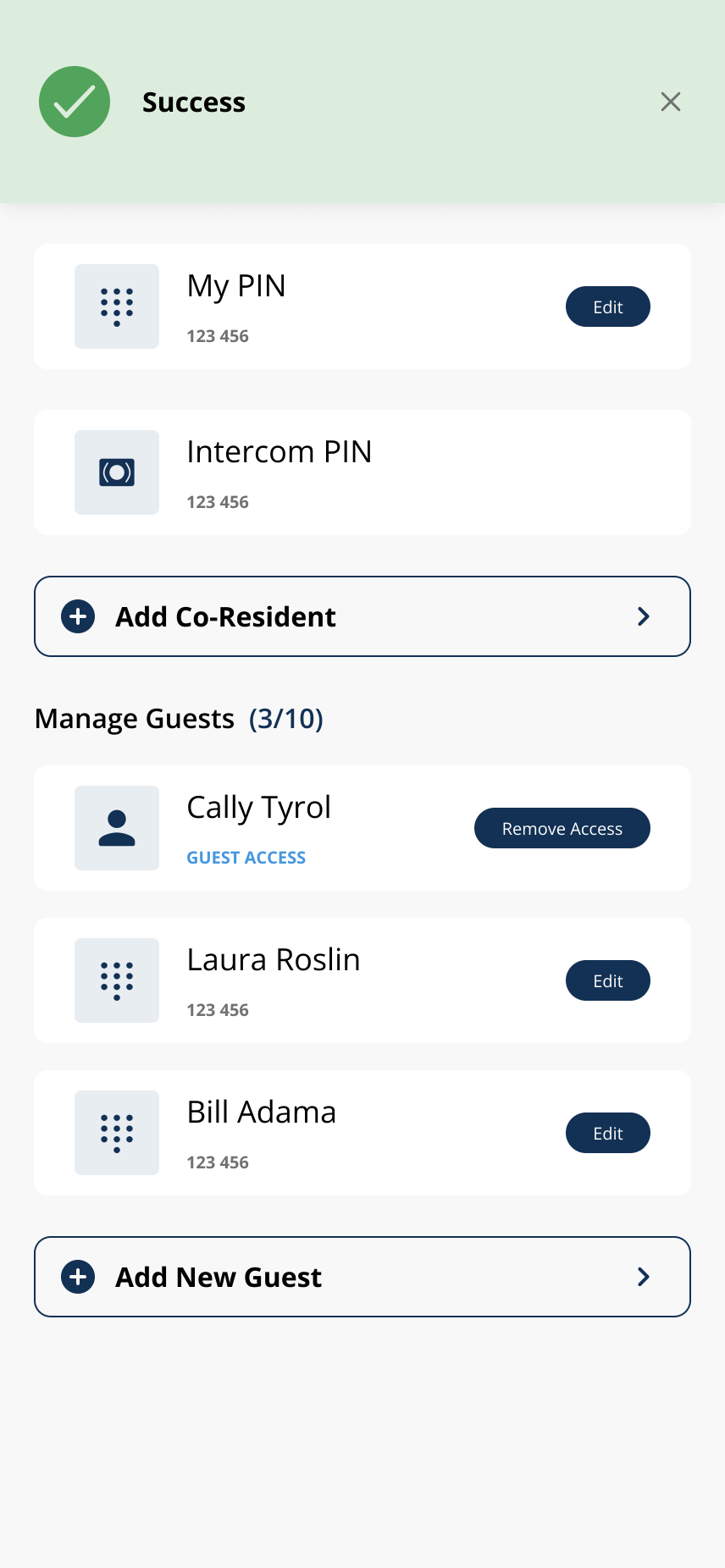
The guest PIN has been removed from Manage Guests.
Related articles
Add a New Guest in the Grata App
2 min read
From Manage Access, choose Guest App or Create Guest PIN when adding a new guest.
Create a Guest PIN
1 min read
Create a named guest PIN from Manage Access > Add New Guest > Create Guest PIN.
Remove Guest Access
1 min read
End a guest's access early — works the moment you tap, no notice required.
Manage Access Overview
1 min read
Manage Access is home for My PIN, Intercom PIN, co-residents, and guest invites—open the linked article for ea...
Edit a Guest PIN
1 min read
Change an existing guest PIN from Manage Access > Manage Guests > Edit—not your personal My PIN. Stand near th...