
How Do I Book Amenities?
Summary
Step-by-Step Instructions
1Step 1: From the Grata Smart Living home screen, tap Amenities in the bottom navigation.
- From the Grata Smart Living home screen, tap Amenities in the bottom navigation.
- Browse available amenities on the My Amenities tab.
- Look for the Reserve label — tap it to start a booking.
- Amenities showing Drop In or only hours of operation do not require a reservation.
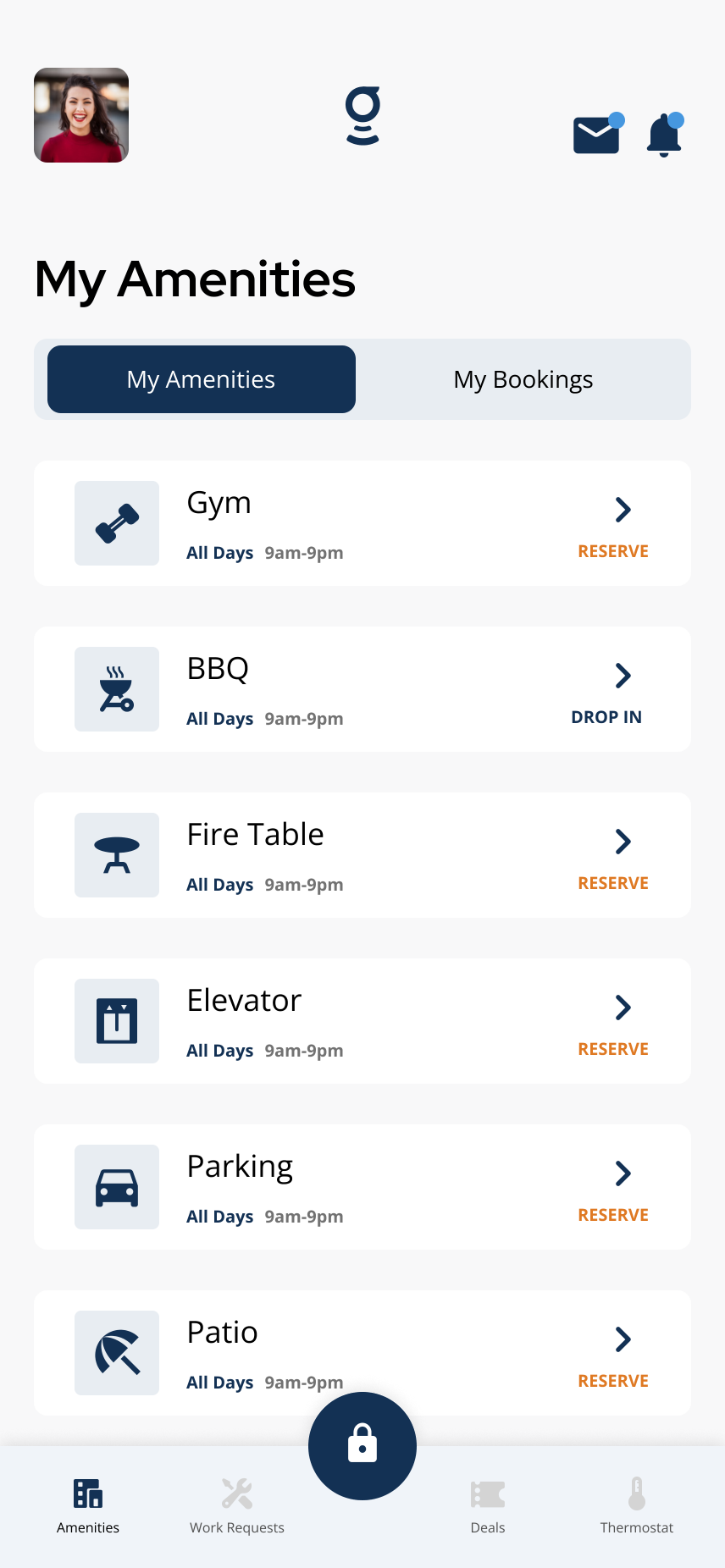
Open the Amenities section to view available spaces — look for Reserve, Drop In, or posted hours.
2Step 2: Choose your booking details
- Select the room or amenity area if your building shows that option.
- Choose your booking Date, Start Time, and End Time.
- Enter any additional required details such as number of guests or notes if shown.
- Tap Submit Booking.
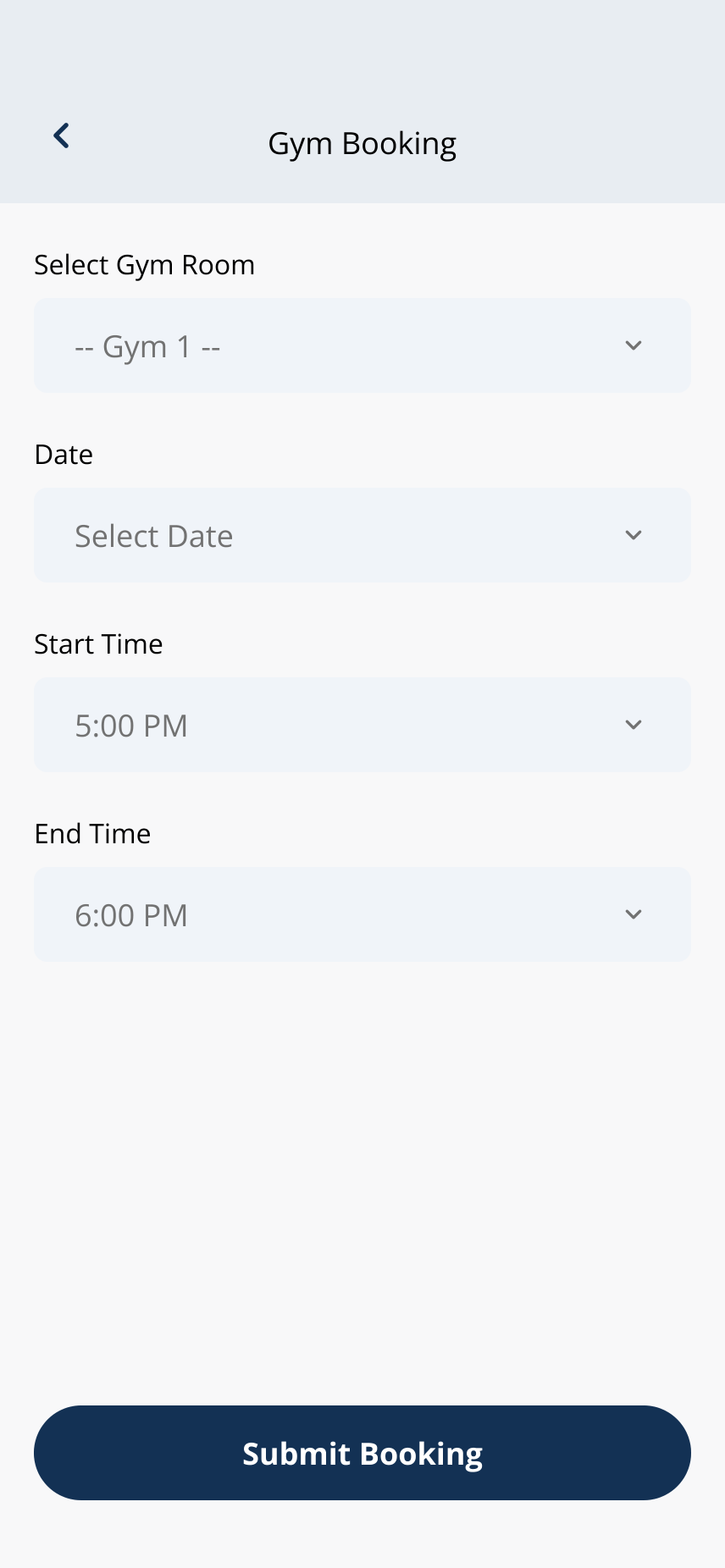
Select the date, time, and booking details, then tap Submit Booking.
3Step 3: Confirm the booking
- Review the booking date and time on the Booking Complete confirmation.
- Tap Confirm or Okay to finish the reservation.
- Some buildings show an Edit Booking option here if you need to adjust details before finalising.
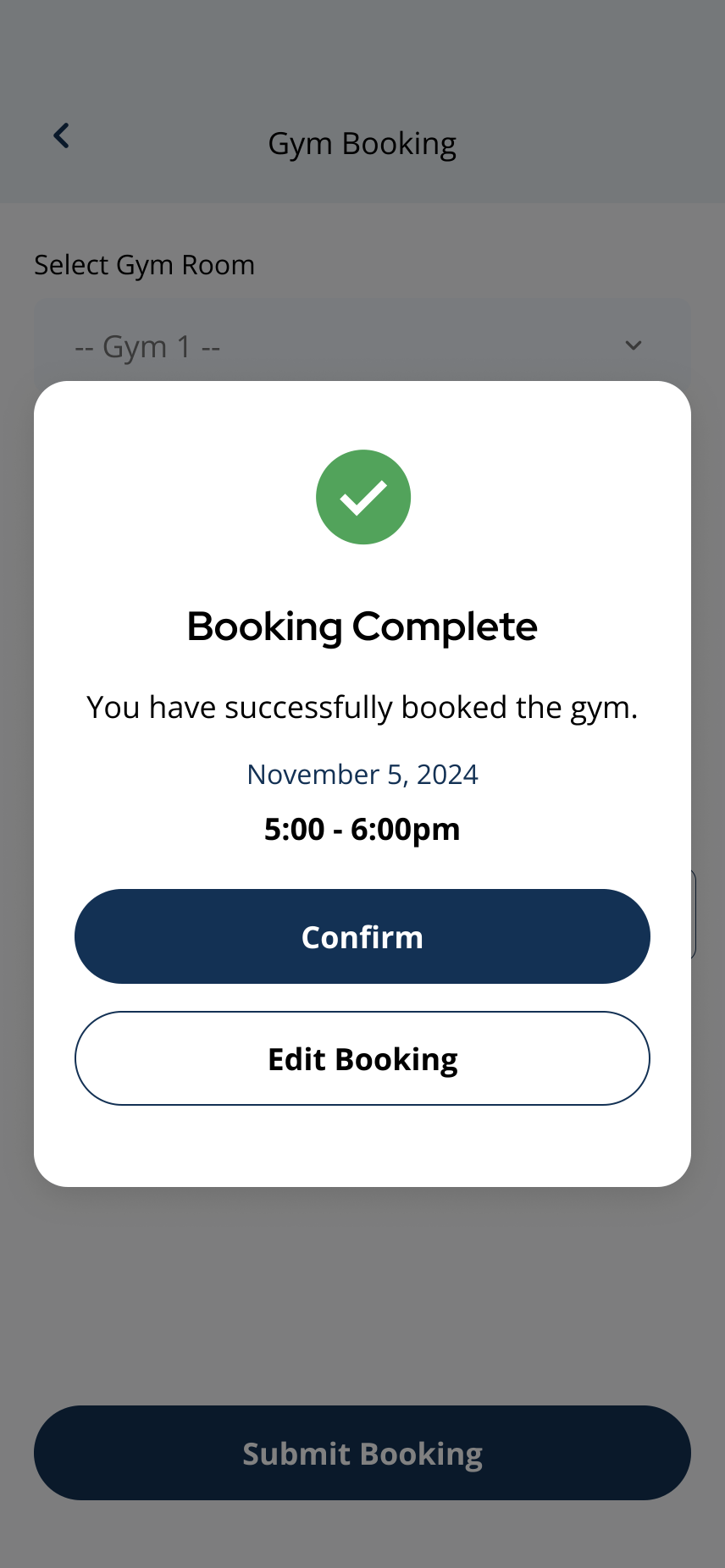
Review and confirm your reservation on the Booking Complete screen.
4Step 4: View your booking in My Bookings
- Open the My Bookings tab to review your reservation.
- Tap Details to see the booking date, time, status, and any building instructions.
- Your building may send a reminder notification before your booking starts.
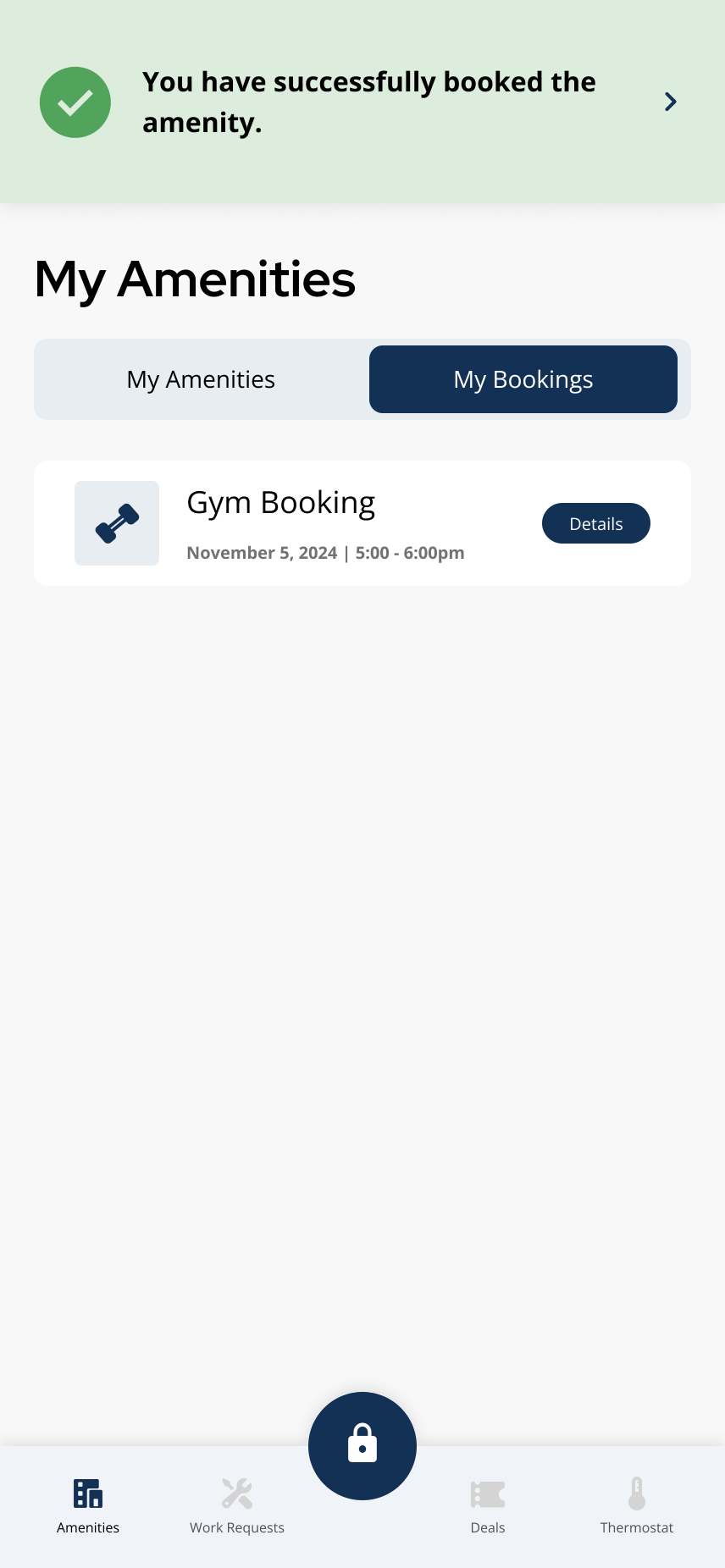
Your confirmed booking appears in the My Bookings tab.
Related articles
View Your Amenity Bookings in the Grata App
1 min read
View upcoming amenity bookings from the My Bookings tab. Only amenities you have reserved appear here — drop-i...
Cancel a Booking
1 min read
Cancel an amenity booking from My Bookings when your building allows it — open Details, tap Cancel Booking, an...
Edit a Booking
1 min read
If your building allows changes after you book, use My Bookings or Edit Booking to update the reservation. If...
I Cannot Book an Amenity
1 min read
If you cannot book an amenity, it may be because the amenity is drop-in, hours-only, fully booked, restricted...
Bookings & Amenities Overview
1 min read
View building amenities from the Amenities section. Some amenities can be reserved, some are drop-in, and some...