
View Your Amenity Bookings in the Grata App
Summary
Step-by-Step Instructions
1Step 1: From the Grata Smart Living home screen, tap Amenities in the bottom navigation.
- From the Grata Smart Living home screen, tap Amenities in the bottom navigation.
2Step 2: Tap My Bookings
- Switch from My Amenities to My Bookings.
- Your current and upcoming bookings appear here.
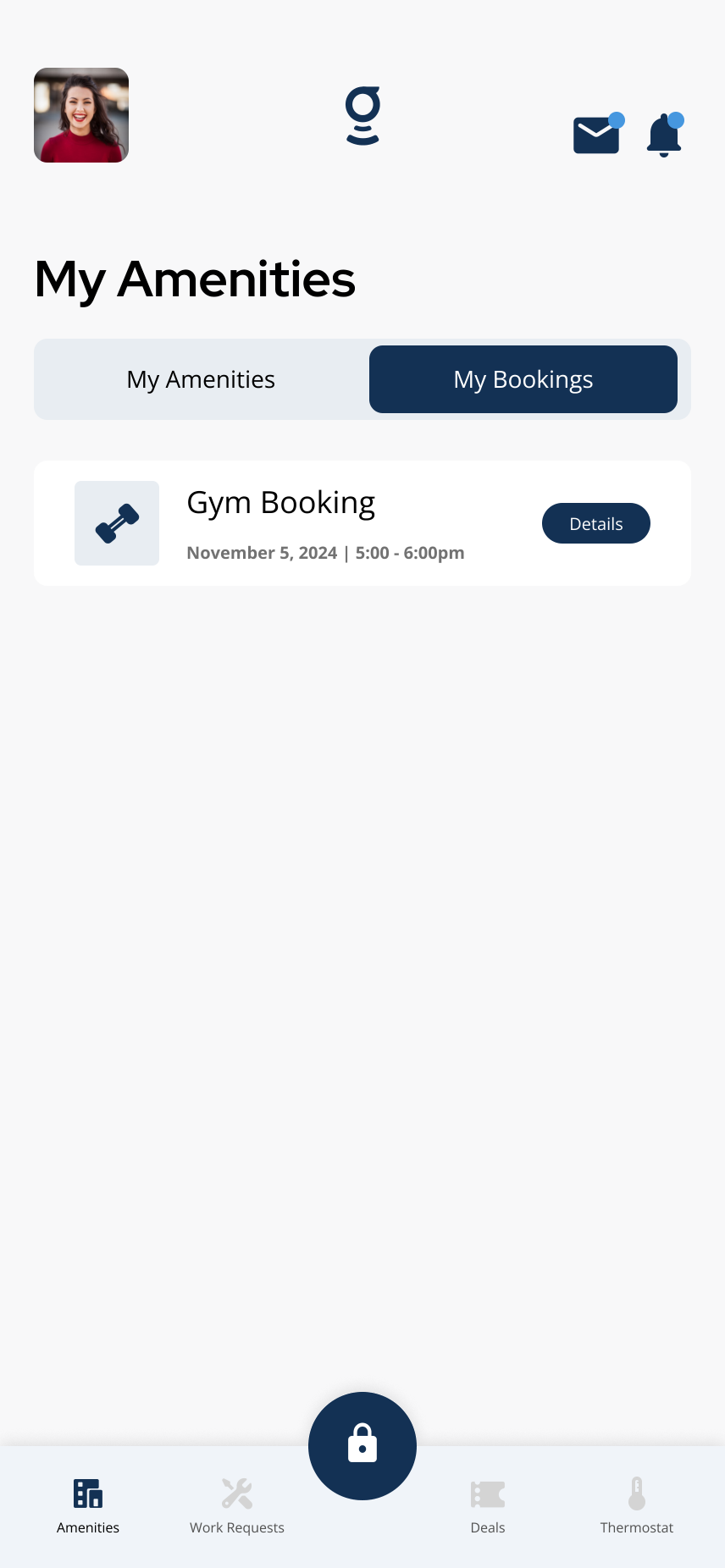
Use My Bookings to view your amenity reservations.
3Step 3: Review your booking list
- Each booking may show the amenity name, date, time slot, and a Details button.
- If you have no bookings, the app may show a message prompting you to create one from My Amenities.
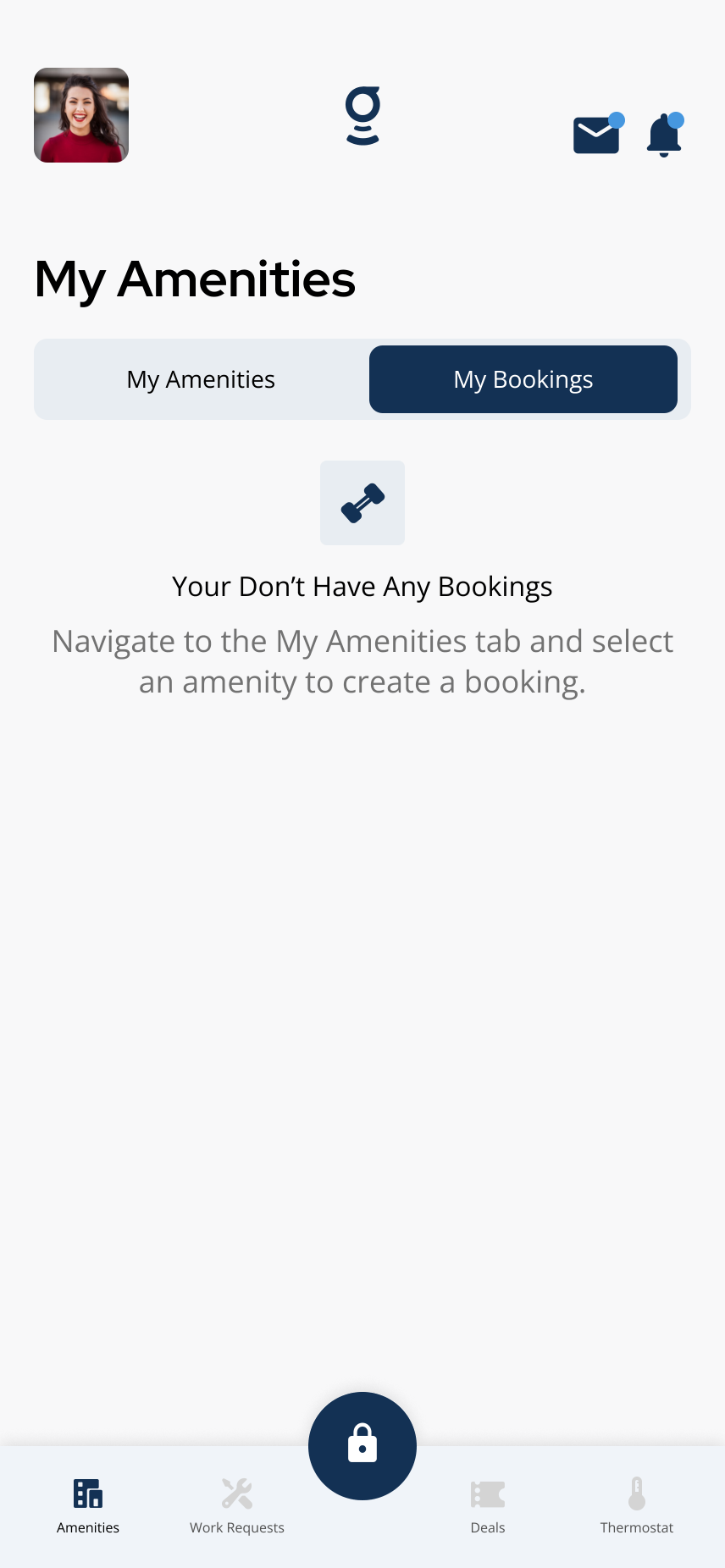
If you have no bookings, the app may prompt you to create one from My Amenities.
4Step 4: Open booking details
- Tap Details beside the booking to review the date, time slot, status, and any other information shown.
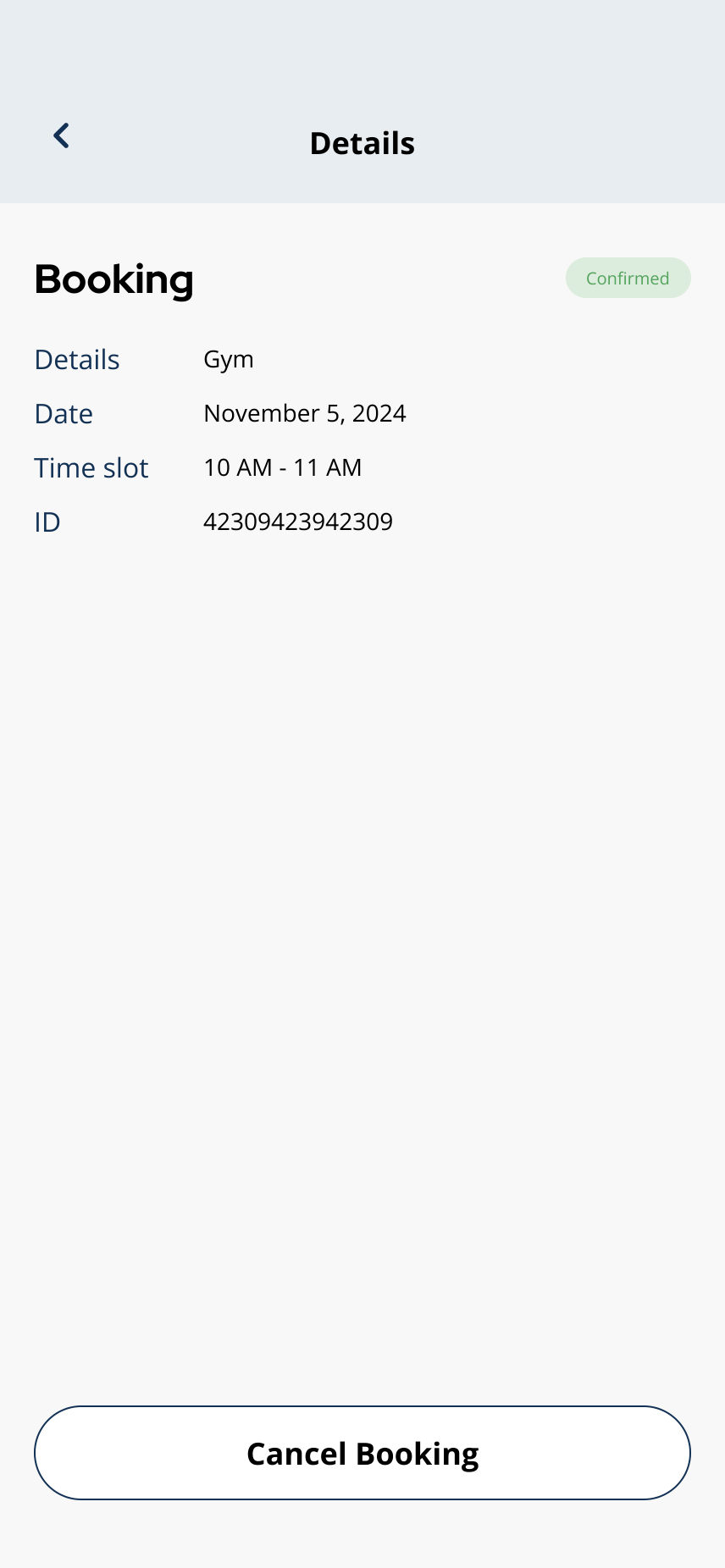
Open Details to review the date, time, status, and any available actions.
Related articles
Cancel a Booking
1 min read
Cancel an amenity booking from My Bookings when your building allows it — open Details, tap Cancel Booking, an...
Edit a Booking
1 min read
If your building allows changes after you book, use My Bookings or Edit Booking to update the reservation. If...
I Cannot Book an Amenity
1 min read
If you cannot book an amenity, it may be because the amenity is drop-in, hours-only, fully booked, restricted...
Bookings & Amenities Overview
1 min read
View building amenities from the Amenities section. Some amenities can be reserved, some are drop-in, and some...
How Do I Book Amenities?
1 min read
Reserve gym, party room, and other amenities from Amenities—pick Reserve, choose date and time, confirm Bookin...