
I Cannot Book an Amenity
Summary
Step-by-Step Instructions
1Step 1: Open the relevant item
- Open the booking or work request that needs attention.
2Step 2: Review and update details
- Confirm status, notes, ownership, and required updates.
3Step 3: Save changes and notify
- Save updates and notify the affected users or team members.
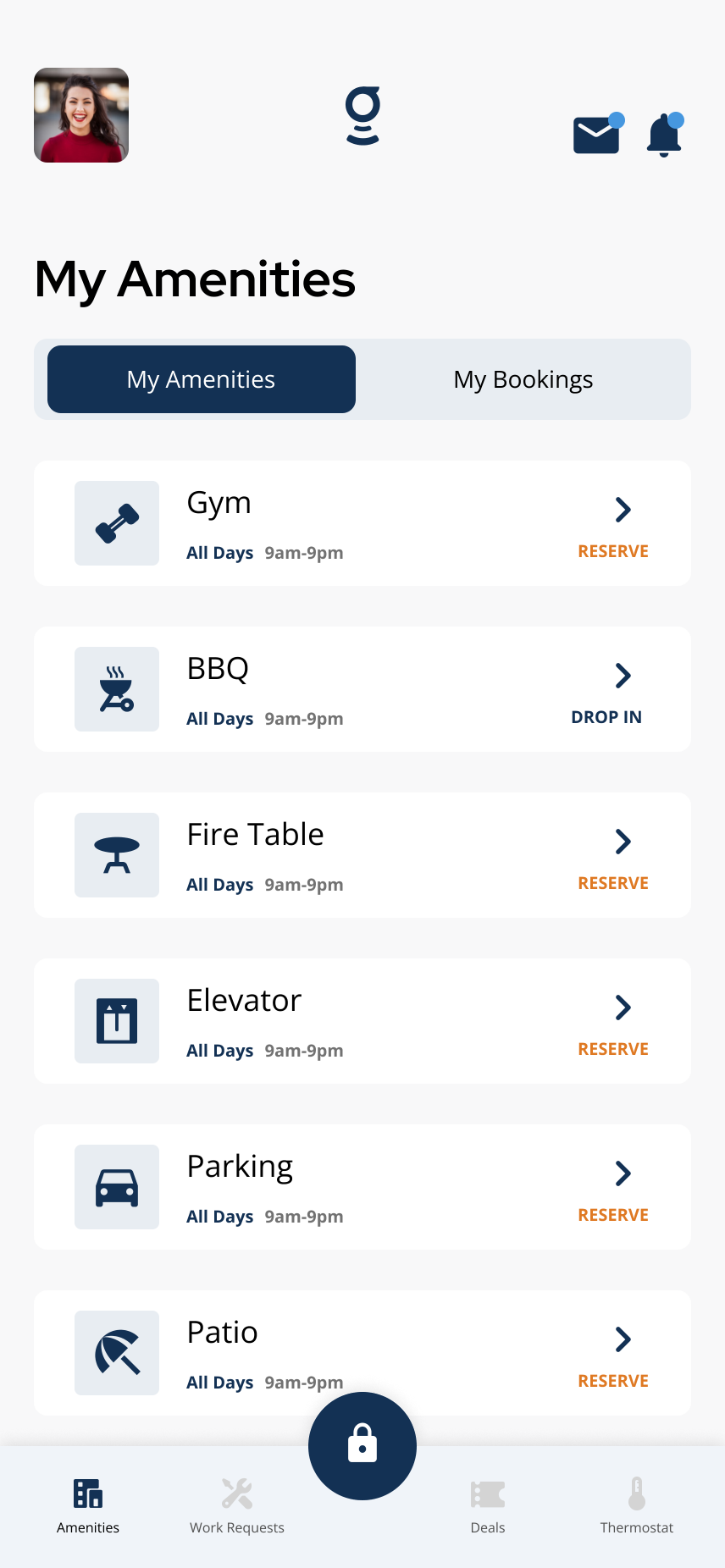
Amenities marked **Reserve** accept bookings. Amenities marked **Drop In** do not require a reservation.
Related articles
View Your Amenity Bookings in the Grata App
1 min read
View upcoming amenity bookings from the My Bookings tab. Only amenities you have reserved appear here — drop-i...
Cancel a Booking
1 min read
Cancel an amenity booking from My Bookings when your building allows it — open Details, tap Cancel Booking, an...
Edit a Booking
1 min read
If your building allows changes after you book, use My Bookings or Edit Booking to update the reservation. If...
Bookings & Amenities Overview
1 min read
View building amenities from the Amenities section. Some amenities can be reserved, some are drop-in, and some...
How Do I Book Amenities?
1 min read
Reserve gym, party room, and other amenities from Amenities—pick Reserve, choose date and time, confirm Bookin...