
Open vs Closed Delivery Status
Section: DeliveriesCategory: PackagesHow-to1 min read
Summary
Open and Closed describe whether a package still needs pickup/action or is already finished. Some buildings use the same idea with different tab labels, such as For Pickup and Delivered.
Step-by-Step Instructions
1Step 1: Start from the Grata Smart Living home screen
- From the Grata Smart Living home screen, tap the top-left icon.
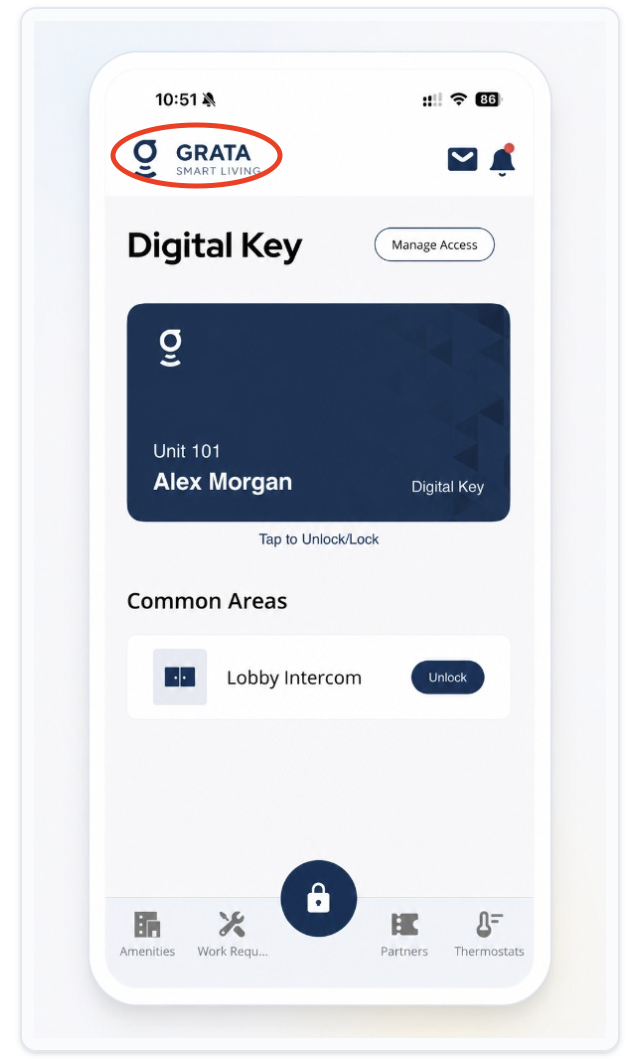
From the Grata Smart Living home screen, tap the top-left icon.
2Step 2: Open Deliveries from the Profile menu
- On the Profile screen, tap Deliveries.
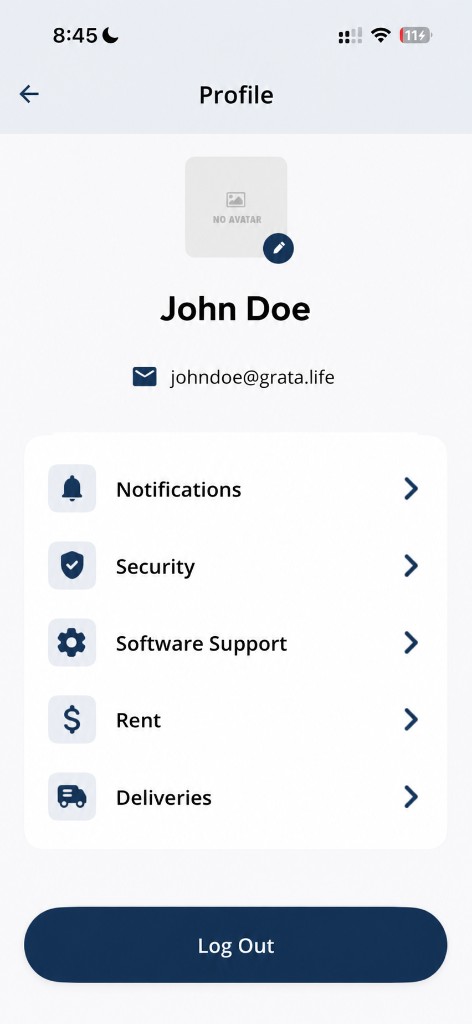
Tap Deliveries from the Profile screen.
3Step 3: Use the active and completed tabs on Your Packages
- On the Your Packages screen, switch between the two tabs for active versus completed packages. Your app may show Open and Closed, For Pickup and Delivered, or other labels with the same meaning.
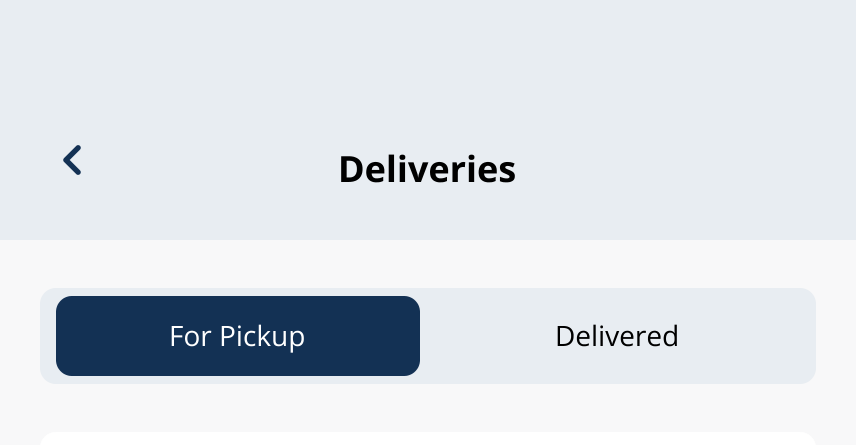
Switch between the active and completed package tabs; labels vary by building.
What Open means
- Open packages are still active—they may be waiting for pickup, need a pickup code, or are otherwise unfinished from the building's perspective.
What Closed means
- Closed packages were picked up or the building marked them complete, so they usually do not need further resident action.
Pickup codes and staff steps
- Some buildings require a pickup code or a concierge/front-desk confirmation.
- Use Use a Delivery Pickup Code when codes apply.
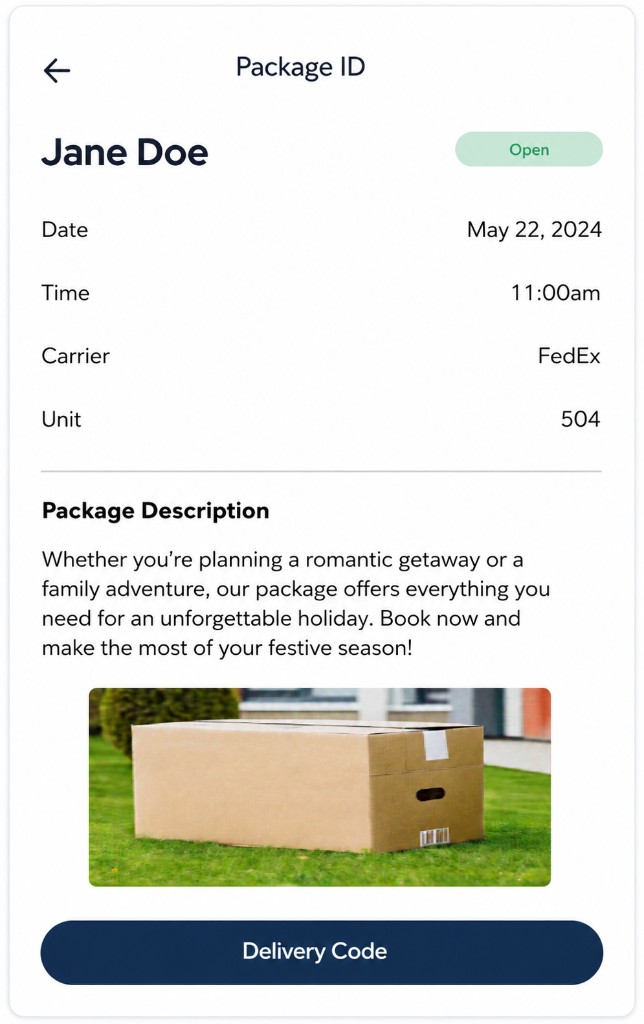
Example package details screen in the Grata app.
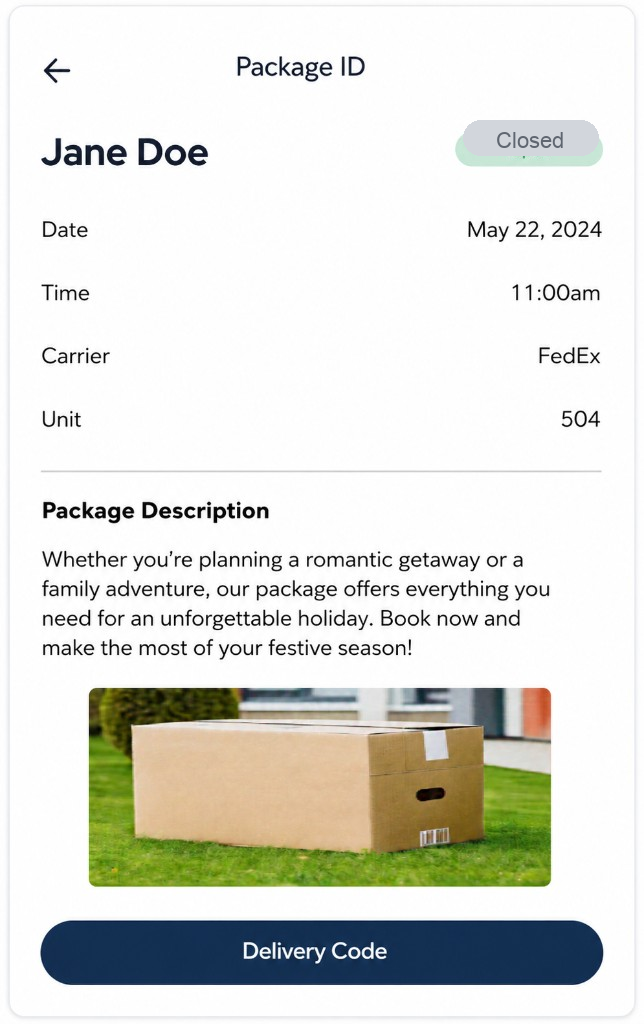
Example package details screen in the Grata app.
Related articles
View Open Packages in Deliveries
1 min read
Home → Profile > Deliveries, then the Open tab: review active packages and tap View Details when you need pick...
View Closed Packages in Deliveries
1 min read
Home → Profile > Deliveries, then the Closed tab: review completed packages and open details if you need histo...
View Deliveries in the Grata App
1 min read
From the Grata Smart Living home screen, open Profile > Deliveries to review Open and Closed packages, details...