
Cancel a Booking
Summary
Step-by-Step Instructions
1Step 1: Open the Grata app
- Open the Grata app on your phone.
2Step 2: Go to amenity bookings
- Tap Amenities in the bottom navigation.
- Tap My Bookings to view your reservations.
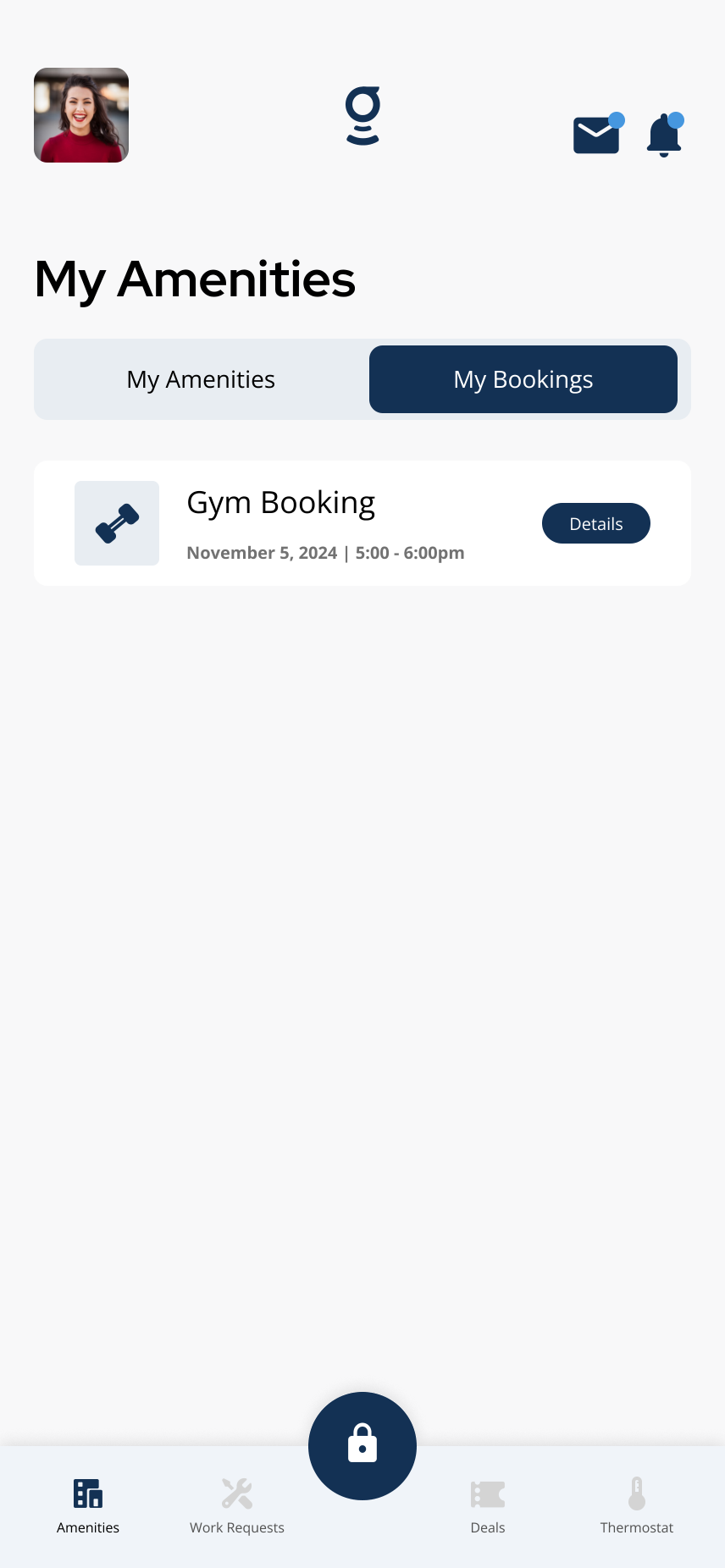
Open My Bookings to view your active reservations.
3Step 3: Select the booking you want to cancel
- Find the booking in your list.
- Confirm you selected the correct amenity, date, and time.
4Step 4: Review the booking details
- Tap Details beside the booking.
- Review the date, time, status, and any building instructions shown.
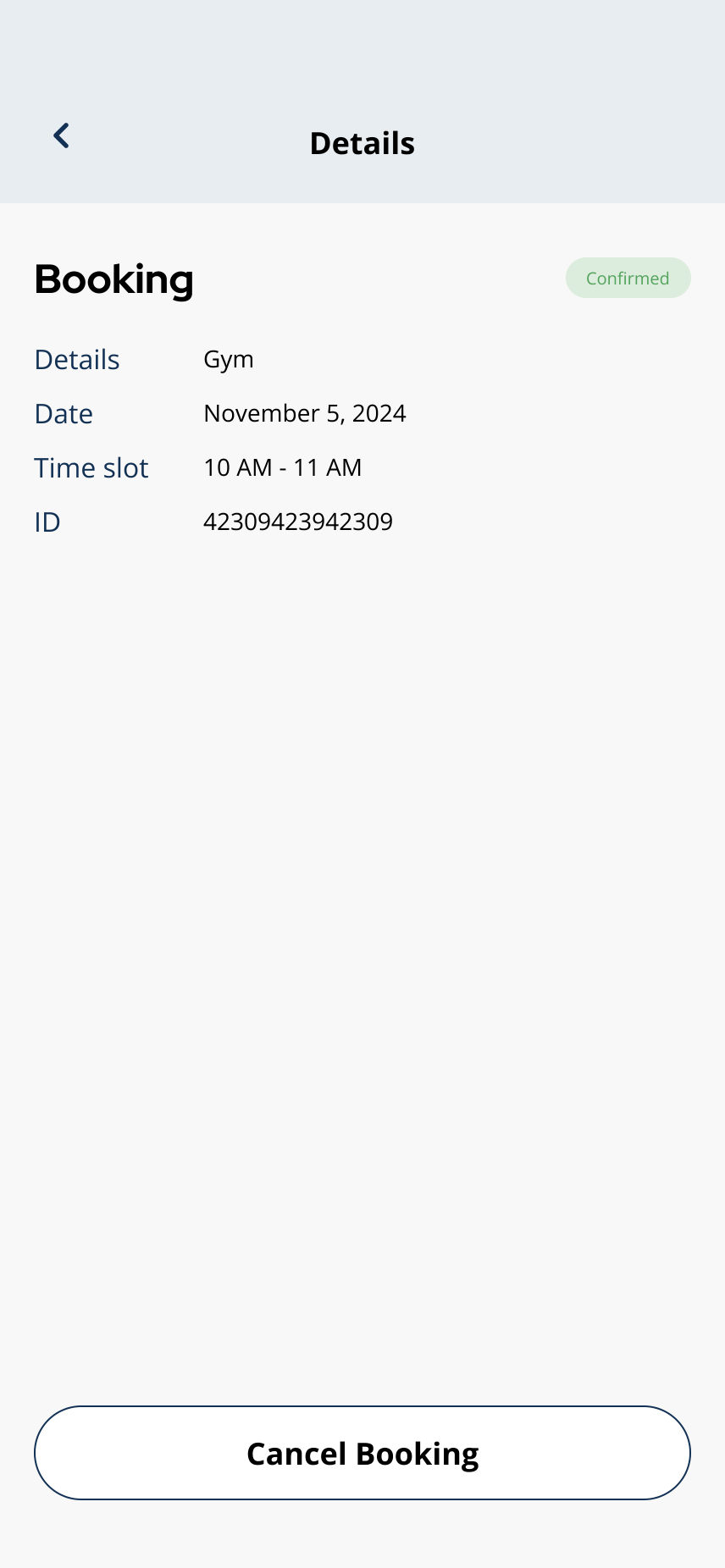
Open the booking details screen to review the reservation before cancelling.
5Step 5: Select Cancel Booking if available
- Tap Cancel Booking on the booking details screen.
- If the button is missing, your building may not allow resident cancellation for that booking.
6Step 6: Confirm the cancellation
- Review the confirmation message, then tap Confirm, Okay, or the cancellation button your app shows.
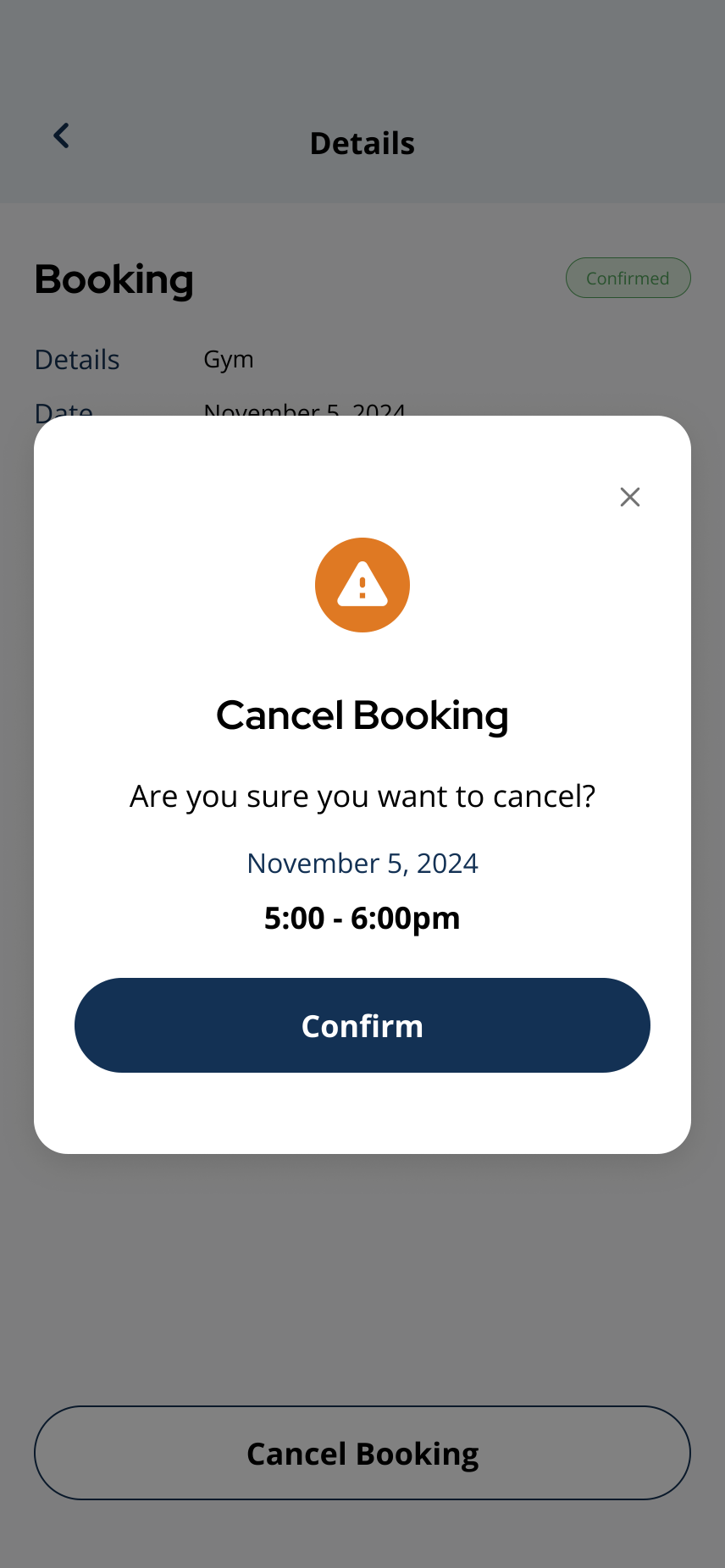
Confirm the cancellation when prompted.
7Step 7: Check that the booking status updates
- The booking may show as Cancelled or disappear from active bookings.
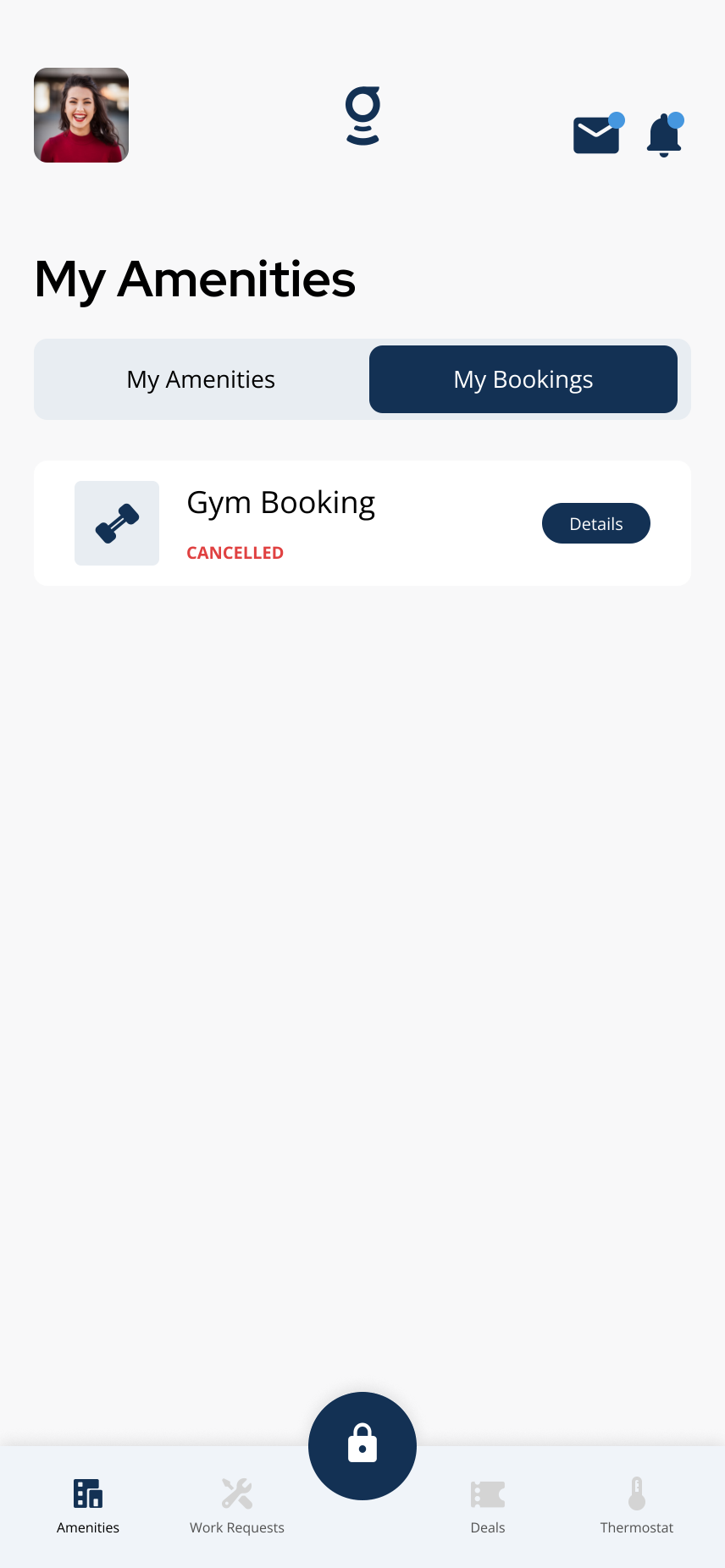
Cancelled bookings may show a Cancelled status or disappear from active bookings.
- Open My Bookings again to confirm the change.
If you do not see a cancel option▾
- The booking may be too close to the start time.
- The amenity may not allow resident cancellation.
- The booking may already be completed, cancelled, or locked from changes.
- The building may require property management to cancel certain bookings.
- You may need to contact your property team if cancellation is required but not available in the app.
What happens after cancellation▾
- The booking status may update to Cancelled in My Bookings.
- Any fees, deposits, refunds, or credits depend on your building's amenity policy.
- Check your property's rules for cancellation deadlines, charges, and refund timing.
- If you cancelled the wrong booking, contact your property team as soon as possible.
Related articles
Book an Amenity
1 min read
Book an amenity in the Grata app when your building enables reservations — choose a Reserve amenity, pick a ti...
View Your Amenity Bookings in the Grata App
1 min read
View upcoming amenity bookings from the My Bookings tab. Only amenities you have reserved appear here — drop-i...
Edit a Booking
1 min read
If your building allows changes after you book, use My Bookings or Edit Booking to update the reservation. If...
I Cannot Book an Amenity
1 min read
If you cannot book an amenity, it may be because the amenity is drop-in, hours-only, fully booked, restricted...
What Grata does and does not control
2 min read
Use this guide to complete resident tasks in the Grata app.