
Book an Amenity
Summary
Step-by-Step Instructions
1Step 1: Open the Grata app
- Open the Grata app on your phone.
2Step 2: Go to the amenities area
- Tap Amenities in the bottom navigation.
- The app opens My Amenities, where available spaces are listed.
3Step 3: Select the amenity you want to book
- Look for amenities marked Reserve — these accept bookings.
- Amenities marked Drop In do not require a reservation.
- Amenities showing only hours or Open / Closed may be informational only.
- Tap the amenity you want to reserve.
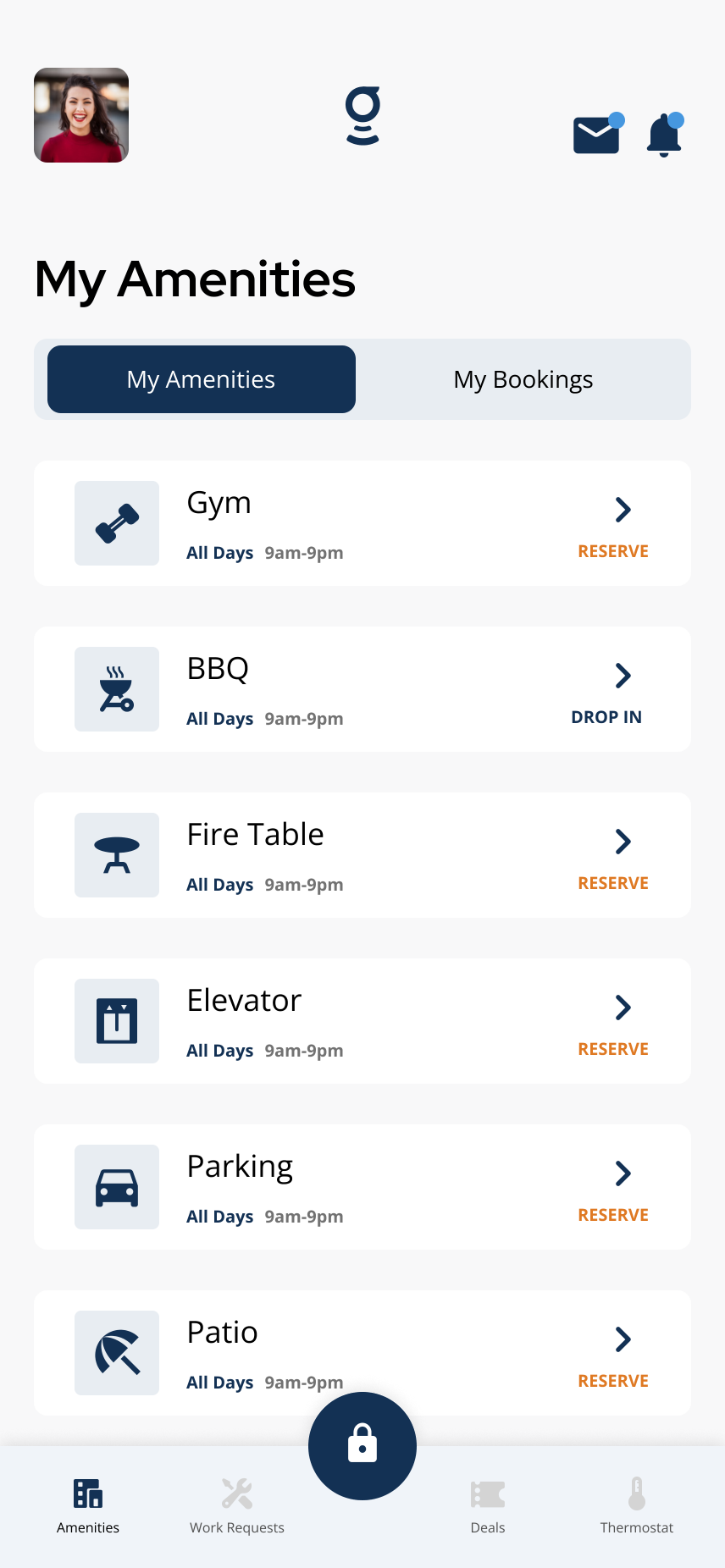
The My Amenities list shows available amenities and whether they are Reserve, Drop In, or hours-only.
4Step 4: Choose an available date and time
- Select the room or amenity option if your building shows more than one.
- Choose the booking date on the calendar.
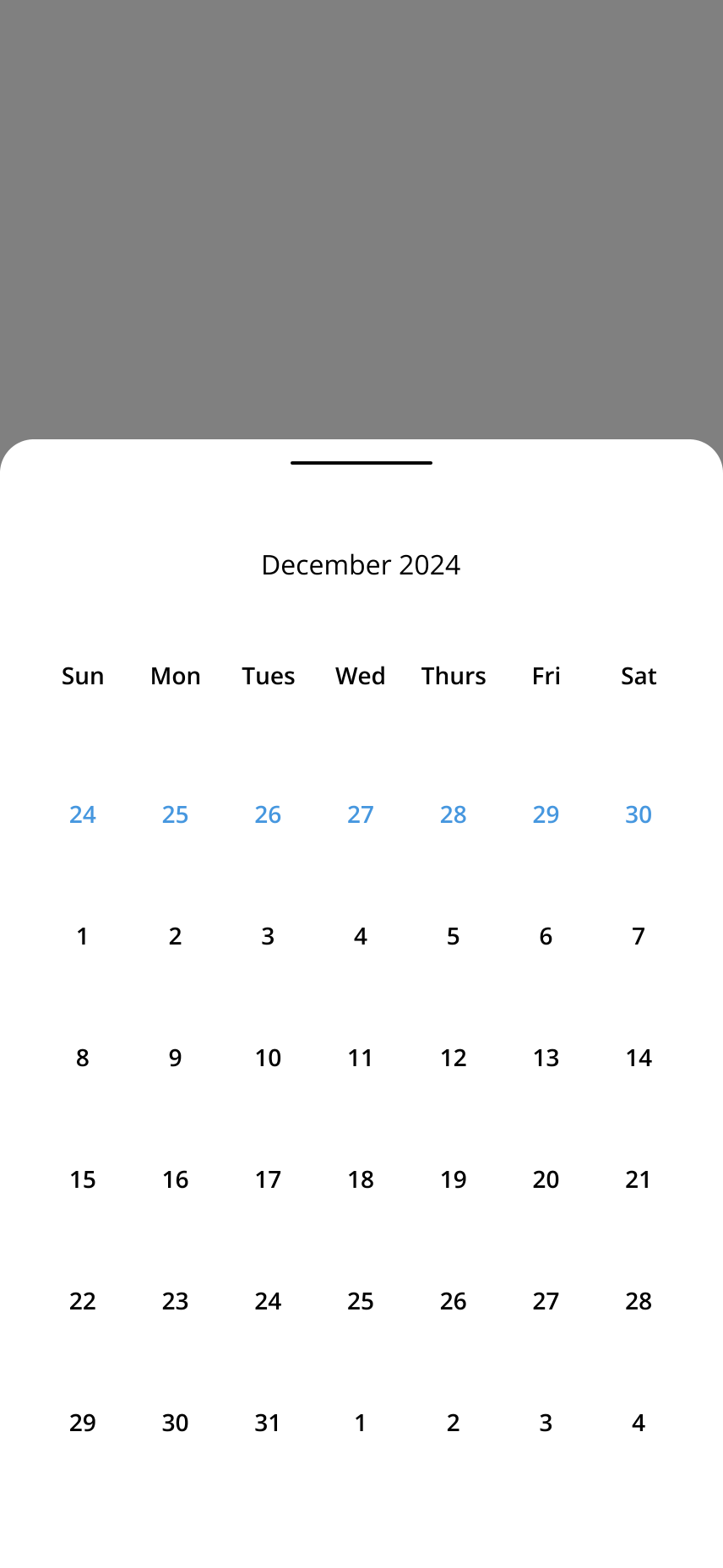
Select the booking date from the calendar.
- Select a start time and end time from the available slots shown.
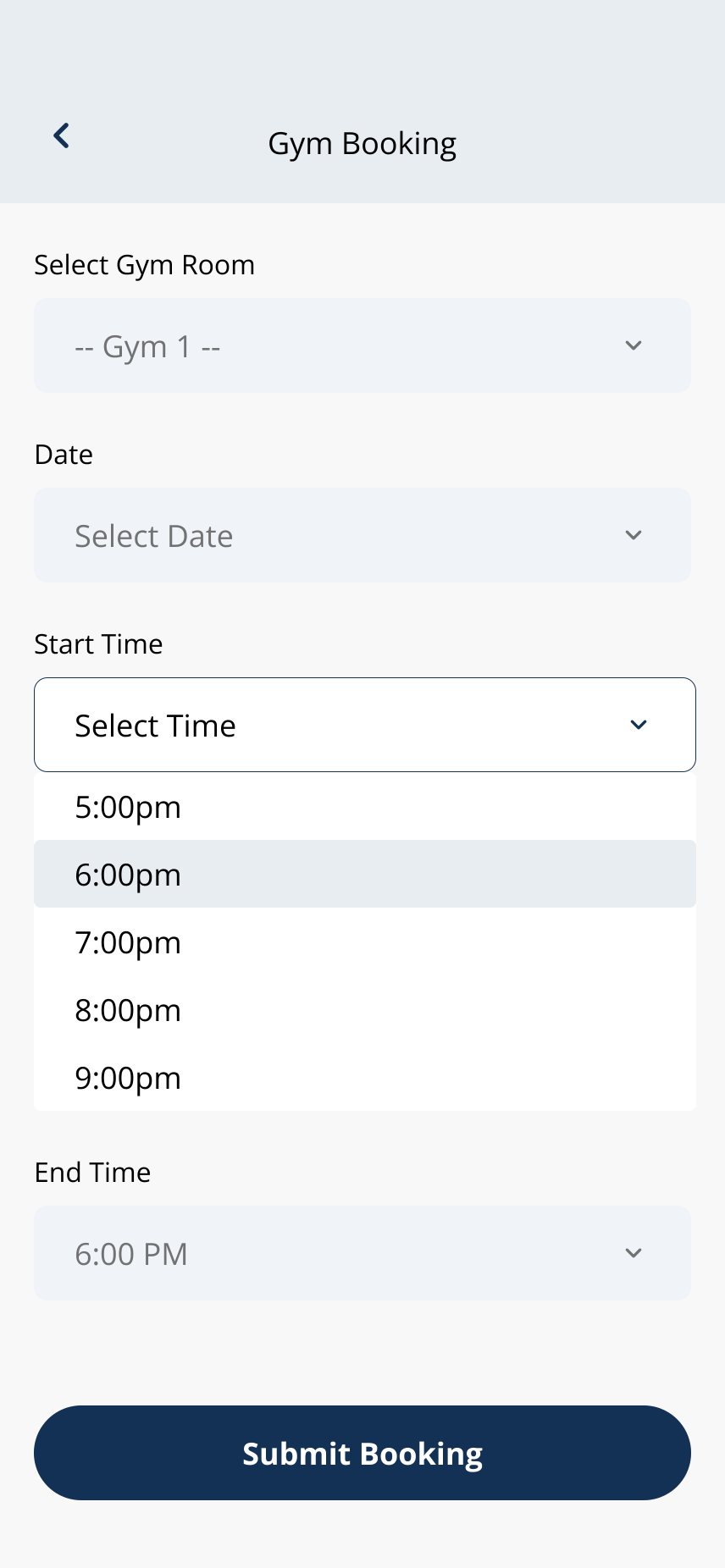
Choose the start and end times shown as available for that amenity.
5Step 5: Review booking details, rules, fees, or approval requirements
- Review the amenity, date, time, and any fees, deposits, guest limits, or rules shown.
- Some bookings may require property-management approval before they are confirmed.
6Step 6: Confirm the booking
- Tap Submit Booking when the details look correct.
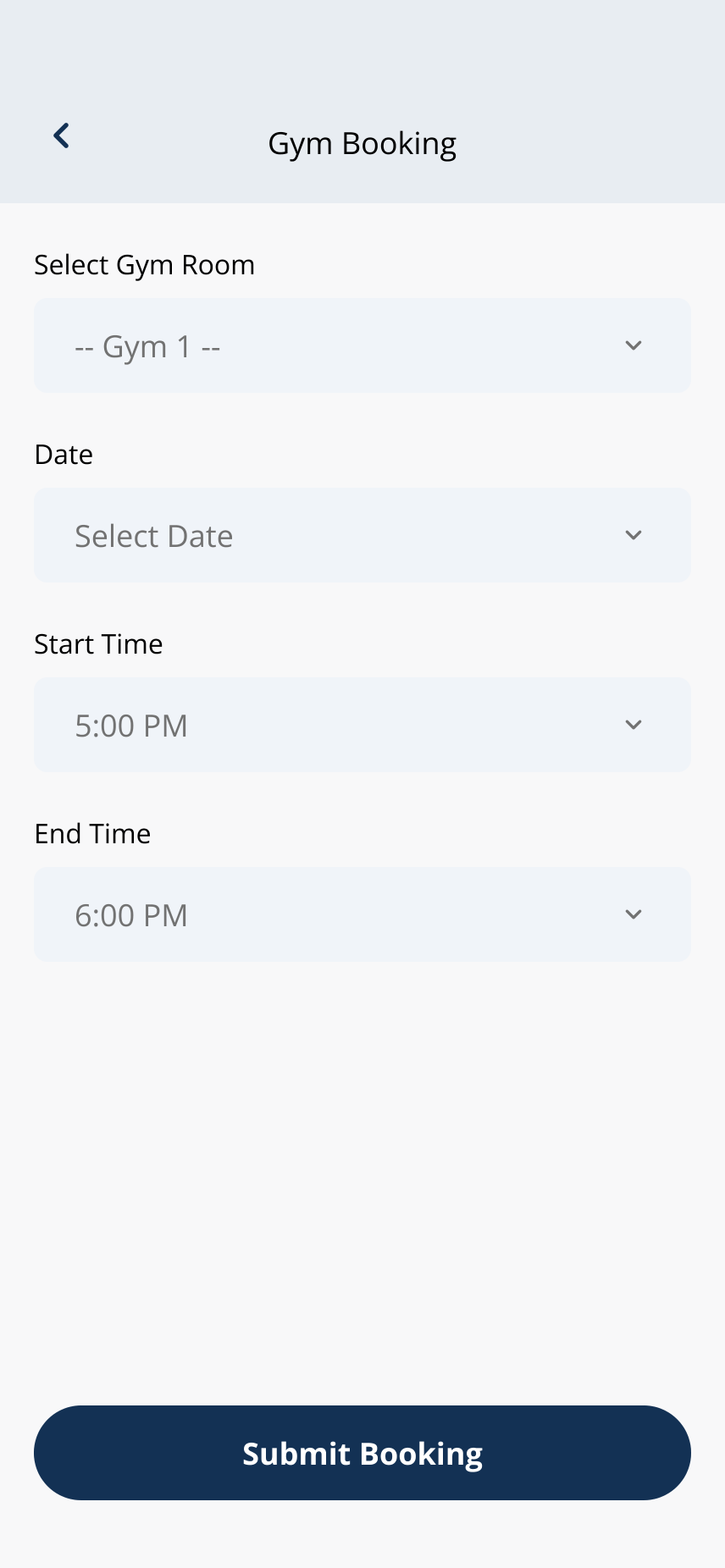
Review the booking details, then tap Submit Booking.
- Wait for the confirmation message. If the app shows Booking Complete, tap Confirm or Okay.
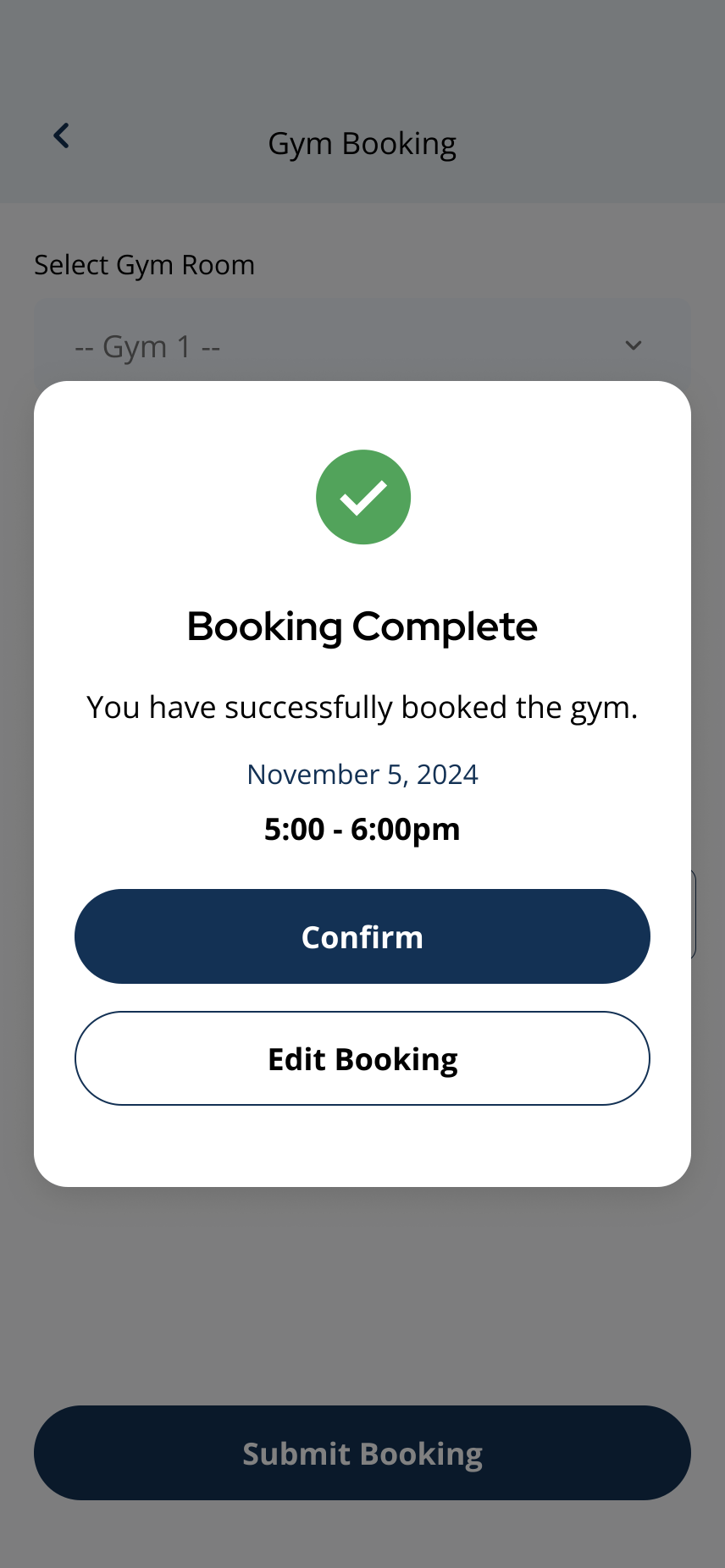
A Booking Complete message confirms the amenity reservation.
7Step 7: Check that the booking appears in your bookings
- Open My Bookings in Amenities to confirm the reservation appears.
- Pending bookings may show a status until approved, depending on your building setup.
If you cannot select a date or time▾
- The time slot may already be booked by another resident.
- The amenity may be closed or unavailable for the date you selected.
- Your building may limit how far in advance residents can book.
- The amenity may require approval or property-management action before times appear.
- You may not have permission to book that amenity. See I Cannot Book an Amenity for more help.
Before confirming a booking▾
- Review the date, time, amenity, rules, fees, deposits, guest limits, and cancellation policy.
- Some bookings may require approval before they are confirmed.
- Property management controls amenity policies, fees, and booking windows.
Why amenities may look different by building▾
- Not every building has amenity booking in the Grata app.
- Available amenities depend on the property setup.
- Booking flows, approval rules, and cancellation policies may vary by building.
Related articles
View Your Amenity Bookings in the Grata App
1 min read
View upcoming amenity bookings from the My Bookings tab. Only amenities you have reserved appear here — drop-i...
Cancel a Booking
1 min read
Cancel an amenity booking from My Bookings when your building allows it — open Details, tap Cancel Booking, an...
Edit a Booking
1 min read
If your building allows changes after you book, use My Bookings or Edit Booking to update the reservation. If...
I Cannot Book an Amenity
1 min read
If you cannot book an amenity, it may be because the amenity is drop-in, hours-only, fully booked, restricted...
What Grata does and does not control
2 min read
Use this guide to complete resident tasks in the Grata app.