
View and Use Thermostat Controls
Summary
Step-by-Step Instructions
1Step 1: Tap Thermostats on the bottom navigation.
- Tap Thermostats on the bottom navigation.
- If Thermostats does not appear, your building or unit may not have app thermostat controls enabled.
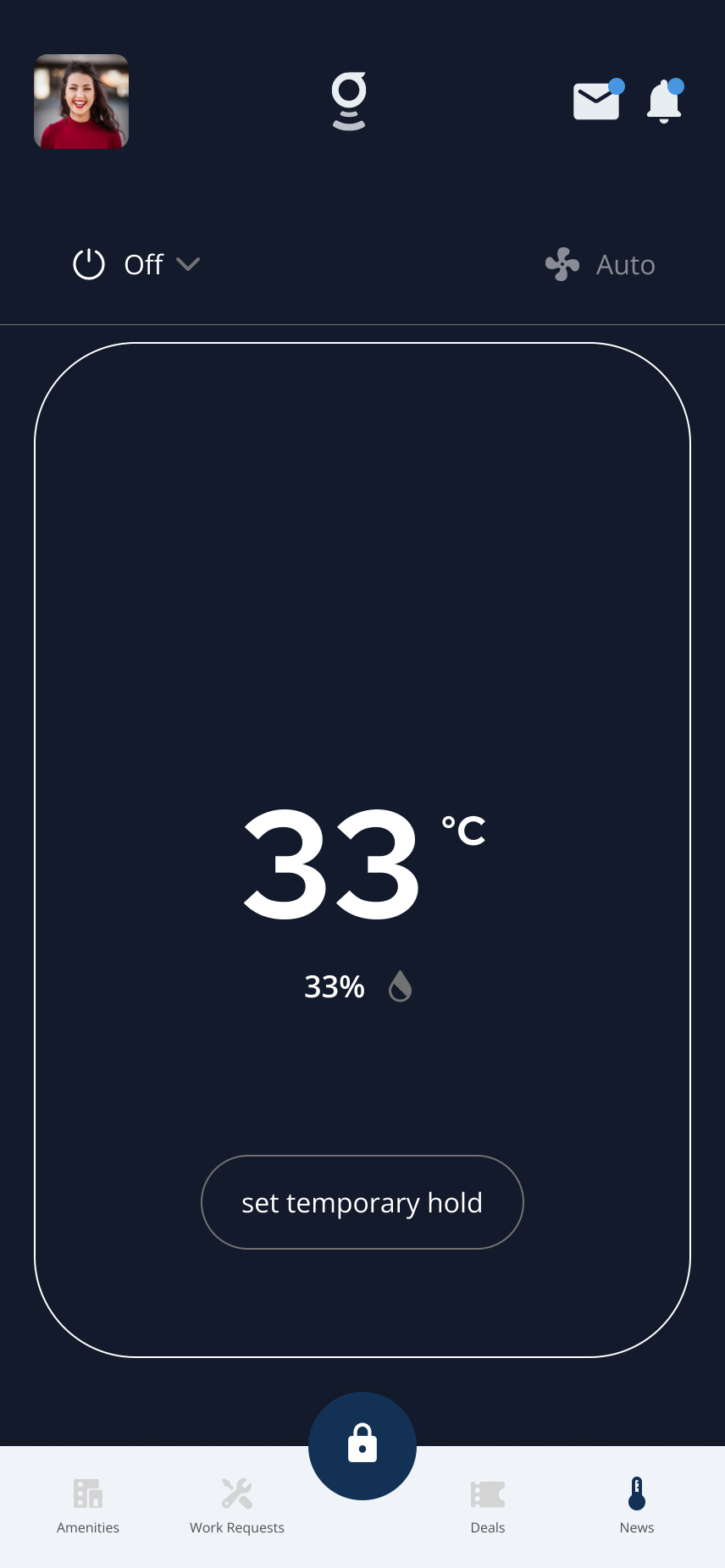
Open Thermostats to view the thermostat profile and available controls for your unit.
2Step 2: Review the thermostat screen
- Check the current room temperature.
- Check humidity if shown (often near a water droplet icon).
- Review the current mode, such as Heat, Cool, Auto, or Off.
- Review the fan setting, such as Fan Auto or Fan On, if shown.
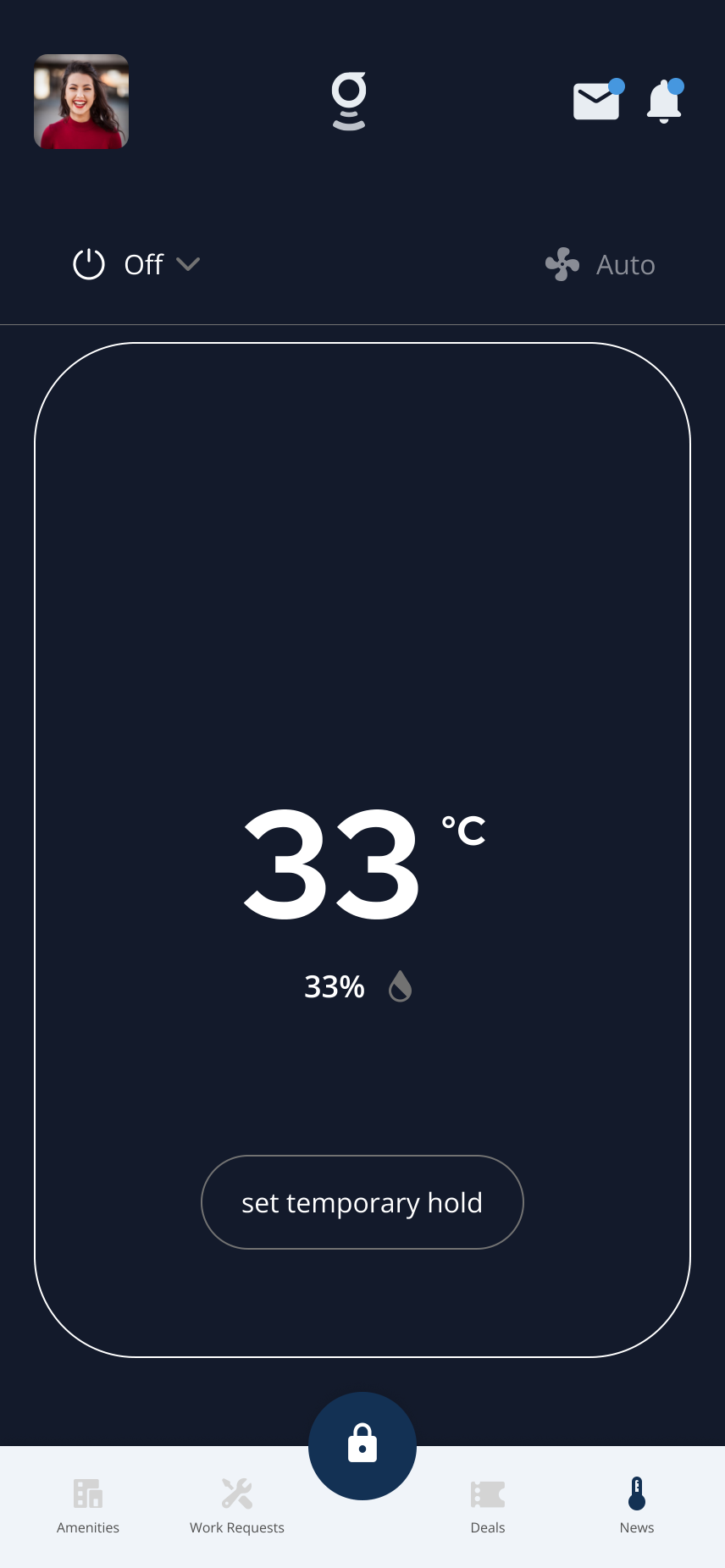
The thermostat screen shows room temperature, humidity, mode, fan setting, and available controls.
3Step 3: Choose what you want to adjust
- Use the mode selector to change heating or cooling mode.
- Use the fan selector to change fan behavior if available.
- Tap Set Temporary Hold to choose a temperature hold.
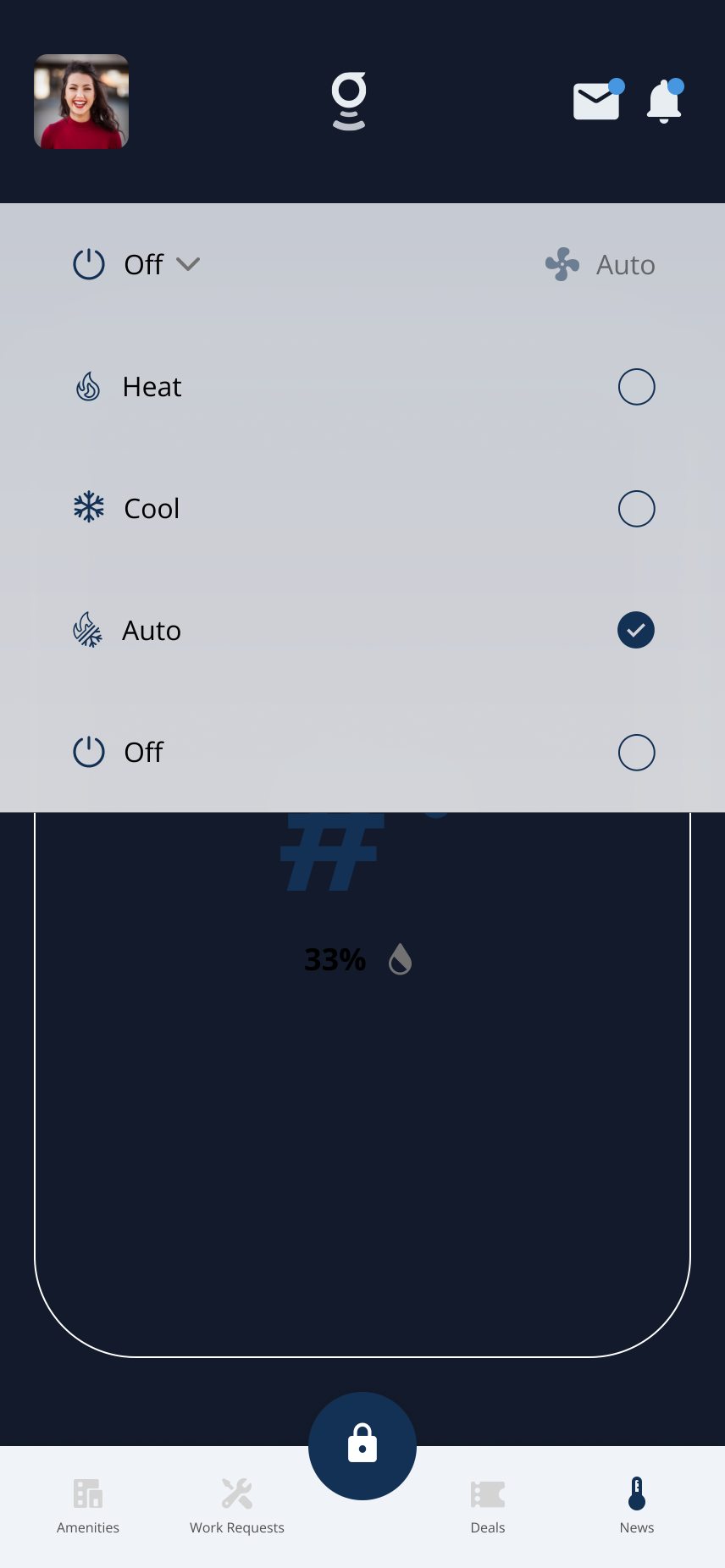
Use the mode selector when Heat, Cool, Auto, or Off options are available.
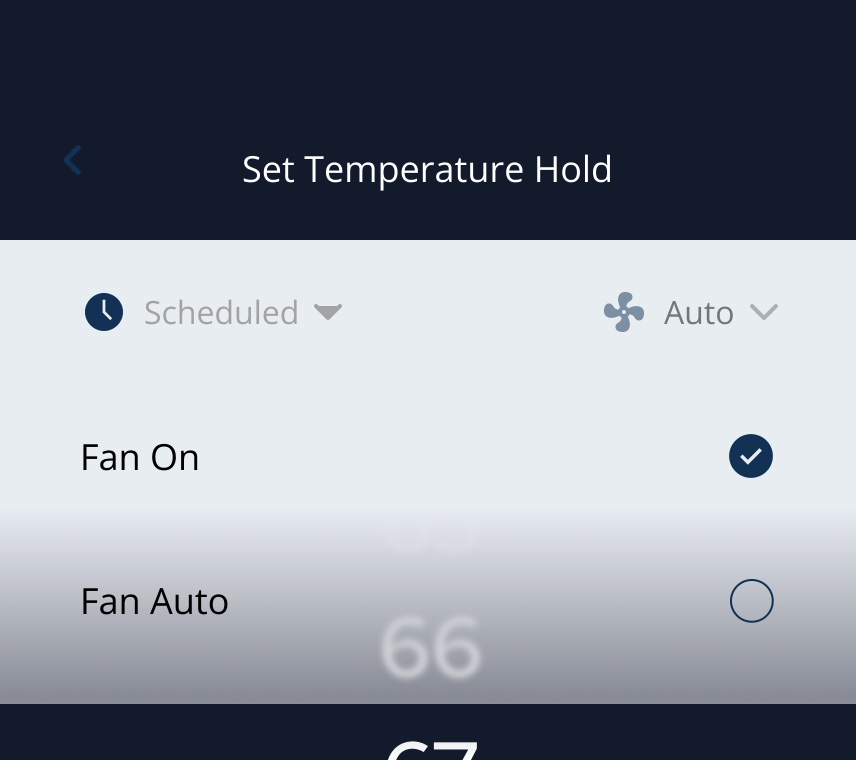
Fan controls may include Fan On and Fan Auto depending on your thermostat setup.
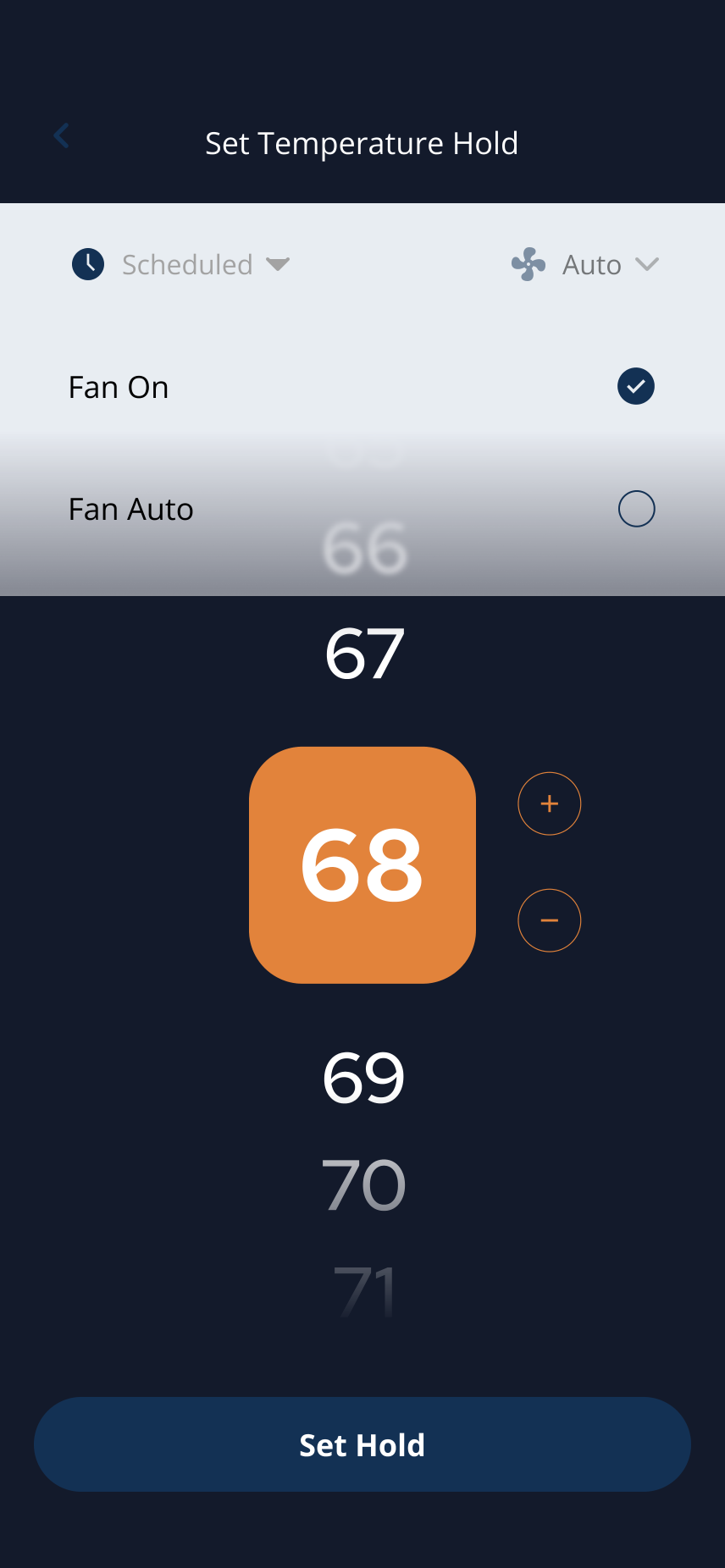
Set Temporary Hold opens temperature, duration, and fan options when supported.
Related articles
Thermostats in the Grata App
2 min read
Thermostats in Grata let you check temperature and humidity, change mode, set holds, and adjust fan settings w...
Thermostat Is Not Connecting or Showing Data
3 min read
Troubleshoot when your thermostat is missing, offline, or not showing data in the Grata app — refresh the app,...
Set a Temperature Hold
1 min read
Tap Set Temporary Hold, choose a temperature, pick Next Schedule or Indefinite if shown, then tap Set Hold.
Change Thermostat Mode
1 min read
Change your thermostat mode in the Grata app — choose Heat, Cool, Auto, or Off when available for your unit.
Change Fan Settings
1 min read
Change available fan settings such as Fan Auto or Fan On from the thermostat screen when your building and uni...