
Change Thermostat Mode
Summary
Step-by-Step Instructions
1Step 1: Open the Grata app
- Open the Grata app on your phone.
2Step 2: Go to thermostat controls
- Tap Thermostats on the bottom navigation.
- If Thermostats does not appear, your building or unit may not have app thermostat controls enabled.
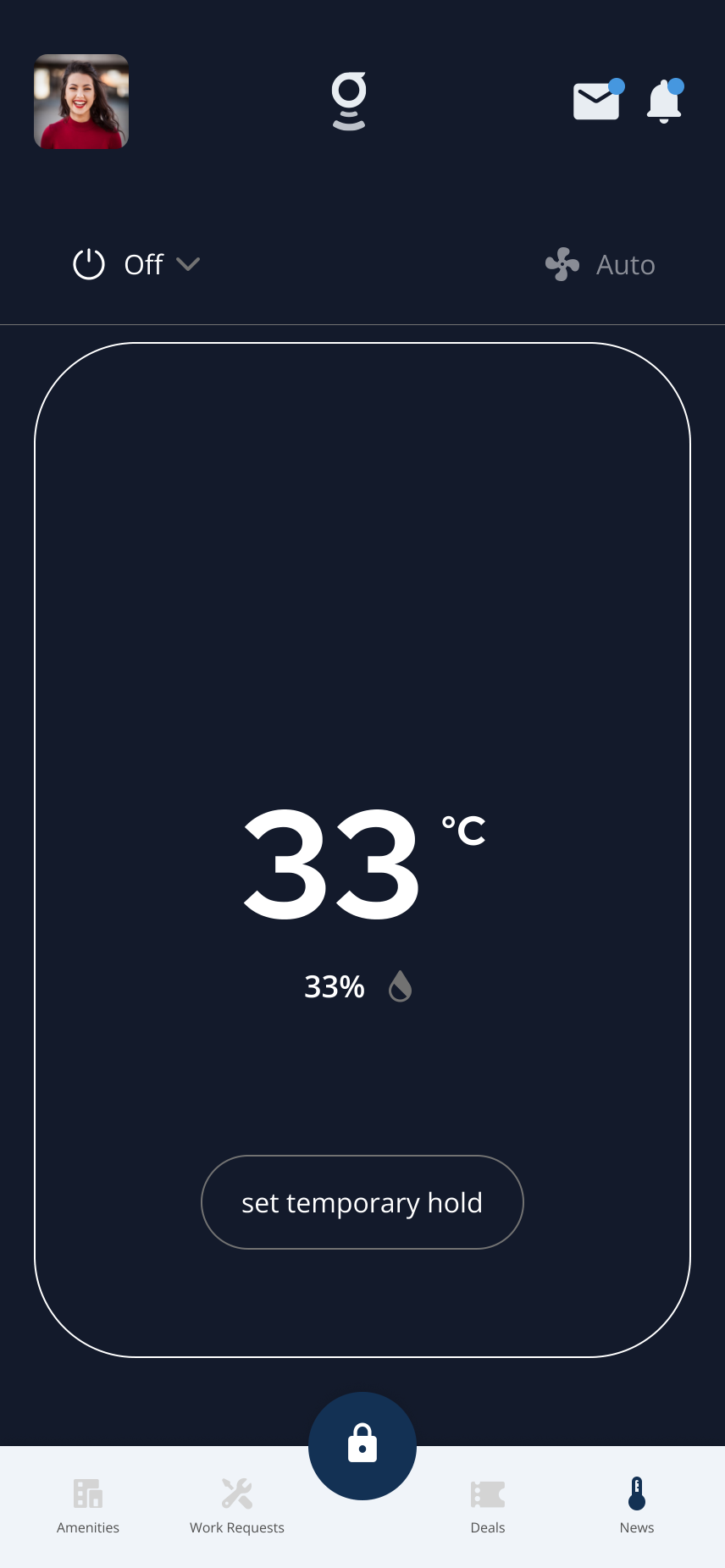
Open Thermostats to view the current mode and available thermostat controls.
3Step 3: Select the thermostat
- Open the thermostat screen for your unit when more than one device is shown.
4Step 4: Open the mode setting
- Tap the current mode near the top of the thermostat screen.
- The mode selector expands to show available options.
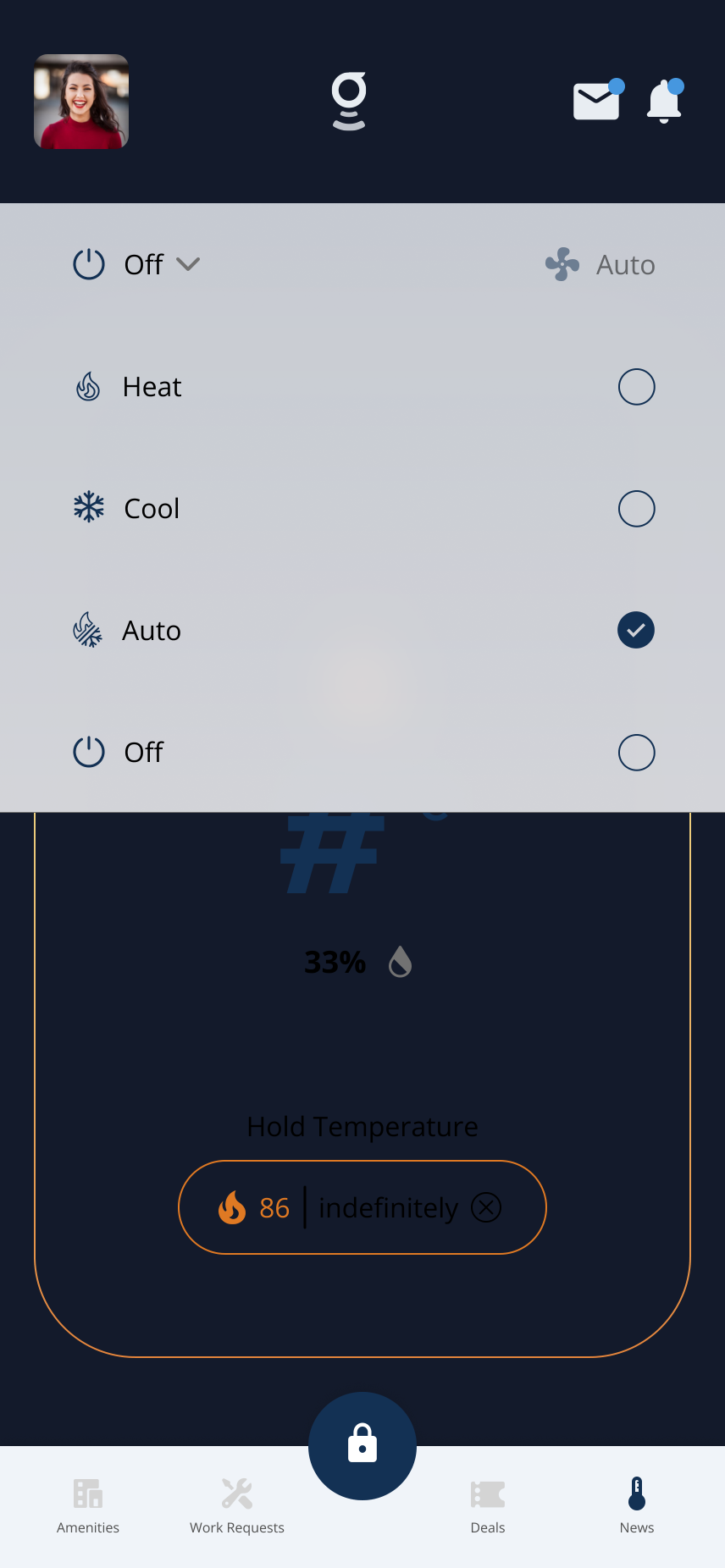
Tap the current mode to expand the Heat, Cool, Auto, and Off selector.
5Step 5: Choose an available mode
- Select Heat to heat the unit.
- Select Cool to cool the unit.
- Select Auto if your building supports automatic heating and cooling.
- Select Off to turn heating and cooling mode off.
- Available modes depend on your thermostat model and building setup.
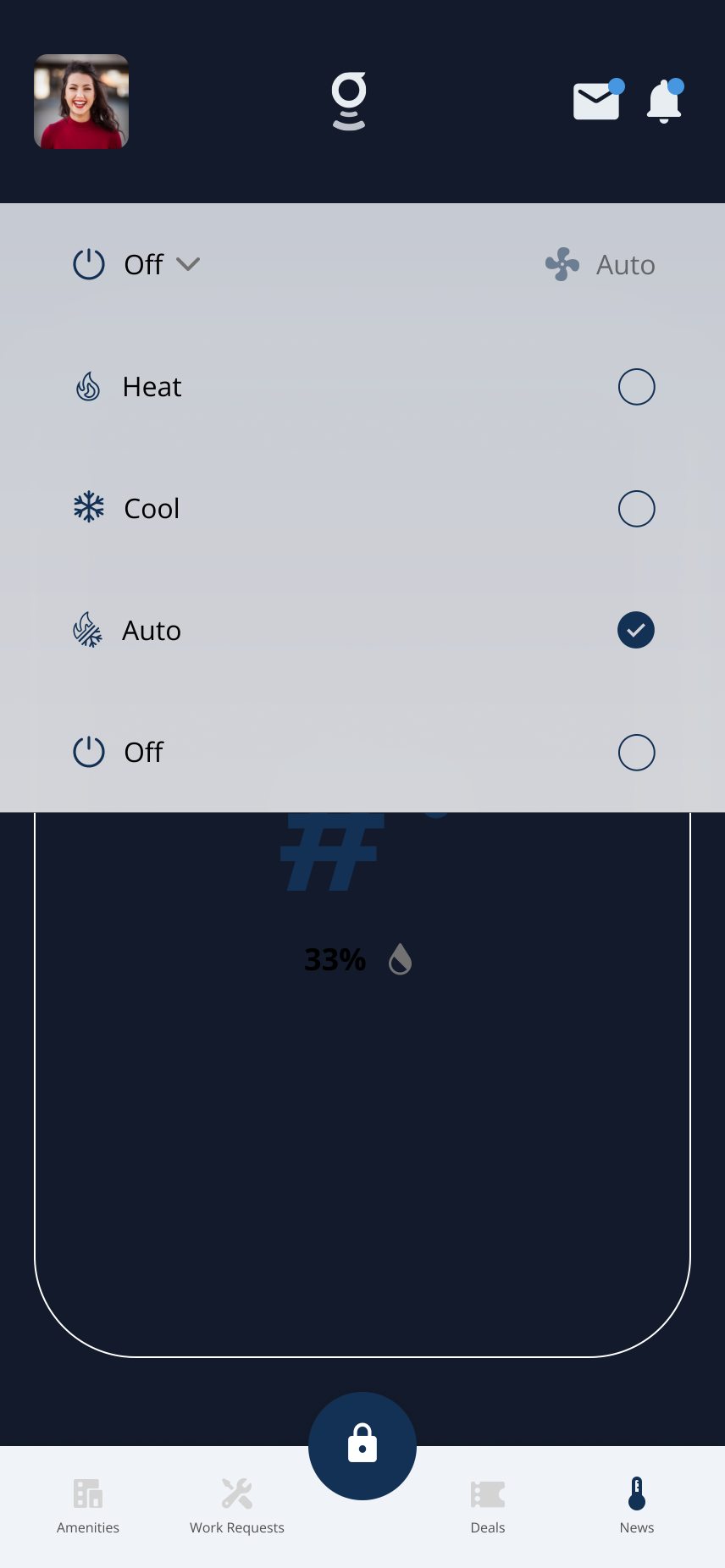
Available modes depend on your building and thermostat setup.
6Step 6: Confirm the thermostat updates
- The thermostat screen should update to show the selected mode.
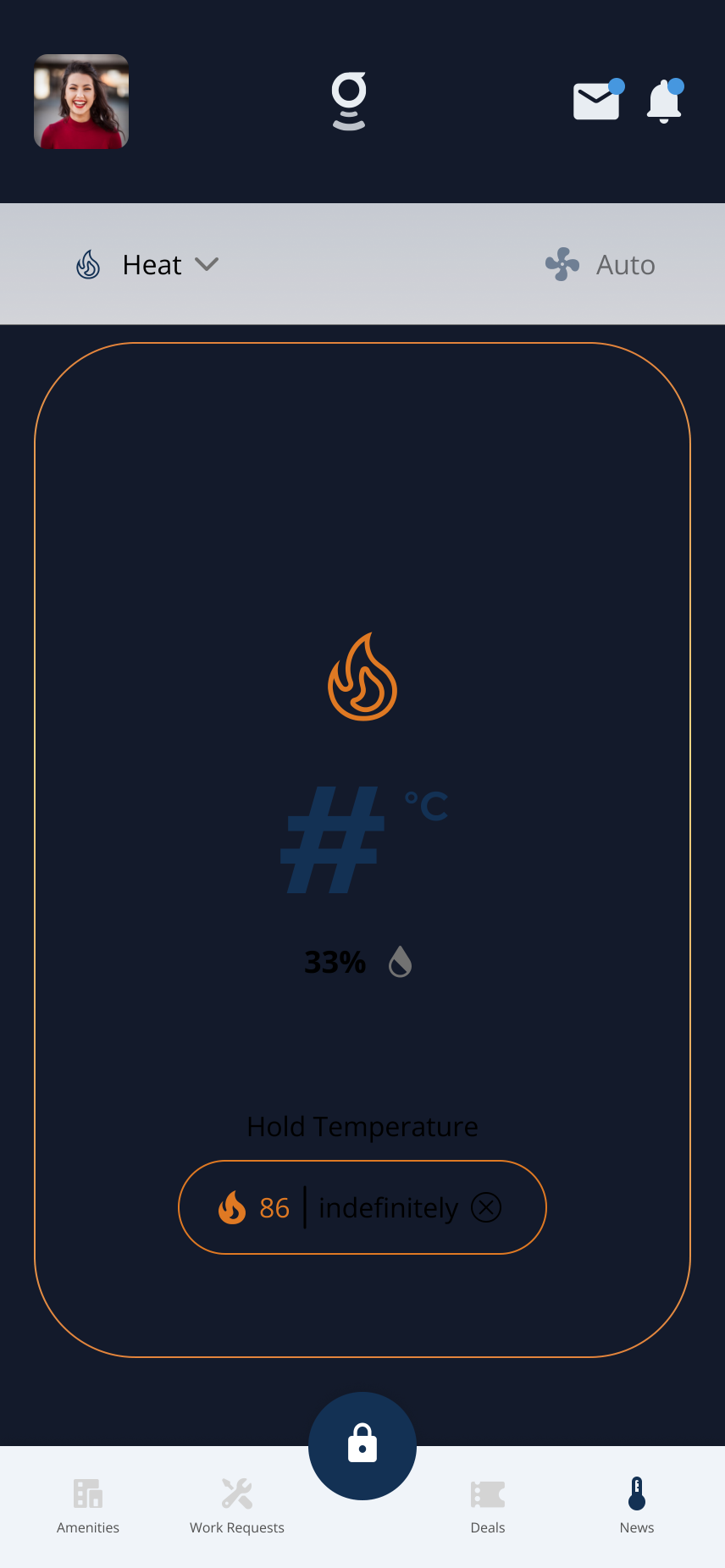
Heat mode active — the thermostat is now heating.
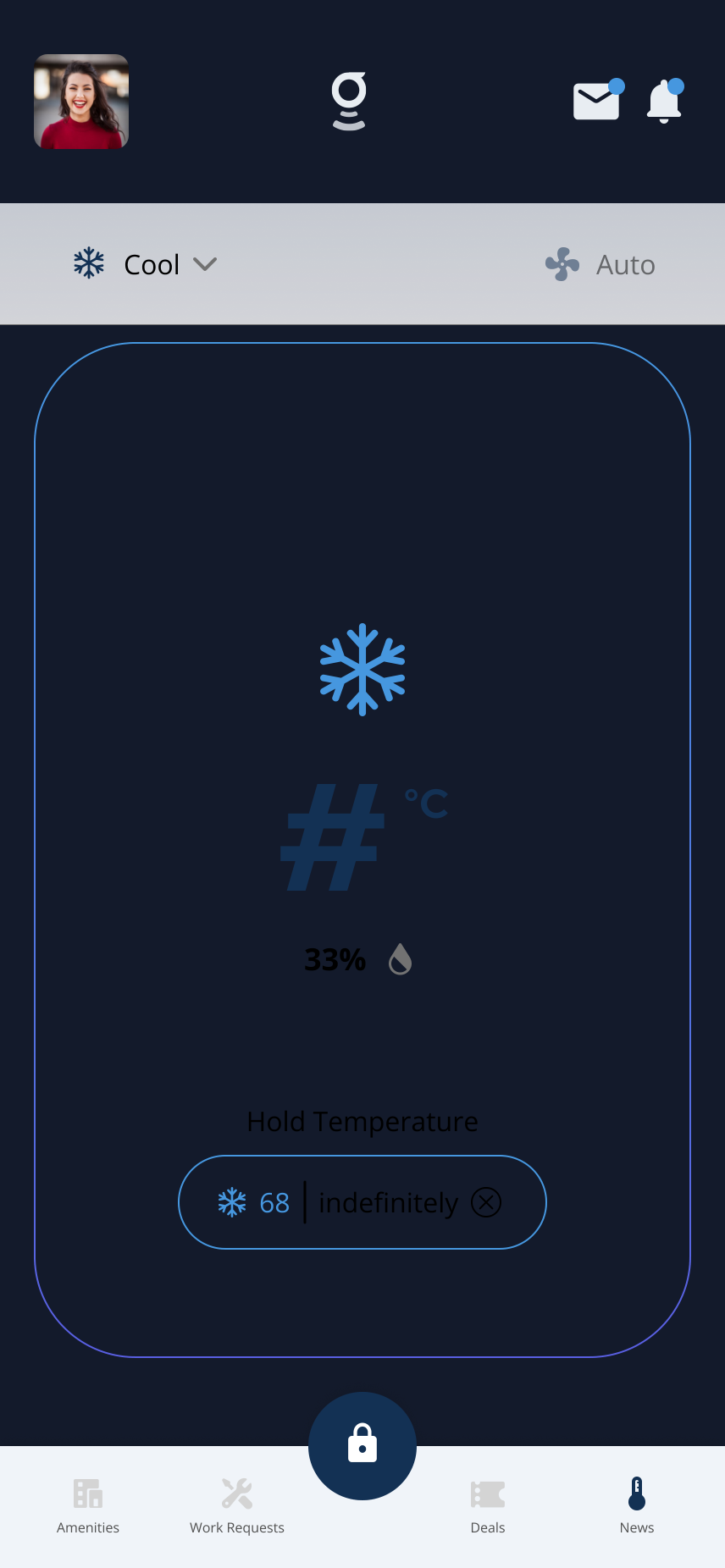
Cool mode active — the thermostat is now cooling.
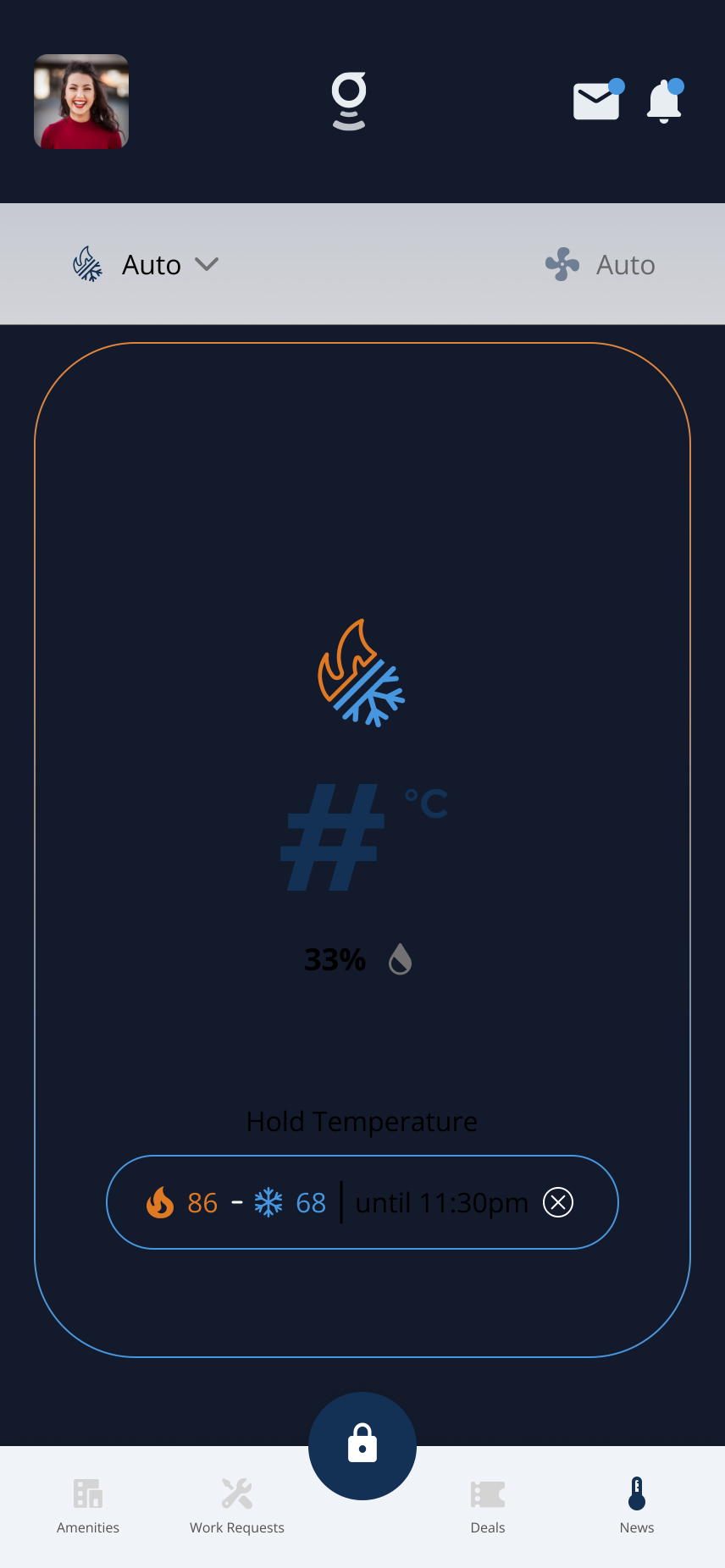
Auto mode can show both heat and cool targets when supported by your building setup.
- HVAC changes may take a short time to affect the room.
Why some modes may not appear▾
- Available modes depend on the thermostat model installed in your unit.
- Building HVAC setup, season, and property settings may limit heating or cooling options.
- Some buildings restrict certain modes by time of year or building policy.
- Resident permissions and enabled features also affect what appears in the app.
- Auto switches between heating and cooling automatically when supported. Off turns heating and cooling off — the fan may still run depending on fan settings.
If the thermostat does not update▾
- Confirm your phone has an internet connection.
- Fully close and reopen the Grata app.
- Wait briefly for the thermostat to sync after changing the mode.
- Check whether other thermostat controls, such as temperature or fan settings, are responding.
- If the thermostat is offline, missing, or not showing data, see Thermostat Is Not Connecting or Showing Data.
Related articles
Who Controls My Access?
3 min read
Property management controls your access permissions — Grata reflects the building setup; contact your buildin...
Thermostat Is Not Connecting or Showing Data
3 min read
Troubleshoot when your thermostat is missing, offline, or not showing data in the Grata app — refresh the app,...
Set a Temperature Hold
1 min read
Tap Set Temporary Hold, choose a temperature, pick Next Schedule or Indefinite if shown, then tap Set Hold.
View and Use Thermostat Controls
1 min read
Open Thermostats to see room temperature, humidity, mode, fan setting, and the controls available for your uni...
Change Fan Settings
1 min read
Change available fan settings such as Fan Auto or Fan On from the thermostat screen when your building and uni...