
Work Request Details and Chat
Summary
Step-by-Step Instructions
1Step 1: Open the Grata app
- Open the Grata app on your phone.
2Step 2: Go to work requests
- Tap Work Requests or Requests in the bottom navigation, depending on your building.
- Open My Tickets or your request list.
3Step 3: Select the request you want to review
- Find the work request you want to open.
- Tap Details beside the request.
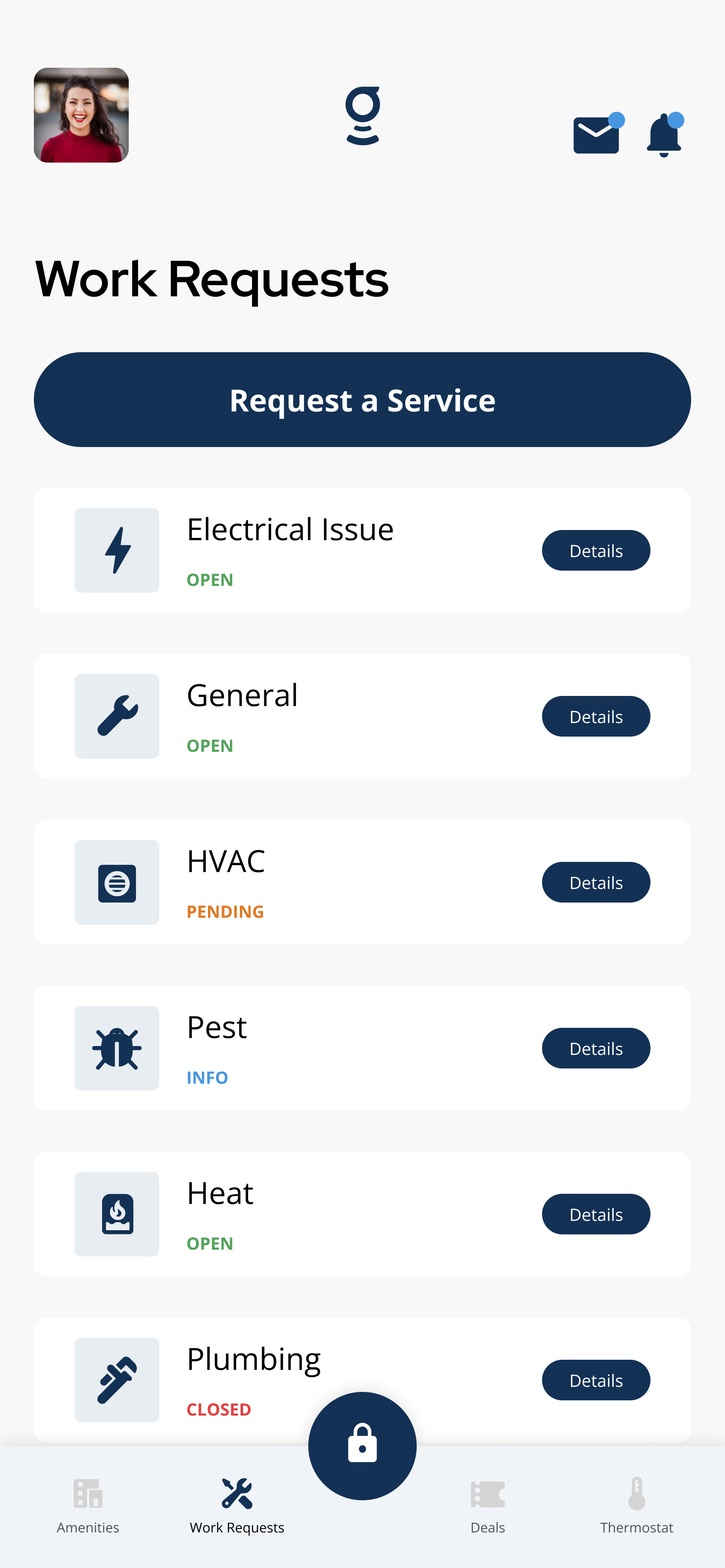
Use My Tickets to find the request you want to review.
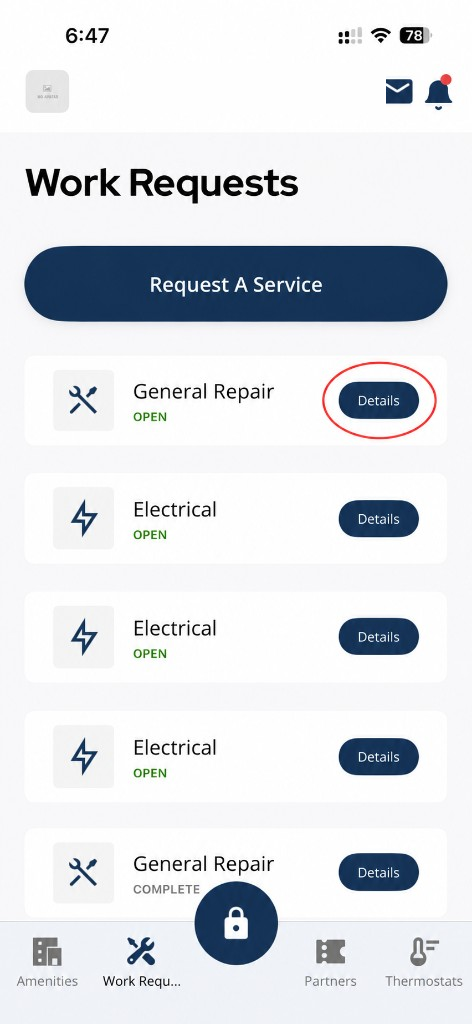
Tap Details to open the work request page.
4Step 4: Review the request details, status, and updates
- Check the status, category, description, contact method, urgency, unit access, and any photos or attachments shown.
- Confirm the details match the issue you submitted.
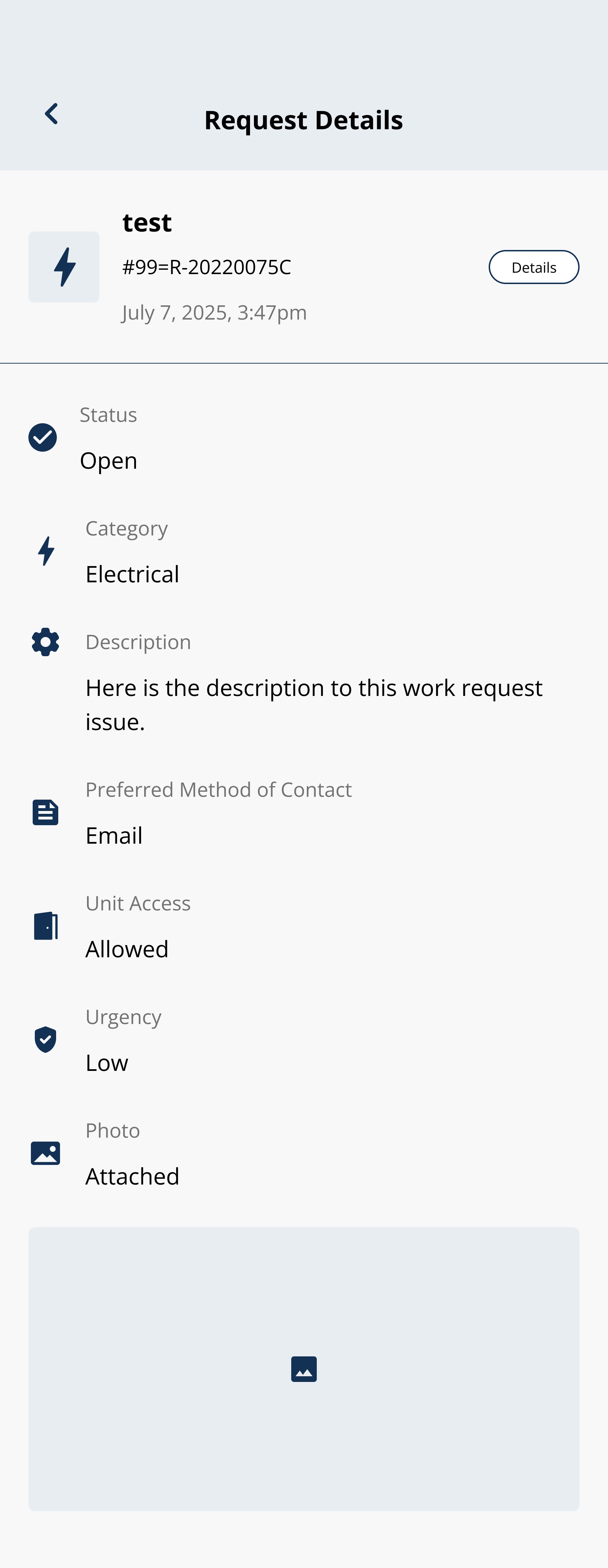
Review the status, category, description, contact, urgency, access, and photo fields for the request.
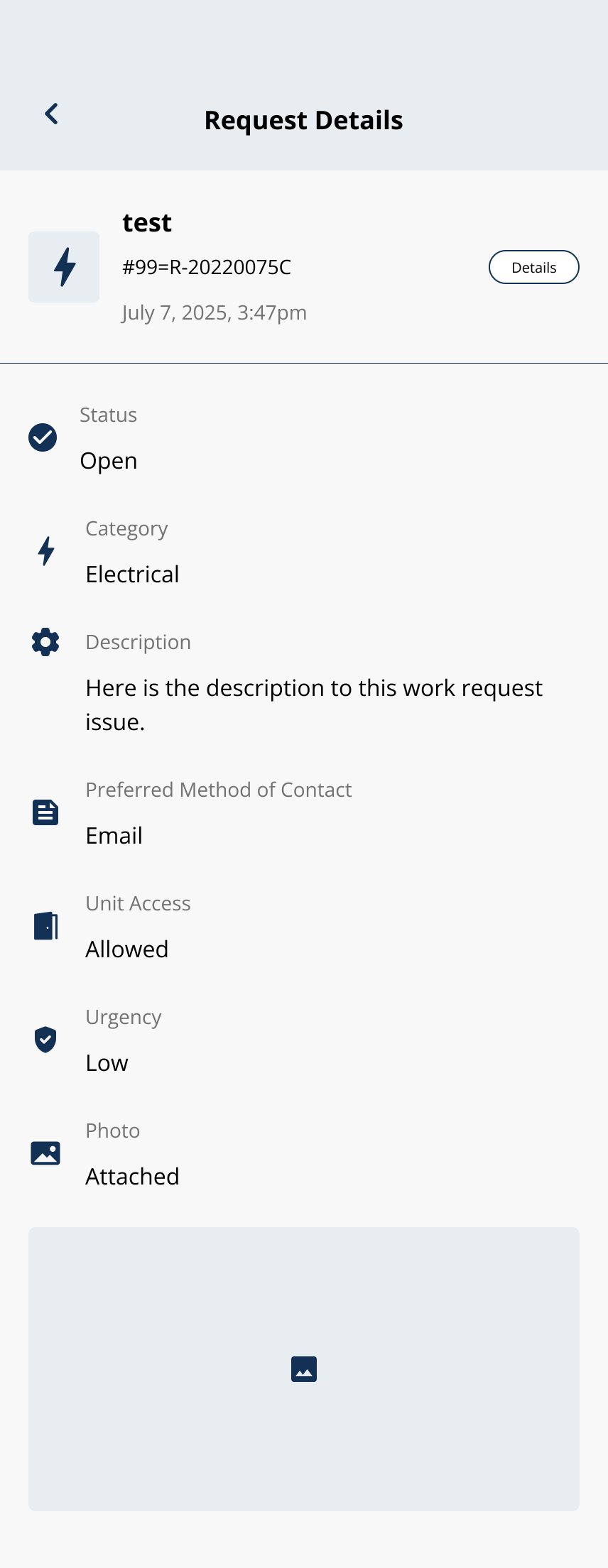
Review request details and any updates from your building team.
5Step 5: Open the chat, comments, or messages area if available
- If your building enables request messaging, read the latest messages in the chat area.
- Some buildings show updates only, without a chat field.
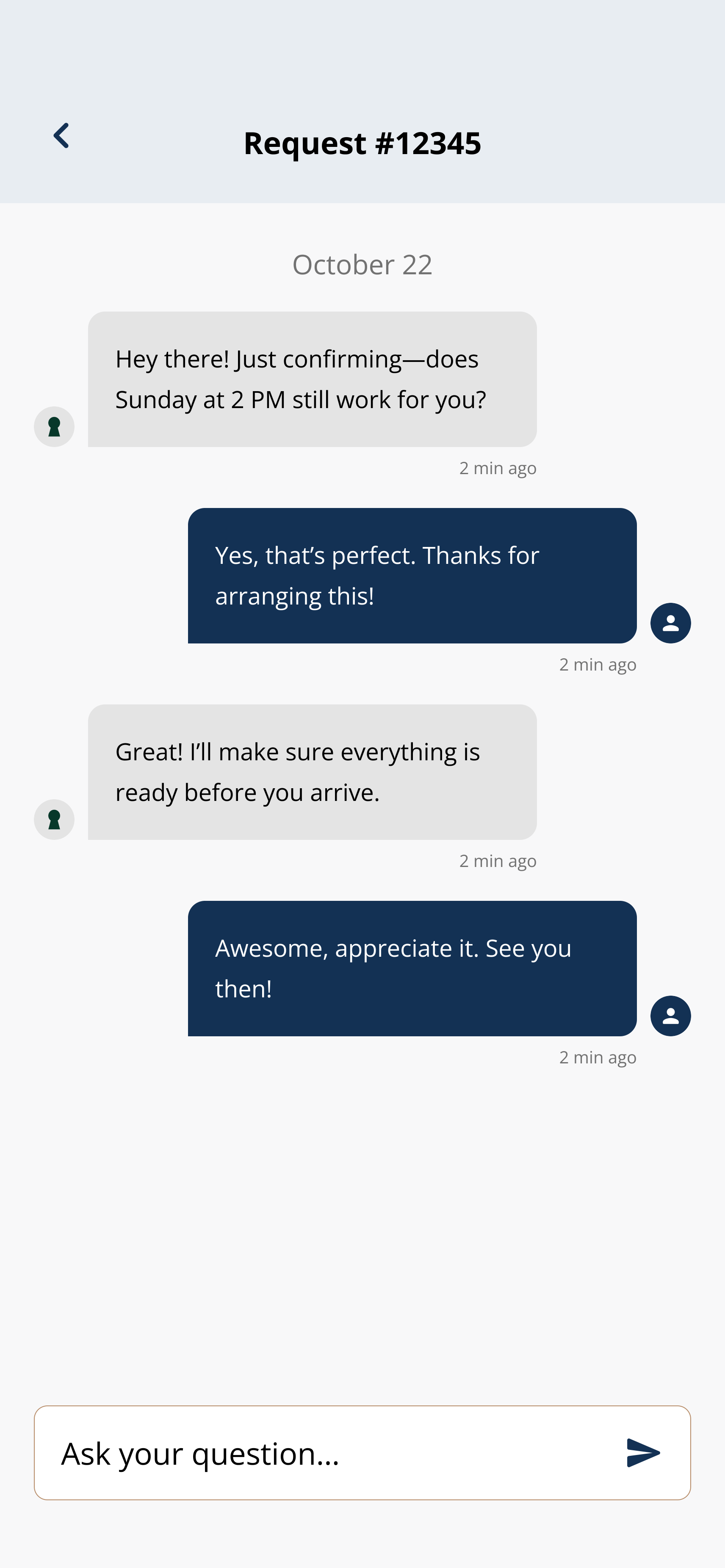
Read the conversation history and reply when request messaging is enabled.
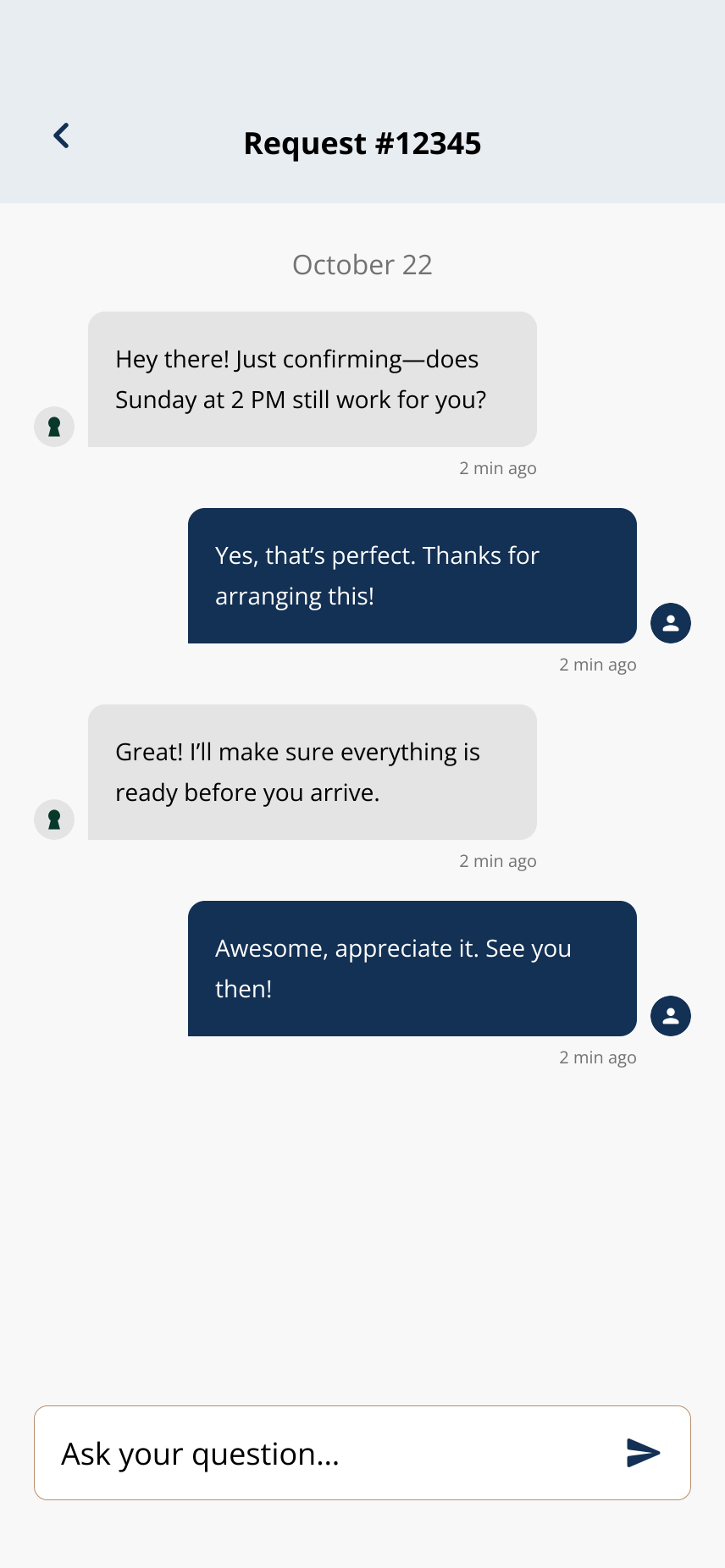
Send or read chat messages if your building has enabled request messaging.
6Step 6: Add a message or follow-up detail if the app allows it
- Type your question, update, or reply in the message field when chat is enabled.
- Use follow-up messages for scheduling changes, access instructions, or additional details.
7Step 7: Check back for updates from the property or maintenance team
- The app may notify you when your request is updated or when the team replies.
- Return to Details to review new status changes or messages.
What you may see in request details▾
- Request title or category
- Issue description and photos or attachments
- Current status and date submitted
- Updates from property management or maintenance
- Access notes or scheduling details
- Chat or messages if your building enables them
If chat is not available▾
- Some buildings do not enable chat or comments on work requests.
- Some requests may be updates-only, with status changes but no message field.
- The property team may communicate through another building process.
- If the issue is urgent, follow your building's urgent maintenance or emergency process instead of waiting for an in-app message.
When to add a follow-up message▾
- Add a message if more detail is needed, access information changes, the issue gets worse, or the request appears incomplete.
- Do not use request chat for emergencies unless your building specifically instructs residents to do so.
- Property management controls response timing and maintenance workflow.
Related articles
Close or Cancel a Service Request
1 min read
Mark a maintenance request as resolved or cancel one you no longer need — both happen from inside the request...
I Cannot Submit a Service Request
1 min read
Request won't submit? Open Work Requests, tap Request A Service, fill required fields, check connectivity, res...
Create a Work Request
2 min read
Create a work request in the Grata app—choose a category, describe the issue, add photos or access notes if ne...
Work Request Statuses
1 min read
Understand common work request status labels in the Grata app and what each status means for your ticket.
What Grata does and does not control
2 min read
Use this guide to complete resident tasks in the Grata app.