
Close or Cancel a Service Request
Summary
Step-by-Step Instructions
1Step 1: Open Work Requests
- From the Grata Smart Living home screen, tap Work Requests.
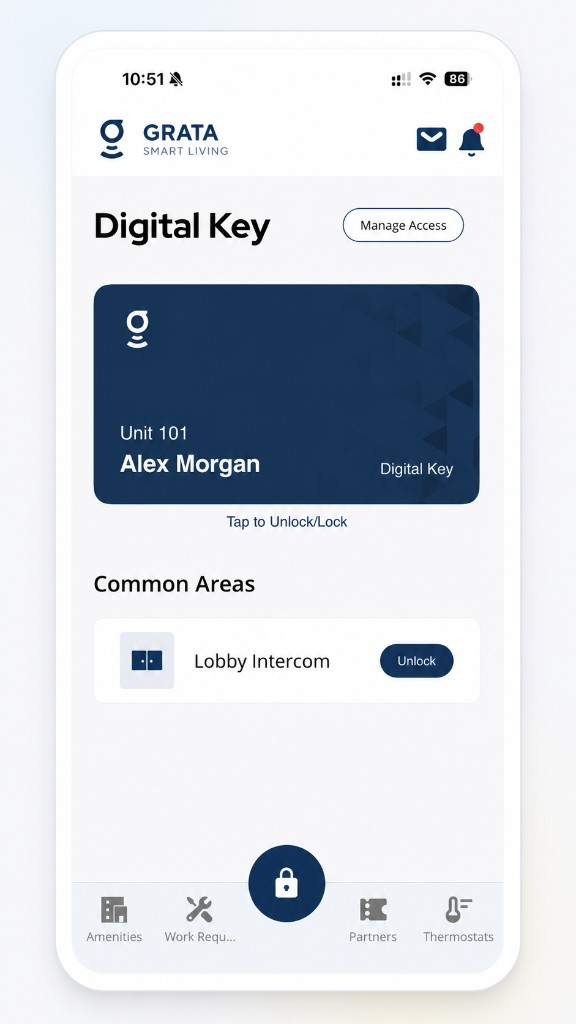
From the Grata Smart Living home screen, tap Work Requests.
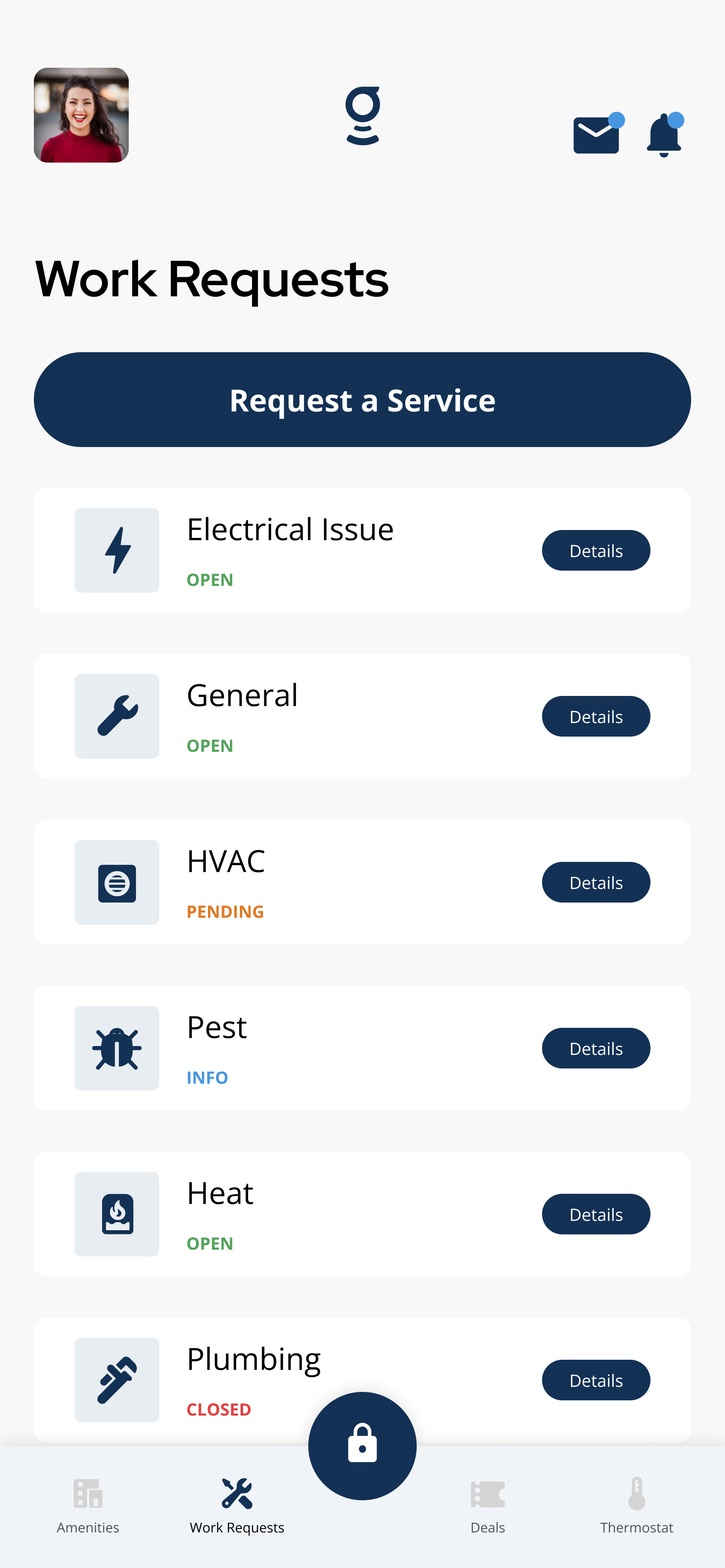
Open My Tickets to find the submitted request you want to review.
2Step 2: Open My Tickets and select the request
- Tap My Tickets to view your submitted requests.
- Select the request you want to close or cancel.
3Step 3: Review the request details and status
- Check the current status of the request before taking action.
- If the request is already completed, in progress, or assigned, close or cancel options may not be available.
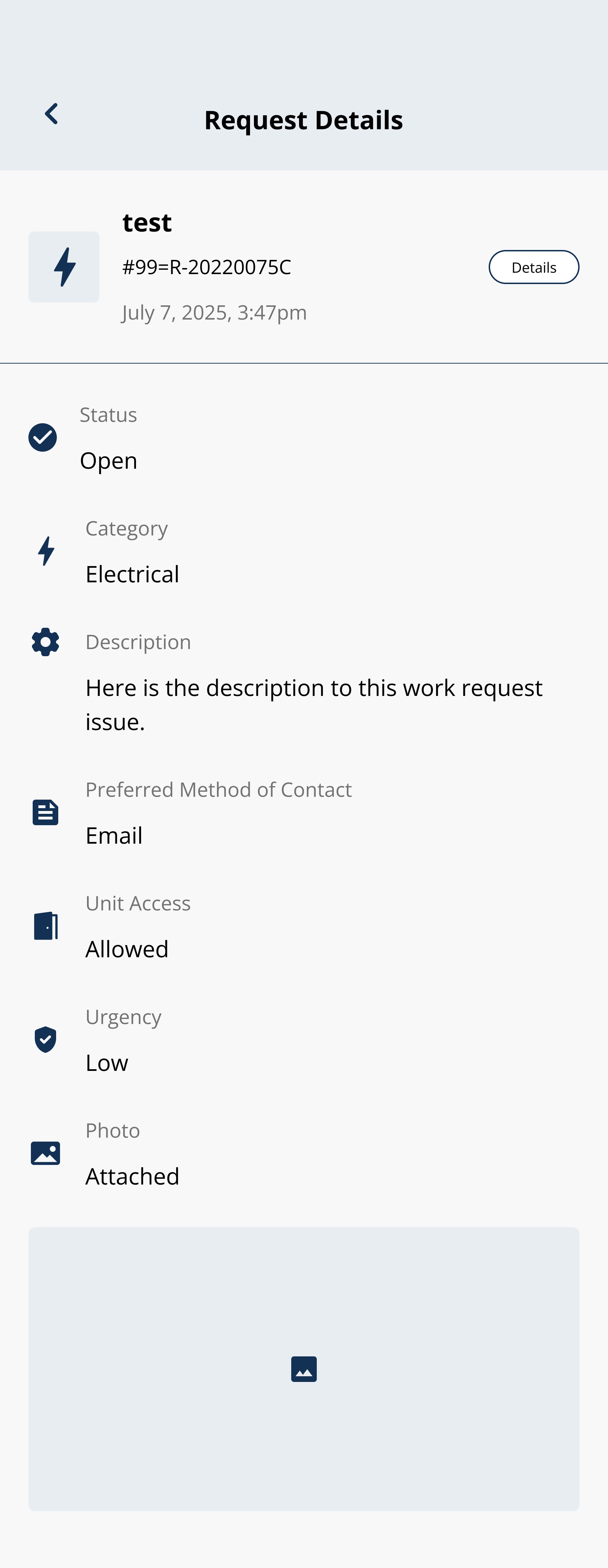
Review the request status and details before looking for a close, cancel, or withdraw option.
4Step 4: Tap Close, Cancel, or Withdraw if shown
- If your building allows it, a Close, Cancel, or Withdraw option appears on the request screen.
- Tap the available action.
5Step 5: Confirm the action if prompted
- Confirm if the app asks you to verify the cancellation or closure.
6Step 6: Check the updated status
- Return to My Tickets and verify the request status has updated to reflect the change.
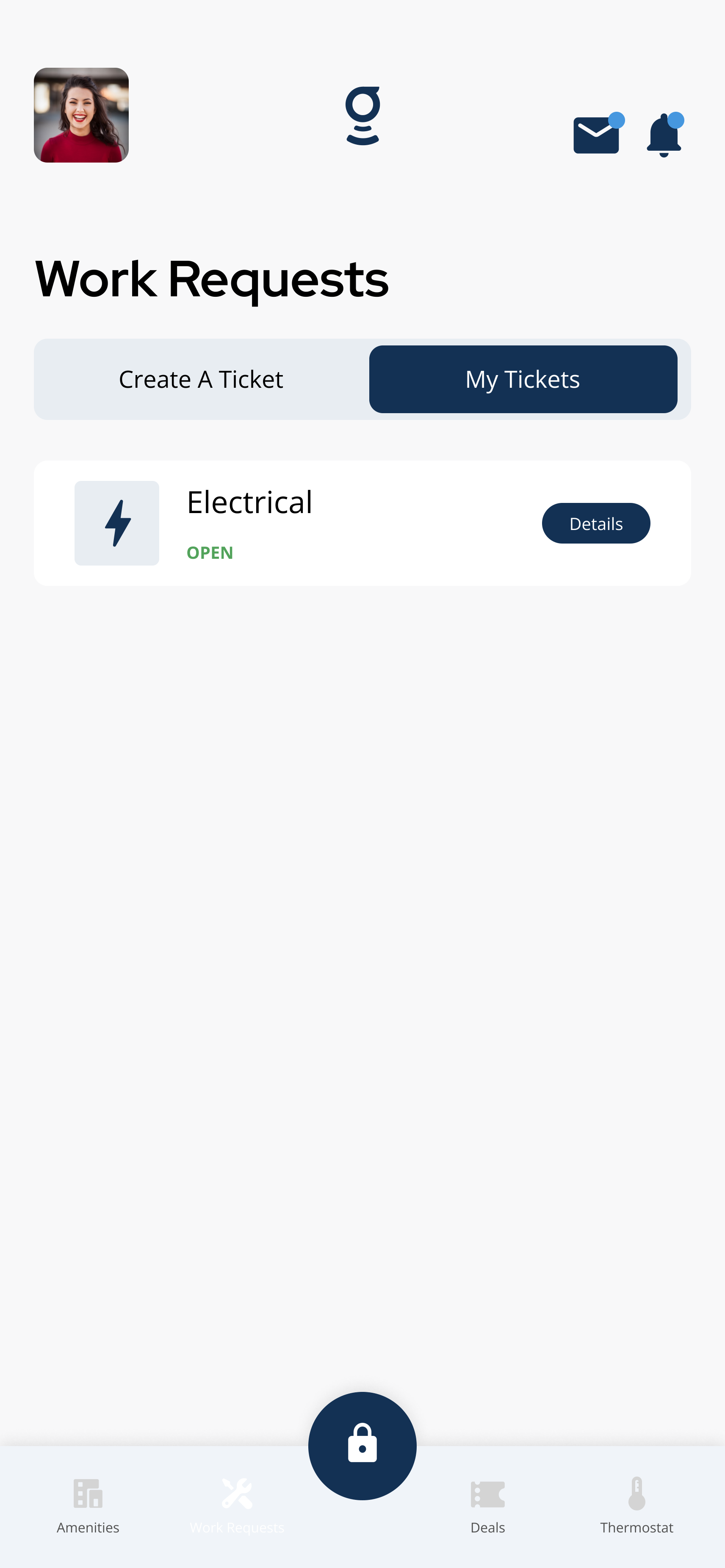
Check My Tickets again to confirm the request status after any change.
Related articles
Work Request Details and Chat
1 min read
View work request details, status updates, and chat messages in the Grata app when your building enables them.
I Cannot Submit a Service Request
1 min read
Request won't submit? Open Work Requests, tap Request A Service, fill required fields, check connectivity, res...
Create a Work Request
2 min read
Create a work request in the Grata app—choose a category, describe the issue, add photos or access notes if ne...
Work Request Statuses
1 min read
Understand common work request status labels in the Grata app and what each status means for your ticket.