
I Cannot Submit a Service Request
Summary
Common Reasons a PIN Stops Working
- Missing required fields.
- Internet connectivity issues.
- Unsupported request type for your building.
- Building restrictions or approval rules.
- Temporary app sync or submission problems.
- Available categories and required fields vary by building.
- A submitted request may take a moment to appear under My Tickets.
- For urgent water, gas, fire, or safety issues, contact building support directly.
Step-by-Step Instructions
1Step 1: Open Work Requests
- Tap Work Requests in the bottom navigation (some buildings label this Requests).
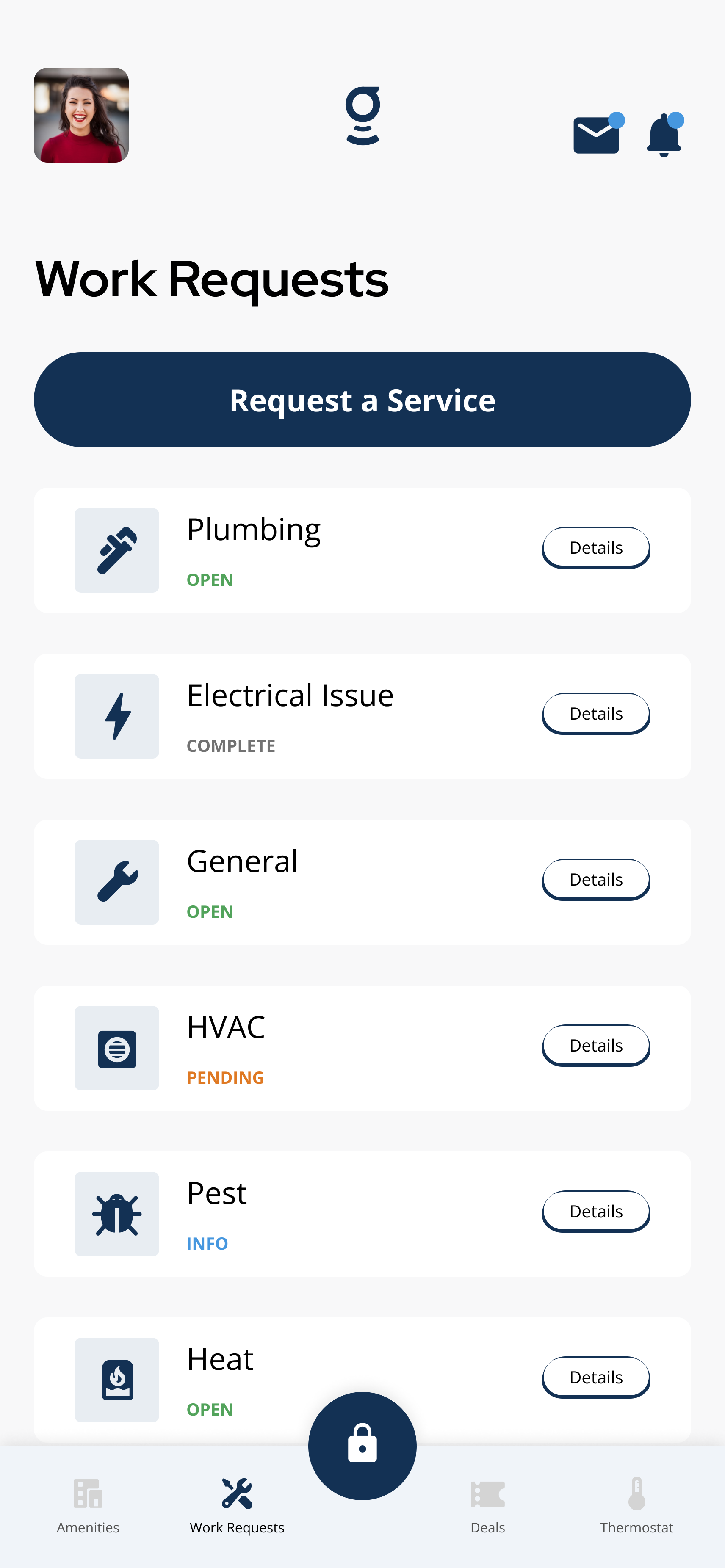
Open Work Requests and tap Request a Service when request submission is enabled.
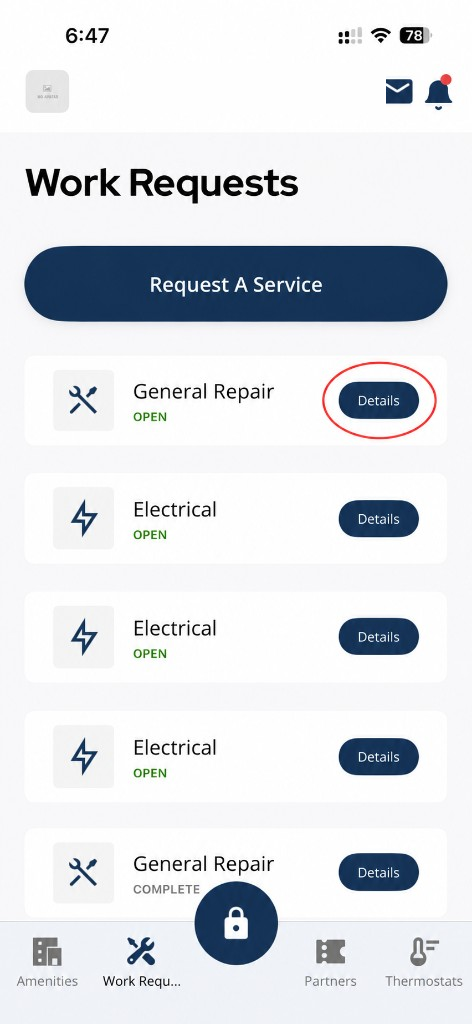
Open Work Requests to create, review, or manage service requests.
2Step 2: Tap Request A Service
- Tap Request A Service or open the Create A Ticket tab.
- Some buildings use different request categories.
- Certain request types may not appear for every property.
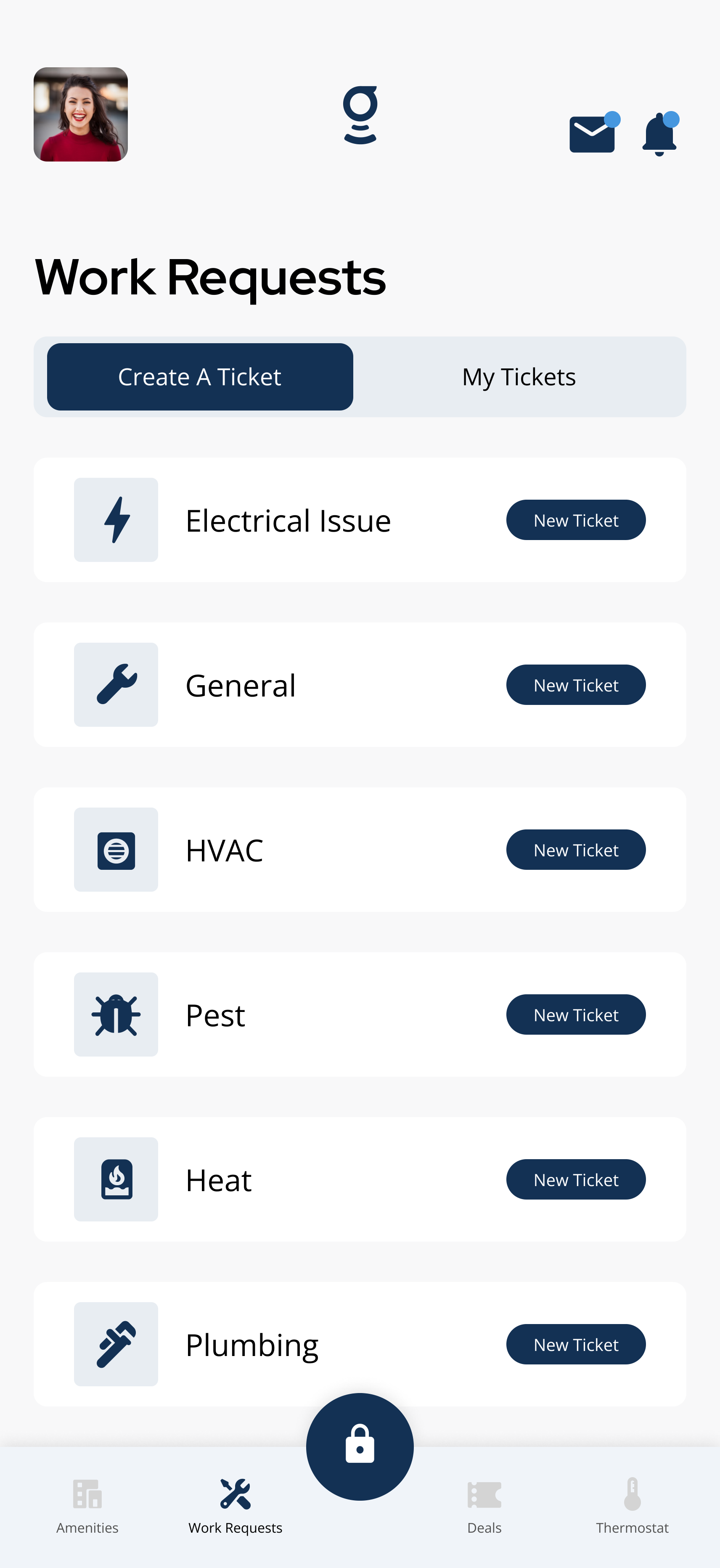
If a category is missing, that request type may not be enabled for your building.
3Step 3: Complete all required fields
- Missing required information may prevent submission.
- Confirm you added a description, category, photos if required, and contact information if requested.
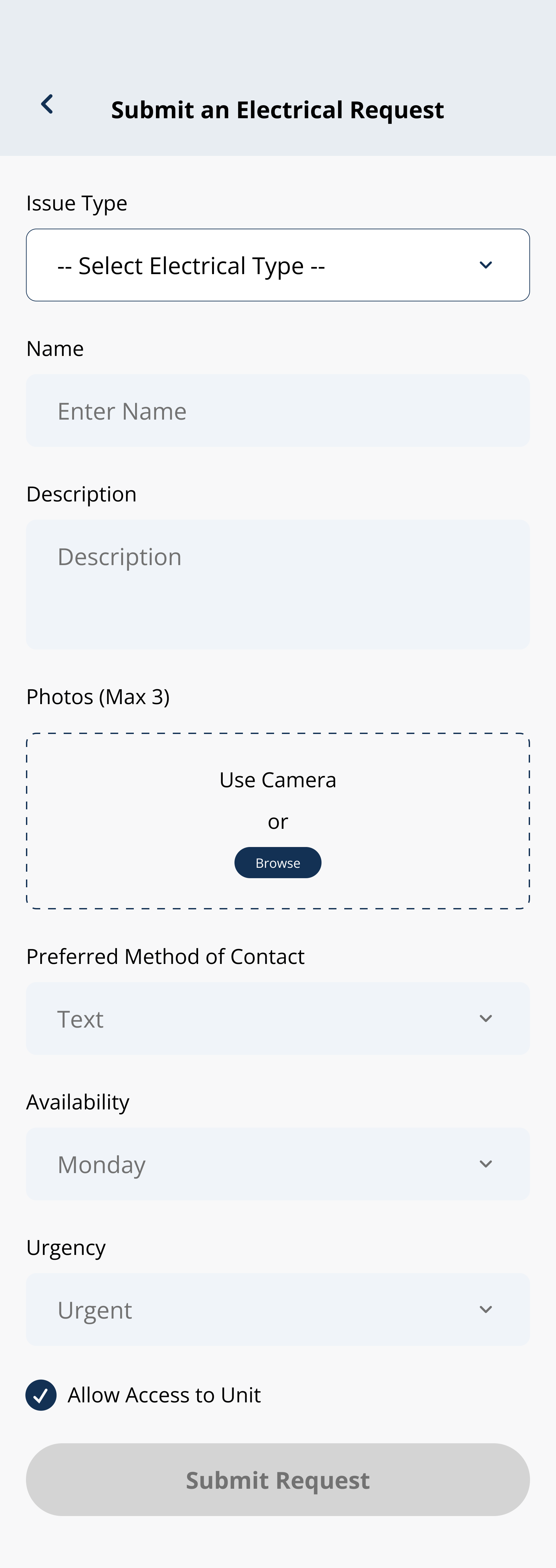
Missing required fields can prevent the request from submitting.
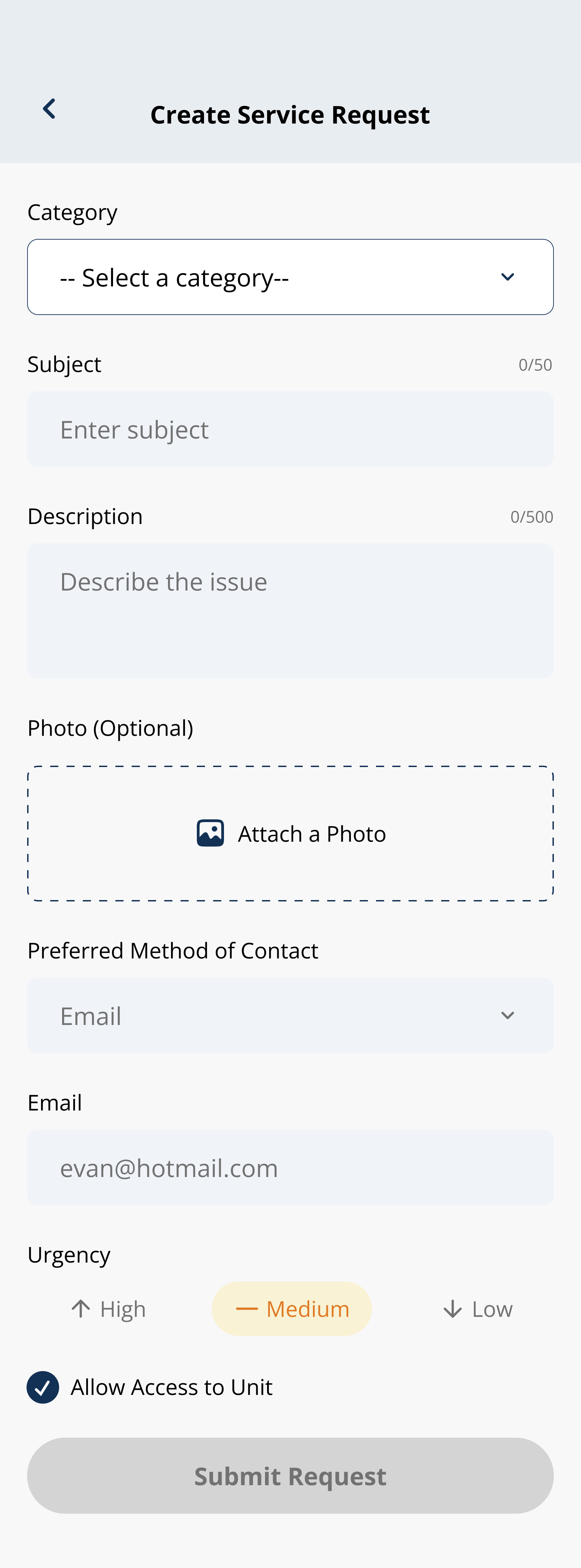
Complete every required field before tapping Submit Request.
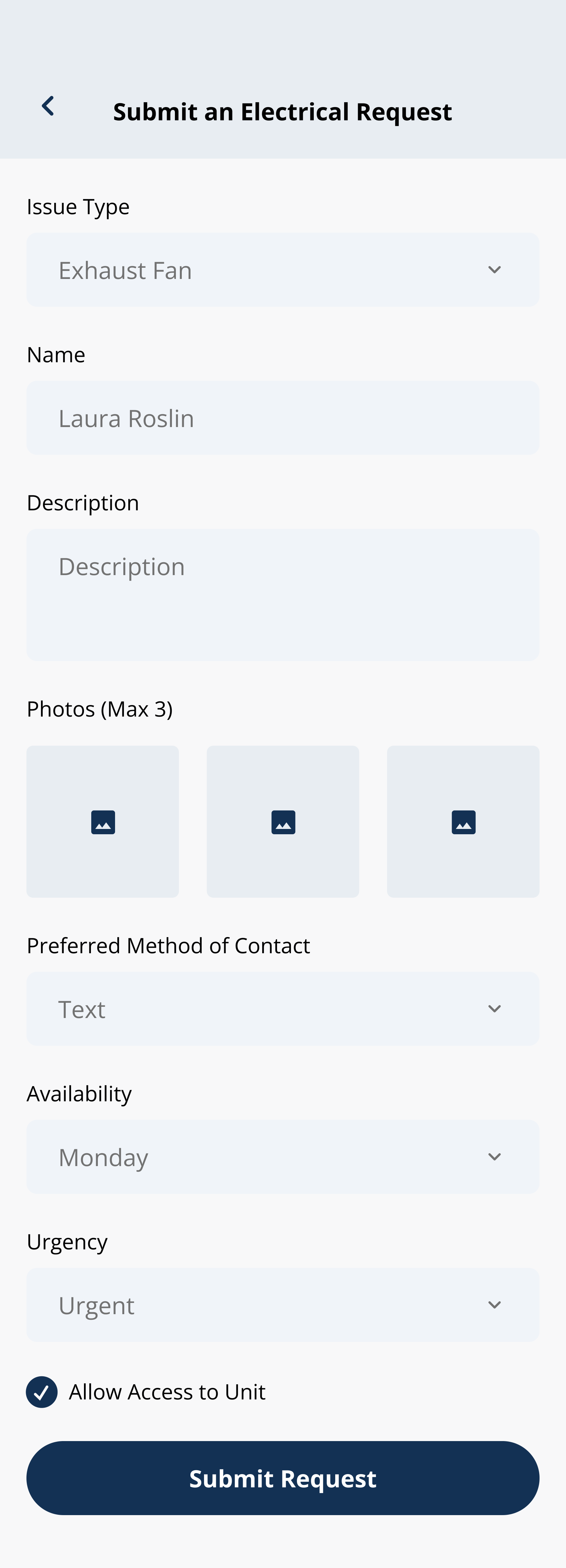
A filled-in form ready to submit — confirm all required fields before tapping Submit Request.
4Step 4: Check your internet connection
- Retry on Wi-Fi or cellular.
- Reopen the app if the form stops responding.
5Step 5: Restart and retry
- Close and reopen the app.
- Retry the submission.
- Confirm the request appears in My Tickets or your work requests list.
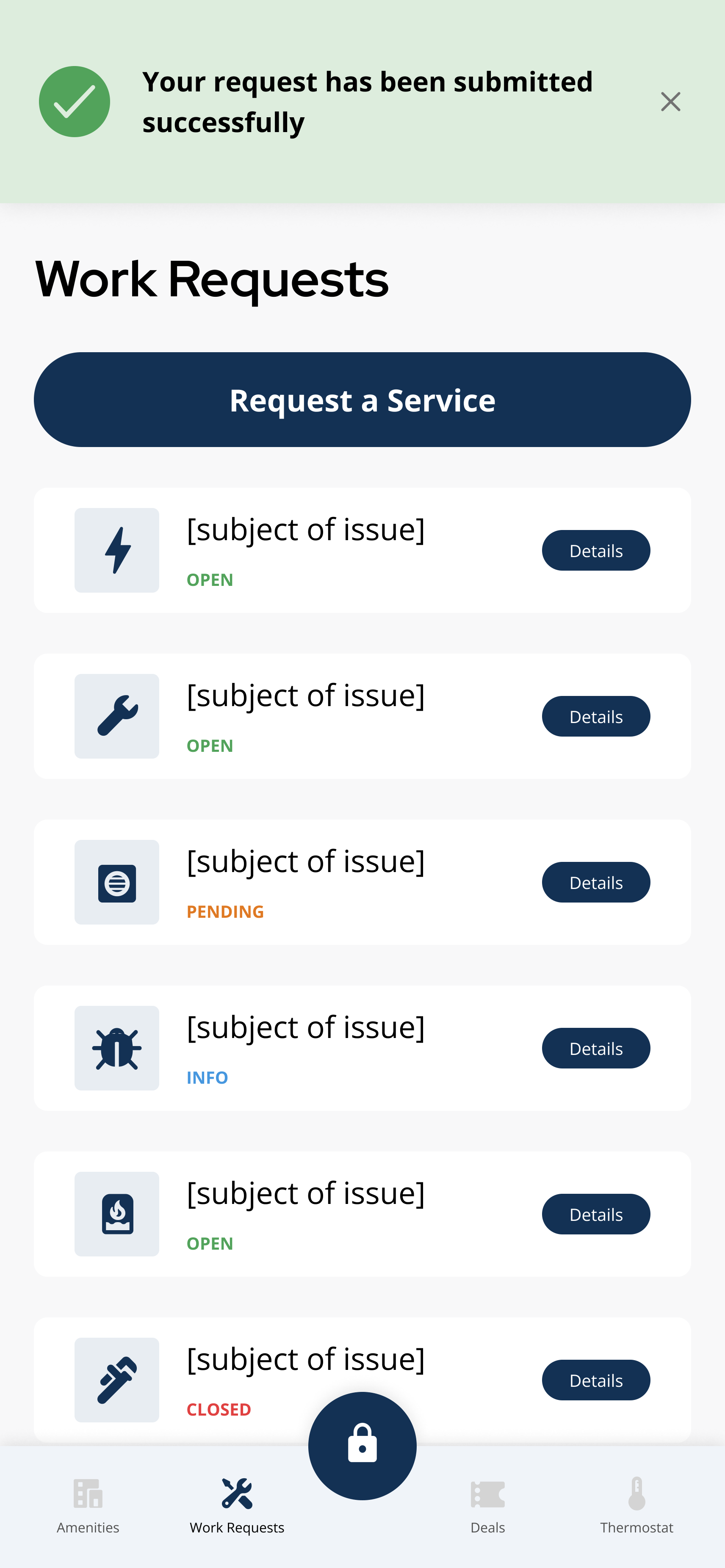
After a successful submission, the request should appear in the Work Requests list.
6Step 6: Contact building support if the request still will not submit
- any error messages, the request type you tried, and screenshots if possible.
Common Reasons a Request Will Not Submit
- Missing required fields.
- Internet connectivity issues.
- Unsupported request type for your building.
- Building restrictions or approval rules.
- Temporary app sync or submission problems.
- Available categories and required fields vary by building.
- A submitted request may take a moment to appear under My Tickets.
- For urgent water, gas, fire, or safety issues, contact building support directly.
If the request still will not submit
- Work Requests is missing when maintenance was promised in the app.
- Request A Service will not open or submit after you complete the form.
- The app shows an error you cannot resolve.
- You are unsure whether the request was submitted.
Related articles
Work Requests Overview
1 min read
Submit maintenance tickets, track My Tickets, and read status updates when your building uses Work Requests.
Work Request Details and Chat
1 min read
View work request details, status updates, and chat messages in the Grata app when your building enables them.
Work Request FAQ
1 min read
Submit and track Work Requests, read statuses, and fix tickets that will not submit.
Create a Work Request
2 min read
Create a work request in the Grata app—choose a category, describe the issue, add photos or access notes if ne...
Work Request Statuses
1 min read
Understand common work request status labels in the Grata app and what each status means for your ticket.