
View Closed Packages in Deliveries
Summary
Step-by-Step Instructions
1Step 1: Start from the Grata Smart Living home screen
- From the Grata Smart Living home screen, tap the top-left icon.
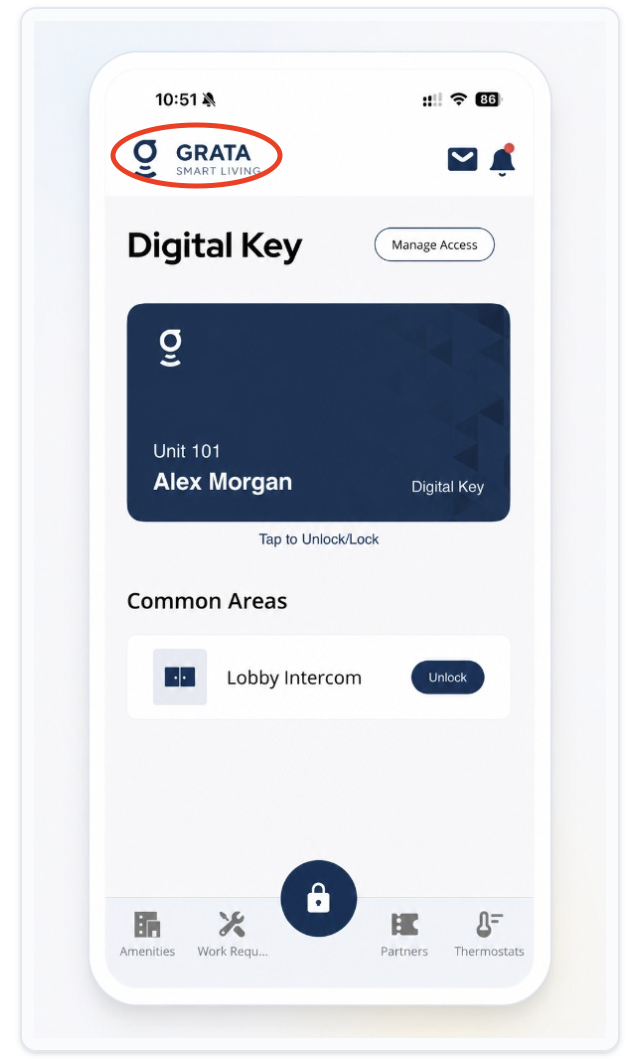
From the Grata Smart Living home screen, tap the top-left icon.
2Step 2: Open Deliveries from the Profile menu
- On the Profile screen, tap Deliveries.
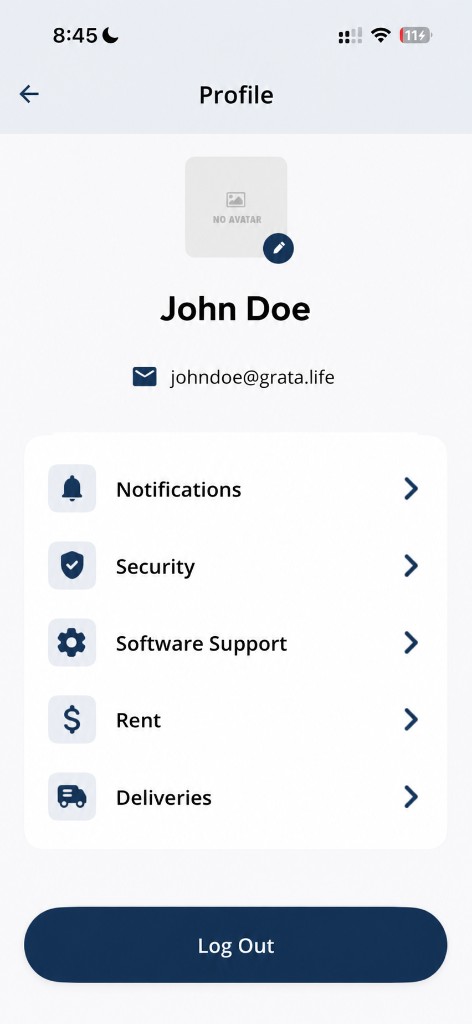
Tap Deliveries from the Profile screen.
3Step 3: Open the Closed tab
- On the Your Packages screen, tap Closed.
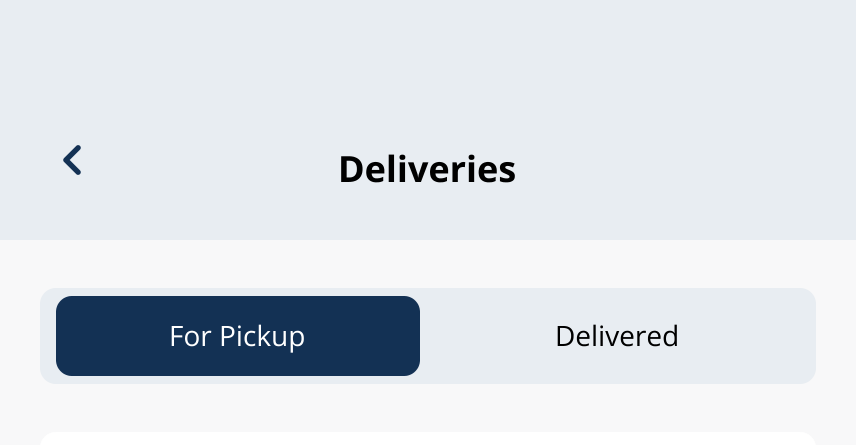
Switch to Closed to see completed packages.
4Step 4: Review completed packages
- Closed items usually do not need further pickup action.
5Step 5: Open details if needed
- Tap View Details if you want to review carrier, timing, or description.
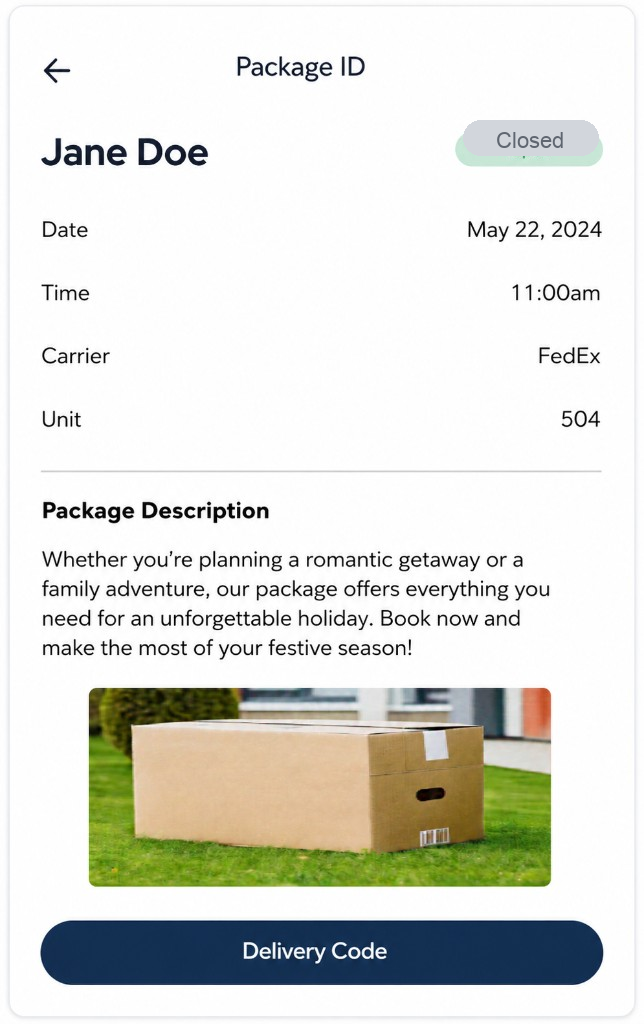
Example package details screen in the Grata app.
Related articles
Open Deliveries from Profile
1 min read
From the Grata Smart Living home screen, tap the top-left icon, then Deliveries on the Profile menu to open yo...
Delivery Overview
2 min read
Track Open and Closed packages, pickup codes, and delivery settings when your building enables Grata deliverie...
View Open Packages in Deliveries
1 min read
Home → Profile > Deliveries, then the Open tab: review active packages and tap View Details when you need pick...
View Deliveries in the Grata App
1 min read
From the Grata Smart Living home screen, open Profile > Deliveries to review Open and Closed packages, details...