
Confirm Package Pickup in the Grata App
Section: DeliveriesCategory: PackagesHow-to1 min read
Summary
After you collect a package, some buildings ask you to confirm pickup when the Package Ready for Pickup message appears.
Step-by-Step Instructions
1Step 1: Start from the Grata Smart Living home screen
- From the Grata Smart Living home screen, tap the top-left icon.
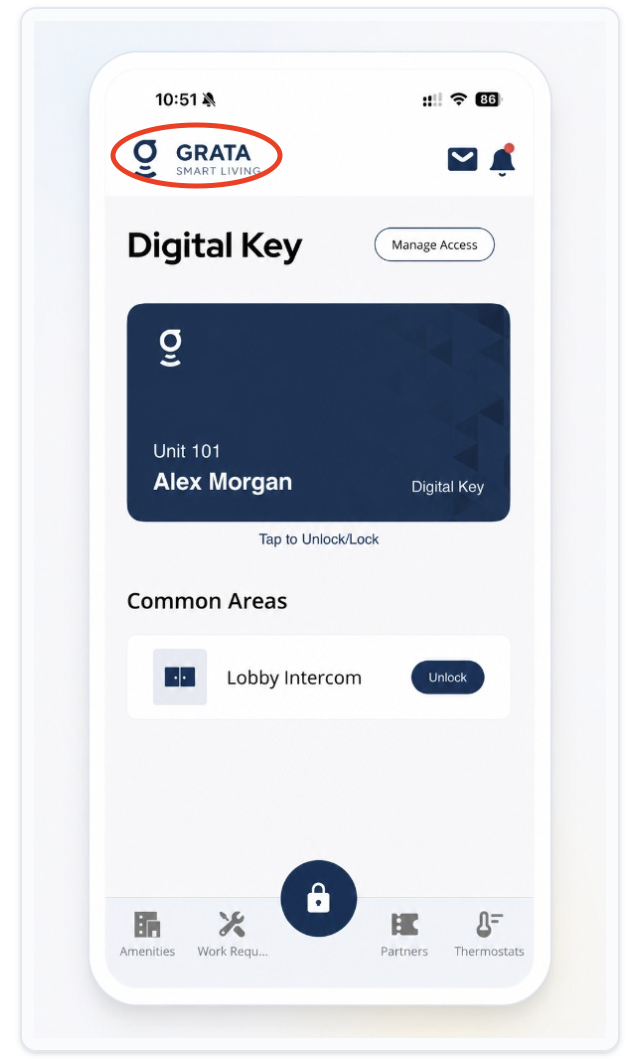
From the Grata Smart Living home screen, tap the top-left icon.
2Step 2: Open Deliveries from the Profile menu
- On the Profile screen, tap Deliveries.
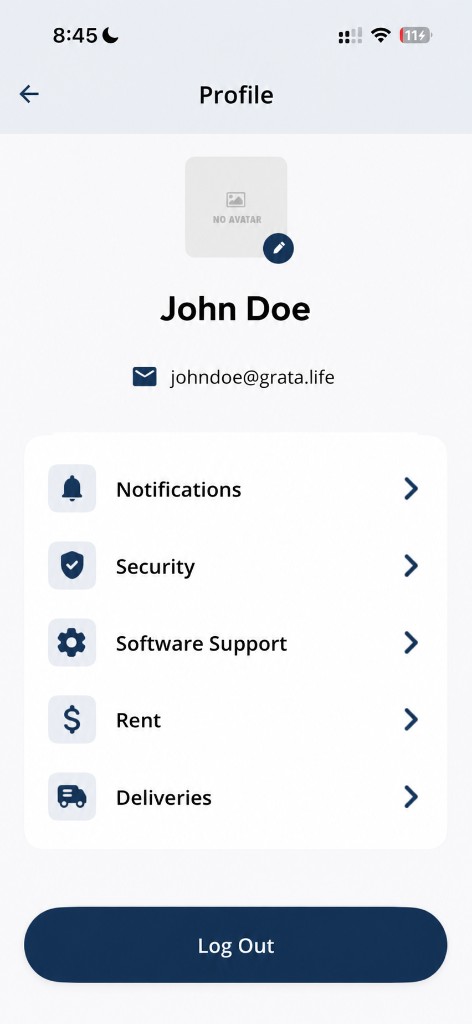
Tap Deliveries from the Profile screen.
3Step 3: Open the package details
- On the Your Packages screen, open the tab for active packages if needed (Open, For Pickup, or similar), then tap View Details beside the package.
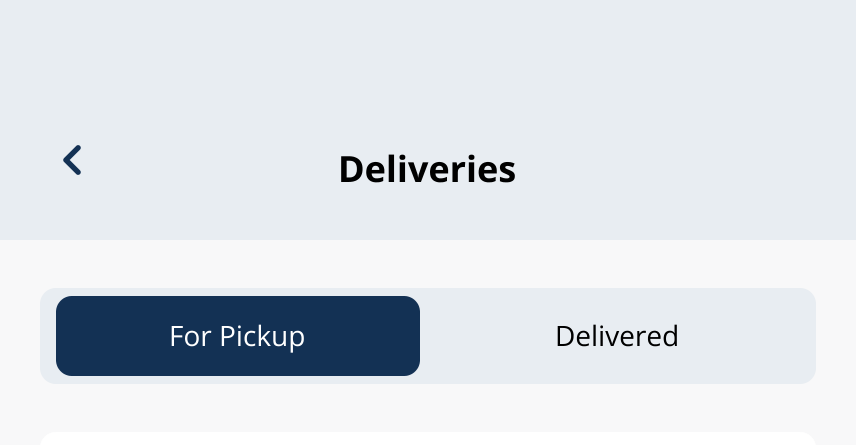
Open the active-packages tab (labels vary), then open package details.
4Step 4: Review the pickup message
- If the app shows Package Ready for Pickup, read the pickup instructions before you confirm anything.
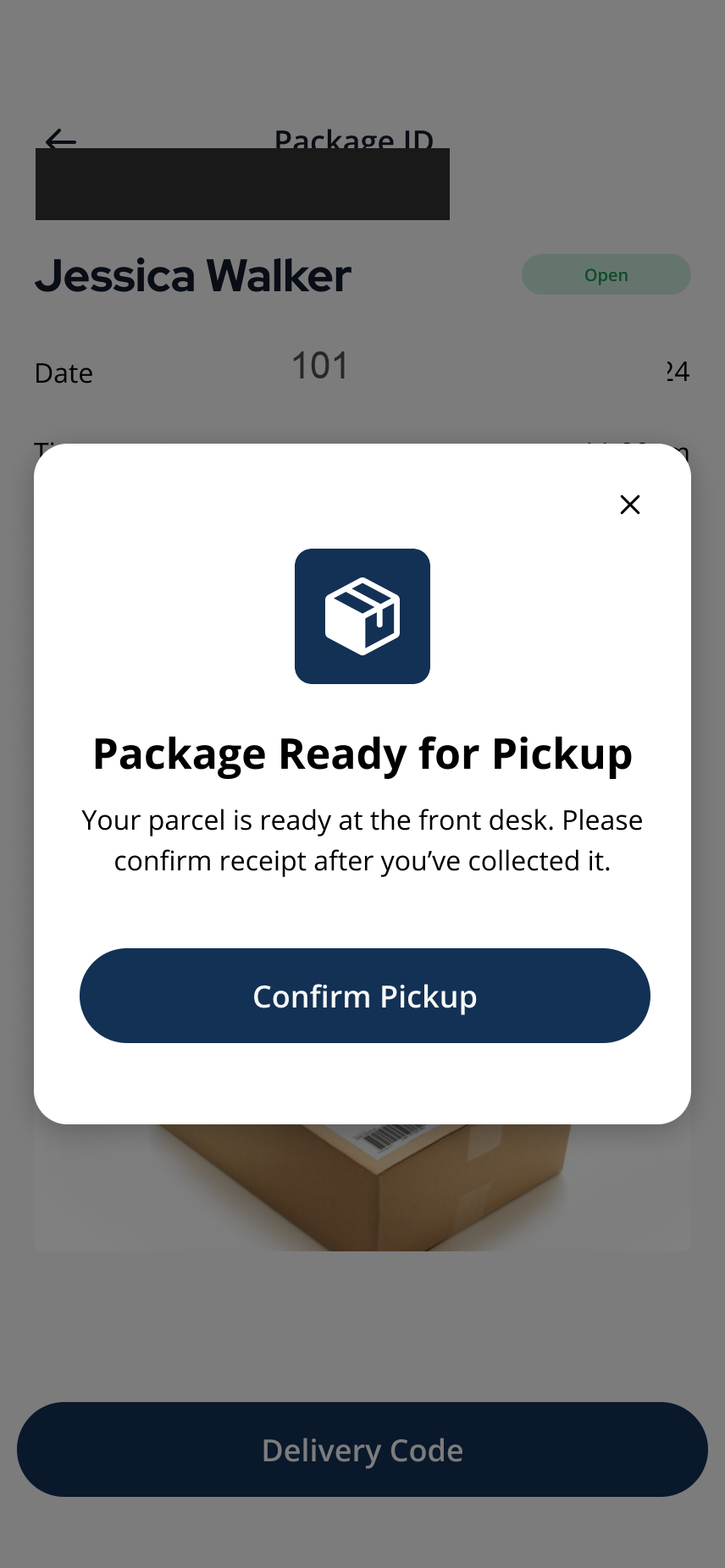
Review the pickup message before confirming.
5Step 5: Confirm pickup after collecting the package
- After you physically have the package, tap Confirm Pickup if the app asks you to confirm receipt. Only tap Confirm Pickup after you actually have the package.
Related articles
View Open Packages in Deliveries
1 min read
Home → Profile > Deliveries, then the Open tab: review active packages and tap View Details when you need pick...
View Deliveries in the Grata App
1 min read
From the Grata Smart Living home screen, open Profile > Deliveries to review Open and Closed packages, details...