
Change Your Password in the Grata App
Summary
Step-by-Step Instructions
1Step 1: Open the Grata app
Open the app and go to the home screen.
2Step 2: Open the Profile menu
From the home screen, tap the Grata logo in the top-left corner.
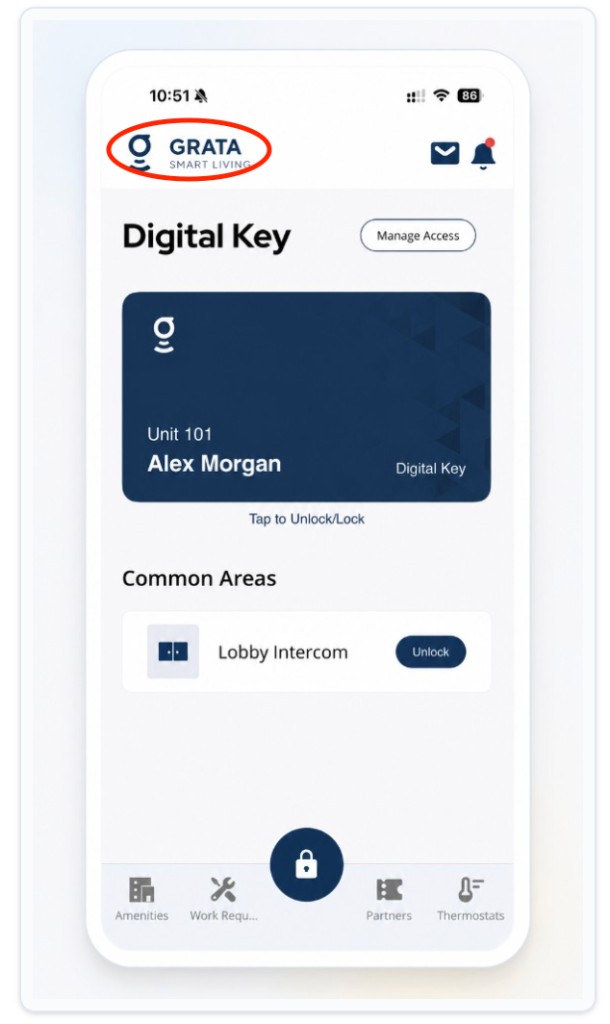
From the home screen, tap the Grata logo in the top-left corner to open your Profile.
3Step 3: Open Security from the Profile menu
On the Profile screen, tap Security.
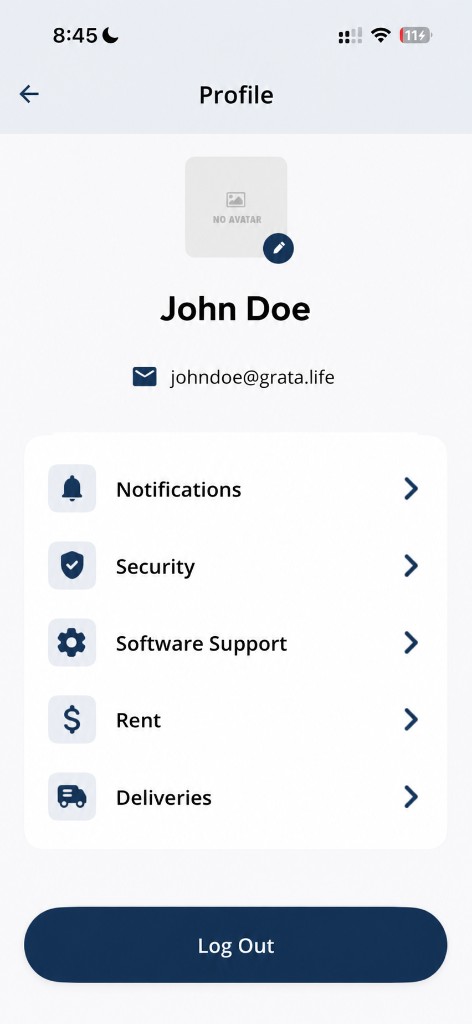
Tap Security from the Profile screen.
4Step 4: Enter your password information
Enter your current password, new password, and confirmation on the change-password form. Passwords must match before the button becomes active.
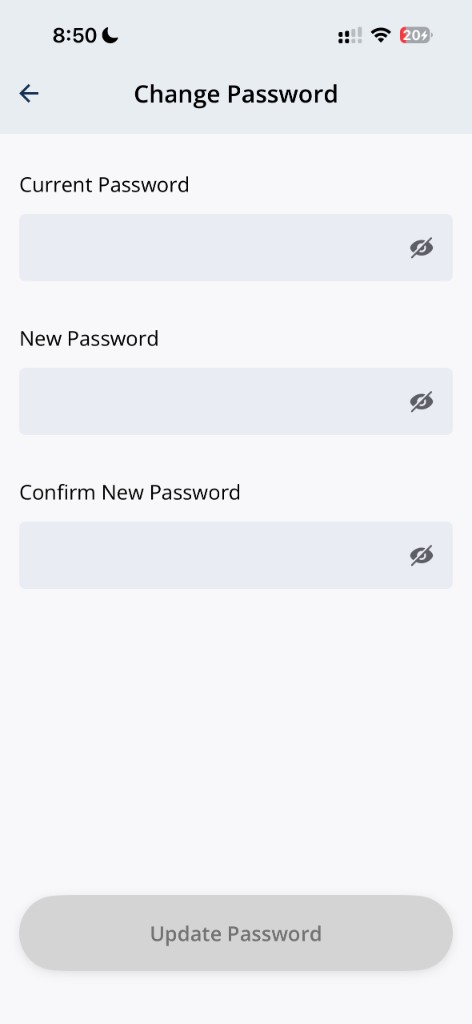
Enter your current password, new password, and confirmation.
5Step 5: Tap Update Password
Tap Update Password when the button is active. The app confirms your password was updated.
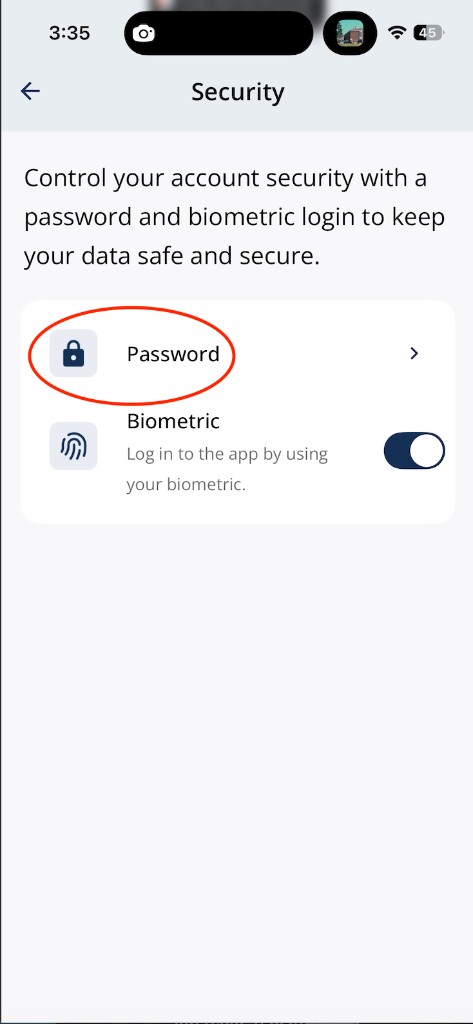
Open Security, then tap Password to change your password.
Related articles
Access RentCafe from the Grata App
1 min read
Open Profile > Rent, launch RentCafe, and sign in when prompted for rent payments and account tasks your build...
Log Out of the Grata App
1 min read
Sign out from the home screen: tap the top-left icon, then Log Out at the bottom of the menu.
Turn Biometrics On or Off in the Grata App
1 min read
Turn Face ID, Touch ID, or biometric sign-in on or off from the top-left menu: Security > Biometric.
Open Rudy AI Support in the Grata App
1 min read
Open Meet Rudy from Profile > Software Support—Rudy helps with common questions about the Grata Smart Living a...