
Open Rudy AI Support in the Grata App
Section: ProfileCategory: Software SupportHow-to1 min read
Summary
Rudy is the AI support assistant available in the Grata app and this User Help Centre, depending on how your building's help centre is set up. Use Rudy to ask common questions about the Grata app, find features, and get guidance on what to do next.
Rudy is best for quick, self-serve help with general app questions. It does not replace your property management team. Building-specific decisions — including access permissions, amenity rules, booking approvals, resident records, and building policies — are managed by property management, not Rudy.
If you need a human response or a building-specific action, use Contact Support or reach your property management team through your building's normal process.
When to Use This
- Finding or understanding a Grata app feature.
- Getting guidance on access, PINs, guests, bookings, or notifications.
- Understanding app settings or how something works.
- Getting a quick answer before contacting support.
Step-by-Step Instructions
1Step 1: Open the Grata app
- Open the Grata app on your phone and tap the top-left icon.
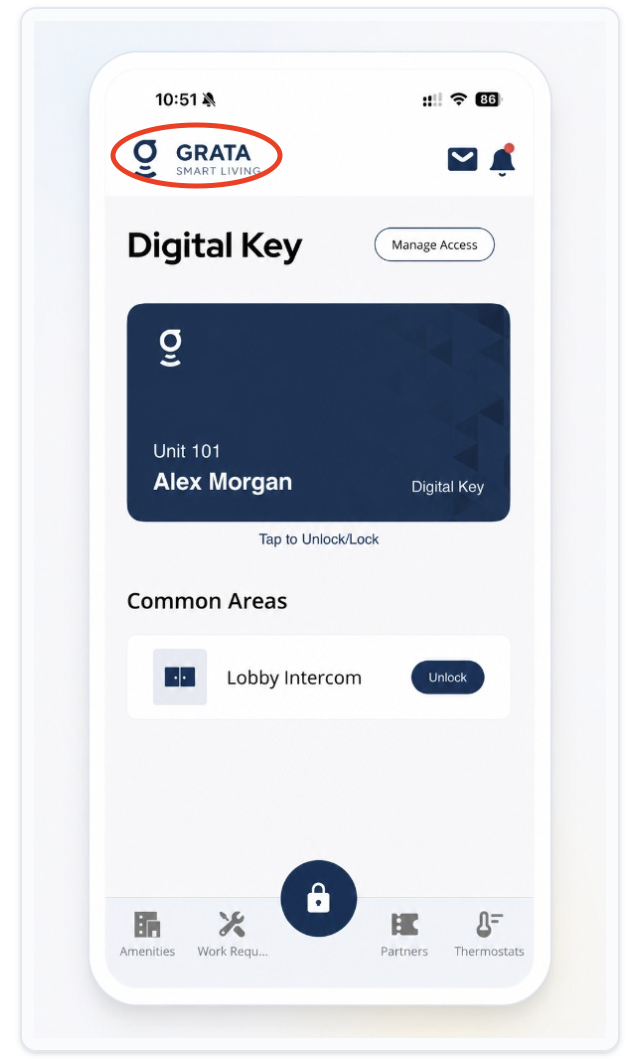
Tap the top-left icon from the Grata app home screen.
2Step 2: Open Software Support
- On the Profile menu, tap Software Support.
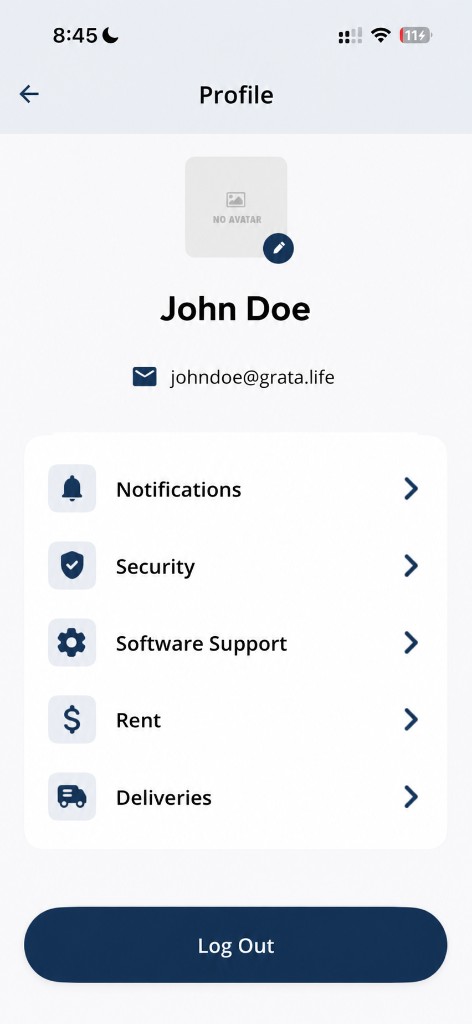
Tap Software Support from the Profile menu.
3Step 3: Open Rudy AI Support
- On the Software Support screen, tap Meet Rudy to open Rudy AI Support.
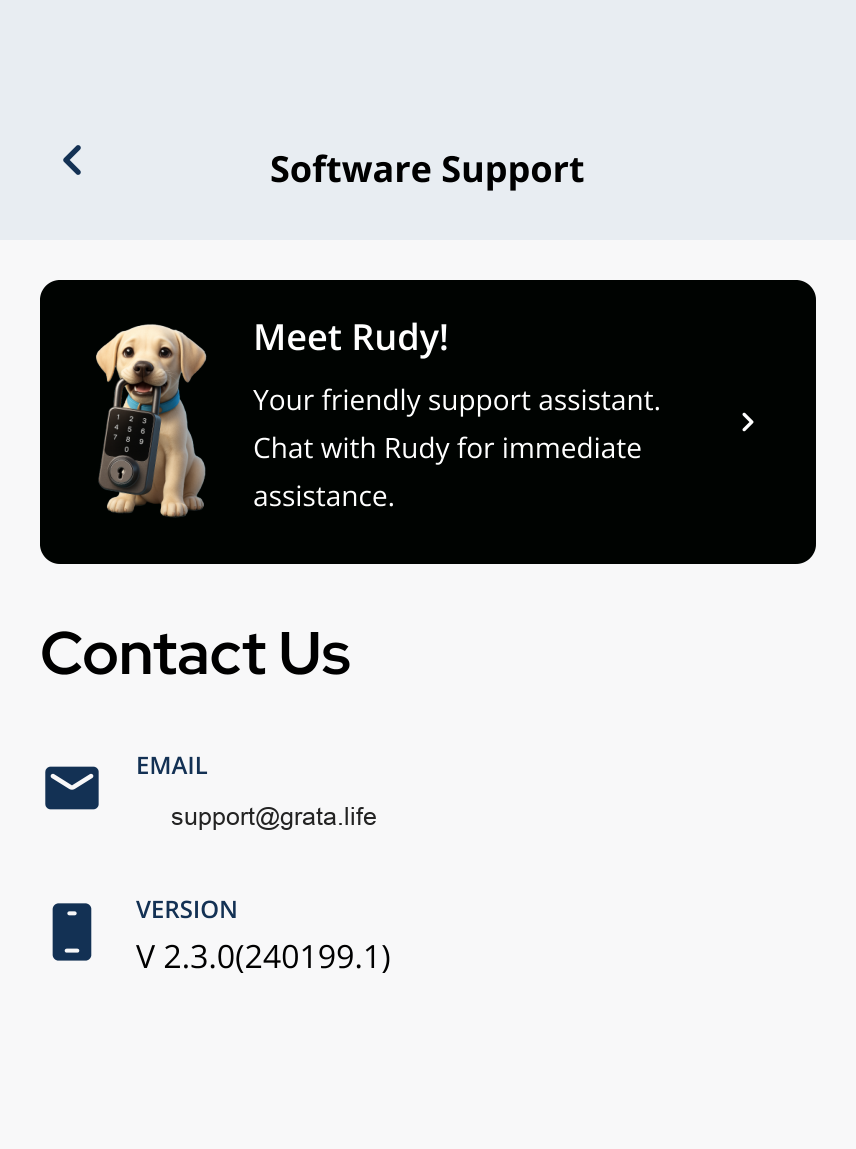
Tap Meet Rudy from the Software Support screen.
4Step 4: Ask your question
- Type your question clearly — include what you are trying to do and where you are stuck.
- Review Rudy's response and follow any article links or guidance it provides.
5Step 5: If you still need help
- If Rudy cannot resolve the issue, tap Contact Support or use Email Support in the Software Support screen to reach your building team or .
Related articles
Grata App Overview
1 min read
Orientation to the Grata Smart Living app—access, bookings, requests, notices, devices, and what your building...
Contact Support from the Grata App
1 min read
Open Profile > Software Support in Grata Smart Living to reach Meet Rudy or Email Support for app help.
Find App Version in the Grata App
1 min read
Find your Grata App Version from Profile > Software Support when support asks which build you use, or check yo...
Who to contact for help
2 min read
Use this guide to complete resident tasks in the Grata app.