
Access RentCafe from the Grata App
Summary
Step-by-Step Instructions
1Step 1: Open the Grata app
- Open the Grata app and go to the home screen.
2Step 2: From the home screen, tap the top-left icon to open your Profile menu.
- From the home screen, tap the top-left icon to open your Profile menu.
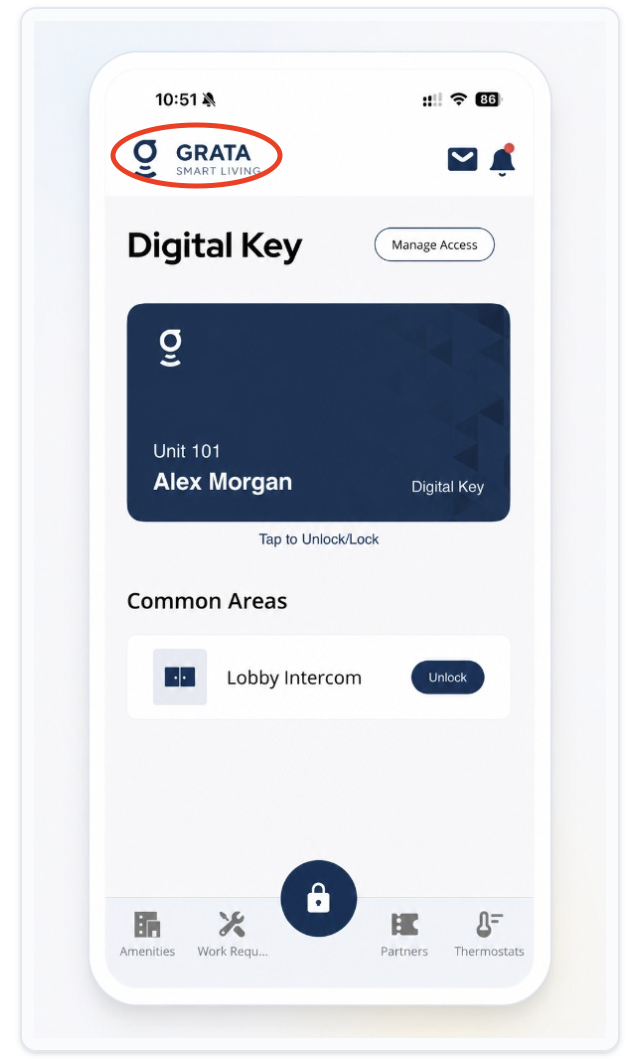
From the Grata app home screen, tap the top-left icon to open Profile.
3Step 3: On the Profile screen, locate and tap Rent if your building has enabled it.
- On the Profile screen, locate and tap Rent if your building has enabled it.
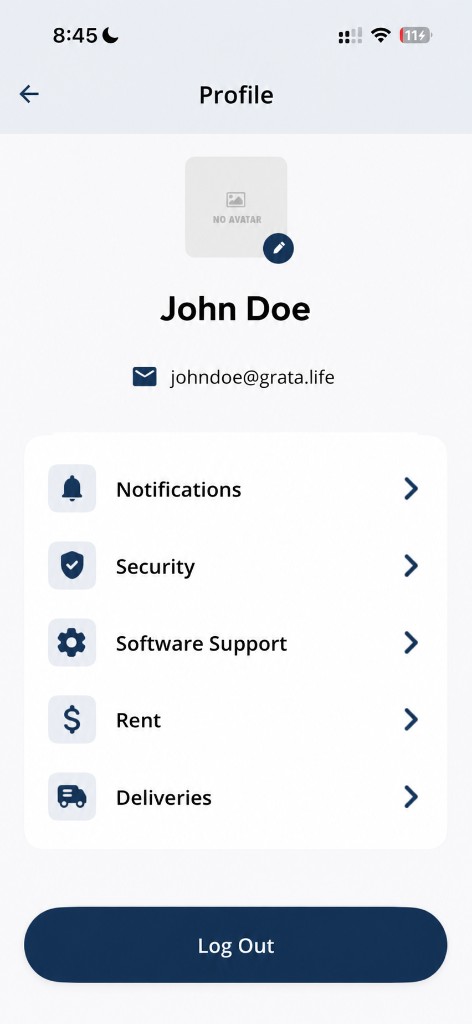
Tap Rent on the Profile screen to open Rent Cafe when available.
4Step 4: Continue to Rent Cafe
- After you tap Rent, the Grata app may open Rent Cafe in a browser or embedded view depending on your building.
- Tap Login to Rent Cafe when shown, or follow the on-screen prompts in the rent portal.
5Step 5: Sign in and complete your task in Rent Cafe
- Enter your Rent Cafe login if your building requires separate credentials. Some buildings may sign you in automatically.
- Complete the task you need in Rent Cafe, such as viewing account information, paying rent, or accessing property services your building uses Rent Cafe for.
- Rent Cafe tasks happen outside the Grata app once you tap through.
If RentCafe does not appear▾
- Rent Cafe may not be enabled at every building.
- Some properties may use another resident portal instead of Rent Cafe.
- Confirm with property management whether Rent Cafe is available for your building.
- Property management controls resident portal availability and account setup.
If you cannot sign in to RentCafe▾
- Confirm you are using the correct Rent Cafe login details.
- Rent Cafe credentials may be separate from your Grata app sign-in.
- Try resetting your Rent Cafe password through Rent Cafe if that option is available.
- Property management may need to confirm your Rent Cafe account or building record.
What Grata does and does not control▾
- Grata may provide a link or entry point to Rent Cafe from the Profile menu.
- Rent Cafe account access, rent balances, lease records, payment settings, and resident portal configuration are managed through Rent Cafe and/or property management.
- Grata does not control Rent Cafe account details or property-management records.
Related articles
Grata App Overview
1 min read
Orientation to the Grata Smart Living app—access, bookings, requests, notices, devices, and what your building...
Report Incorrect Account Information
1 min read
If building, unit, or resident details are wrong and cannot be edited, report them to your building team.
Who Controls My Access?
3 min read
Property management controls your access permissions — Grata reflects the building setup; contact your buildin...
Contact Support from the Grata App
1 min read
Open Profile > Software Support in Grata Smart Living to reach Meet Rudy or Email Support for app help.
What Grata does and does not control
2 min read
Use this guide to complete resident tasks in the Grata app.