
Turn Biometrics On or Off in the Grata App
Section: ProfileCategory: SecurityHow-to1 min read
Summary
Turn biometric sign-in on or off from the Security section of the Grata app.
Use this article when you want to turn biometric sign-in on or off, you want to use Face ID, Touch ID, or your phone's biometric setting with the Grata app, or biometric sign-in is not behaving as expected.
Step-by-Step Instructions
1Step 1: Start from the Grata app home screen
- From the Grata app home screen, tap the top-left icon.
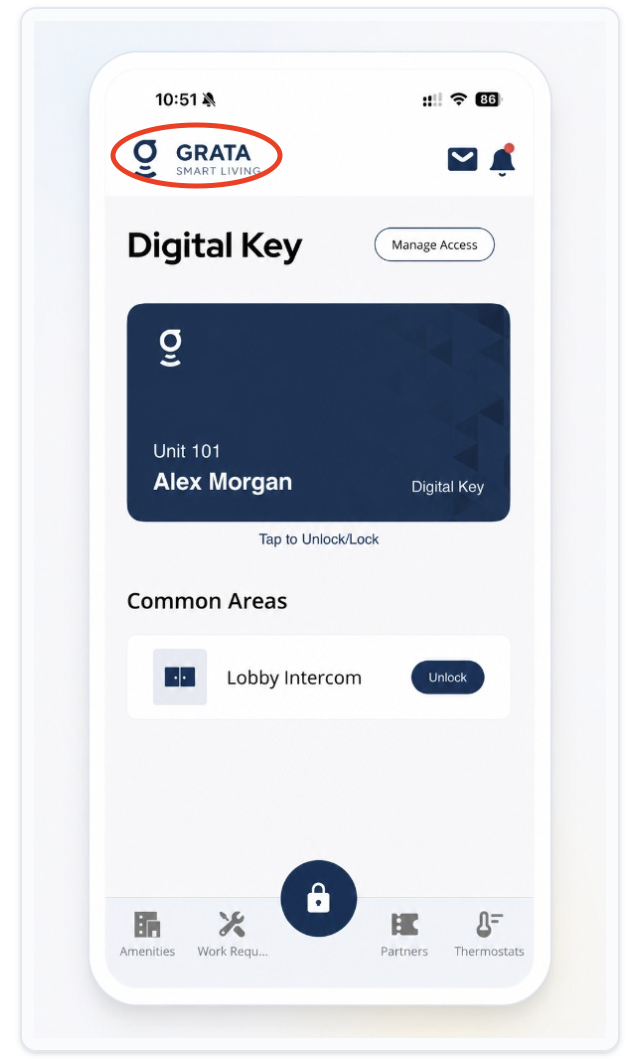
Start from the Grata app home screen.
2Step 2: Open Security from the Profile menu
- On the Profile screen, tap Security.
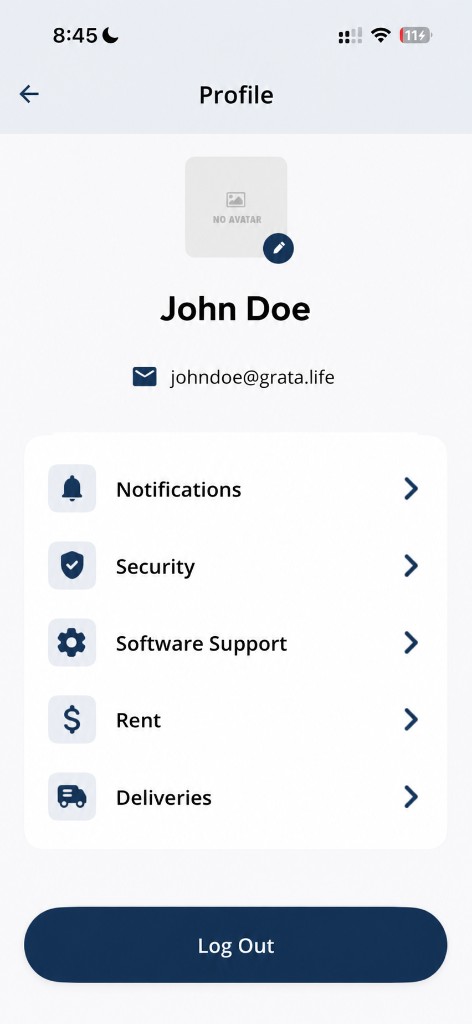
Tap Security from the Profile screen.
3Step 3: Review Security settings
- On the Security screen, find the options for your account.

Find the Biometric toggle under Security when your phone supports it.
4Step 4: Turn biometrics on or off
- Use the toggle to turn biometrics on or off. If your phone asks you to confirm, follow the Face ID, Touch ID, or device passcode prompt.
Related articles
Forgot my password
1 min read
If you forgot your Grata Smart Living password, request a reset link from the login screen. Grata emails the l...
Change Your Password in the Grata App
1 min read
Change your Grata Smart Living password from your Profile settings. Open Security, choose Password, enter your...
Profile Overview
1 min read
Update account details, passwords, notification settings, and support options from Profile.