
Manage Notification Preferences
Step-by-Step Instructions
1Step 1: Start from the Grata Smart Living home screen
- From the Grata Smart Living home screen, tap the top-left icon.
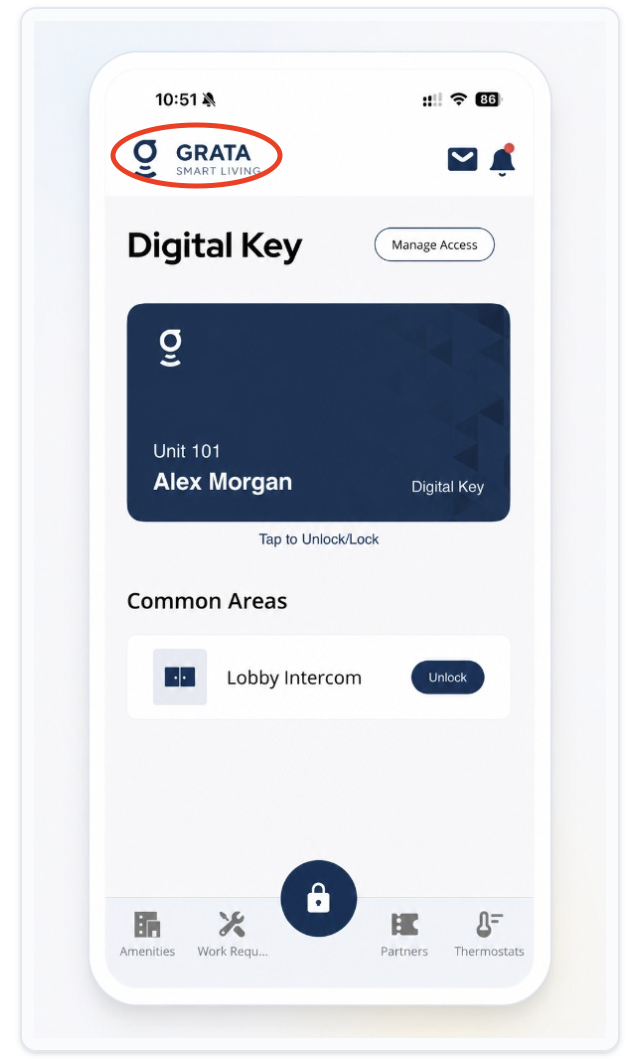
From the Grata Smart Living home screen, tap the top-left icon.
2Step 2: Open Notifications from the Profile menu
- On the Profile screen, tap Notifications.
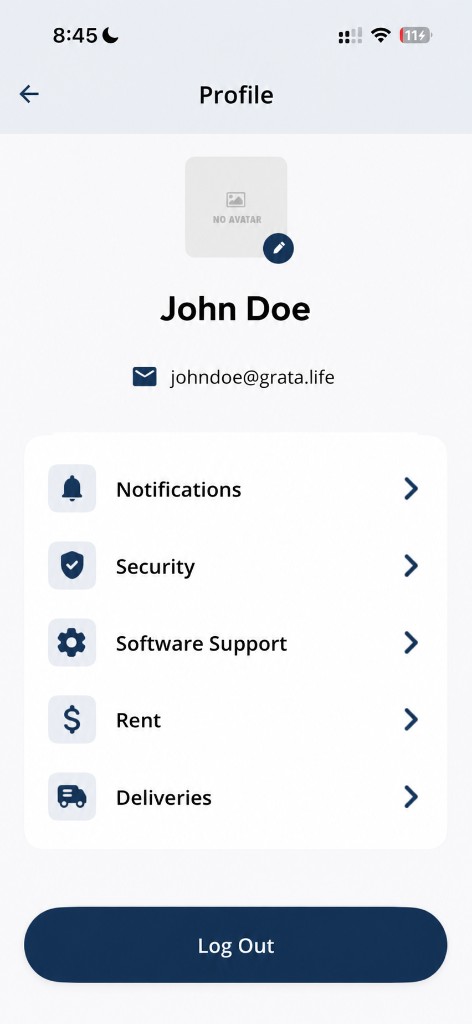
Tap Notifications from the Profile screen.
3Step 3: Review the Notifications screen
- On the Notifications screen, review the available sections and notification types, including Messages, My Doors, Deals, News, and Deliveries.
- Each section may offer Text Messages, Push Notifications, and Email Notifications when your building enables them.
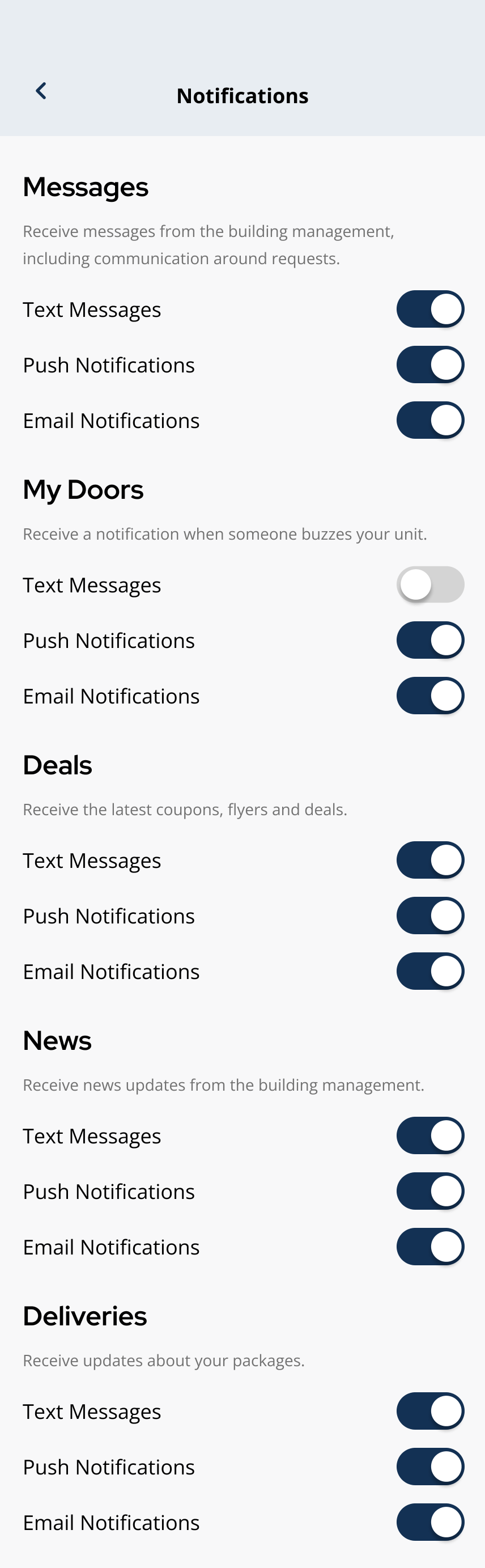
Messages, My Doors, Deals, News, and Deliveries on the Notifications screen (your building may show fewer categories).
4Step 4: Toggle settings on or off
- Tap the toggle to turn Text Messages, Push Notifications, or Email Notifications on or off for each category you want to change.
5Step 5: Confirm your preferences
- Confirm each toggle is in your preferred on/off position.
Related articles
Notifications Overview
2 min read
Read alerts from the bell icon and manage push, email, and text preferences under Profile > Notifications.
I Am Not Receiving Notifications
1 min read
Notifications stopped coming through? Walk through your phone settings, Grata's notification preferences, and...
Profile Overview
1 min read
Update account details, passwords, notification settings, and support options from Profile.
View Deliveries in the Grata App
1 min read
From the Grata Smart Living home screen, open Profile > Deliveries to review Open and Closed packages, details...