
Update Your Profile Information
Summary
Step-by-Step Instructions
1Step 1: Start from the Grata app home screen
- From the Grata app home screen, tap the top-left icon.
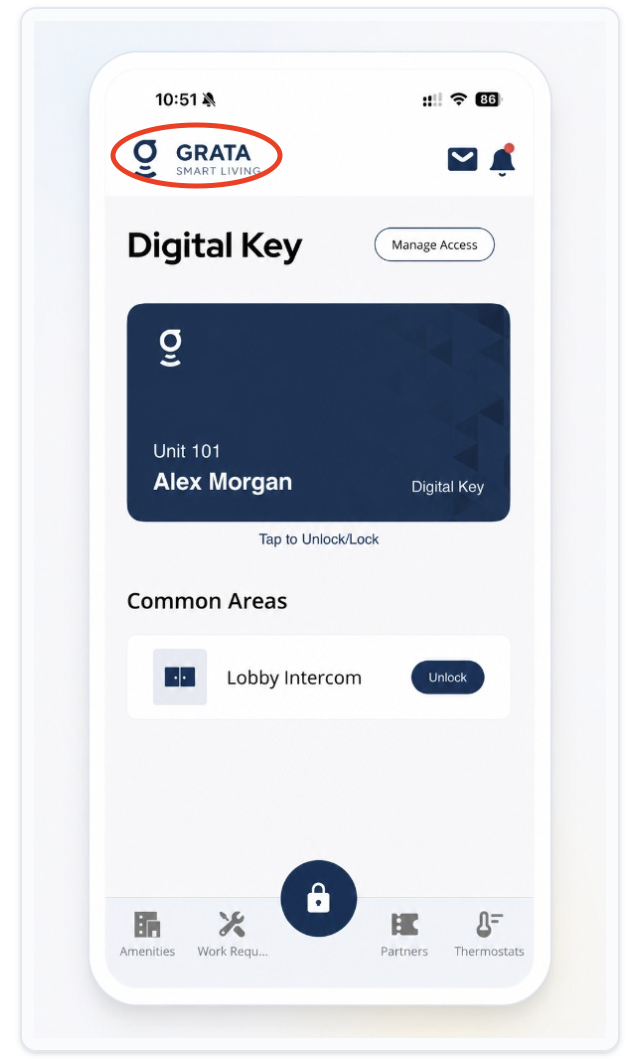
From the Grata app home screen, tap the top-left icon.
2Step 2: Open your profile
- On the Profile screen, open your profile or tap the pencil on your profile photo (or the edit/profile option your building shows) to begin updating your information.
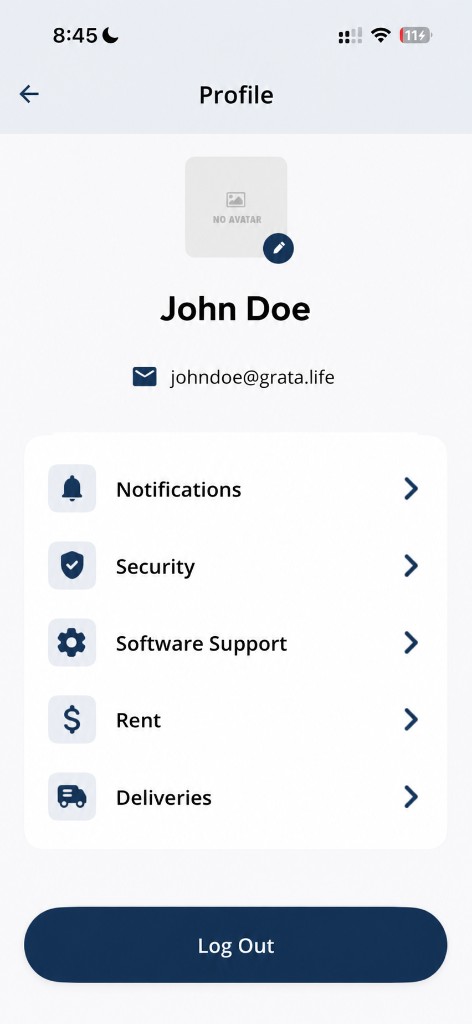
On the Profile screen, tap your profile or the edit option to update your information.
3Step 3: Review your details
- Review the information shown on the Update Profile screen, including:
- First Name
- Last Name
- Email Address
- Mobile Phone Number (Optional)
- Home Phone Number (Optional)
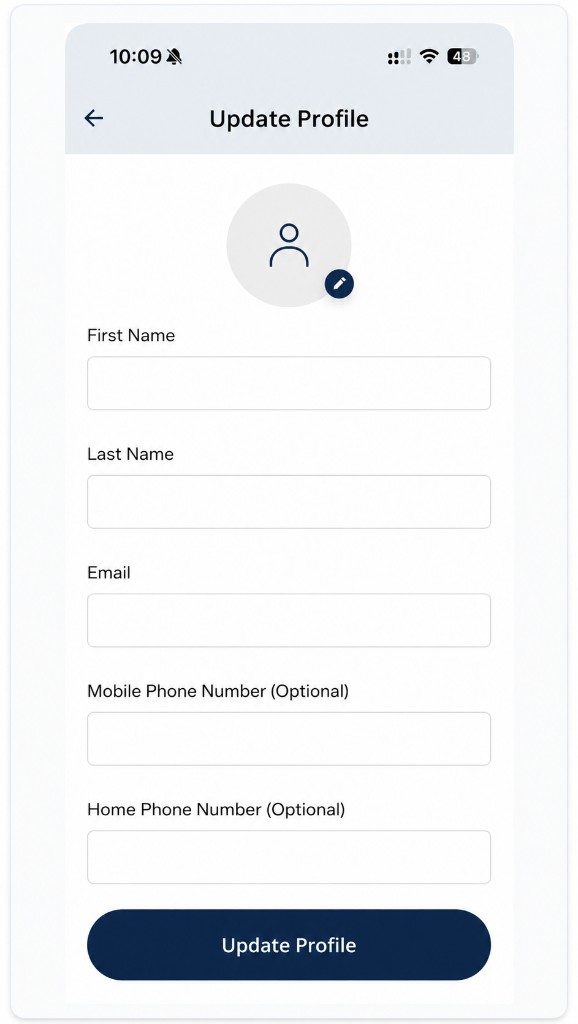
Example Update Profile screen in the Grata app.
4Step 4: Update your information
- Edit any fields that need to change.
5Step 5: Save your changes
- Tap Update Profile.
- Confirm the updated details appear correctly.
Related articles
Manage Notification Preferences
1 min read
Choose notification categories and turn text, push, or email alerts on or off from Profile > Notifications.
Report Incorrect Account Information
1 min read
If building, unit, or resident details are wrong and cannot be edited, report them to your building team.
Change Your Password in the Grata App
1 min read
Change your Grata Smart Living password from your Profile settings. Open Security, choose Password, enter your...
Profile Overview
1 min read
Update account details, passwords, notification settings, and support options from Profile.