
I Am Not Receiving Notifications
Section: NotificationsCategory: TroubleshootingHow-to1 min read
Summary
If push, email, or text alerts from Grata Smart Living stop arriving, check your in-app notification settings and your phone's notification permissions. Most issues clear once the right category is turned on in Profile > Notifications and Grata Smart Living is allowed to send alerts on your device.
Use this when you stopped receiving Grata alerts you used to get, or when only one channel (push, email, or text) has stopped working while others still arrive.
Step-by-Step Instructions
1Step 1: Start from the Grata Smart Living home screen
- Open the Grata app and confirm you are signed in on the home screen.
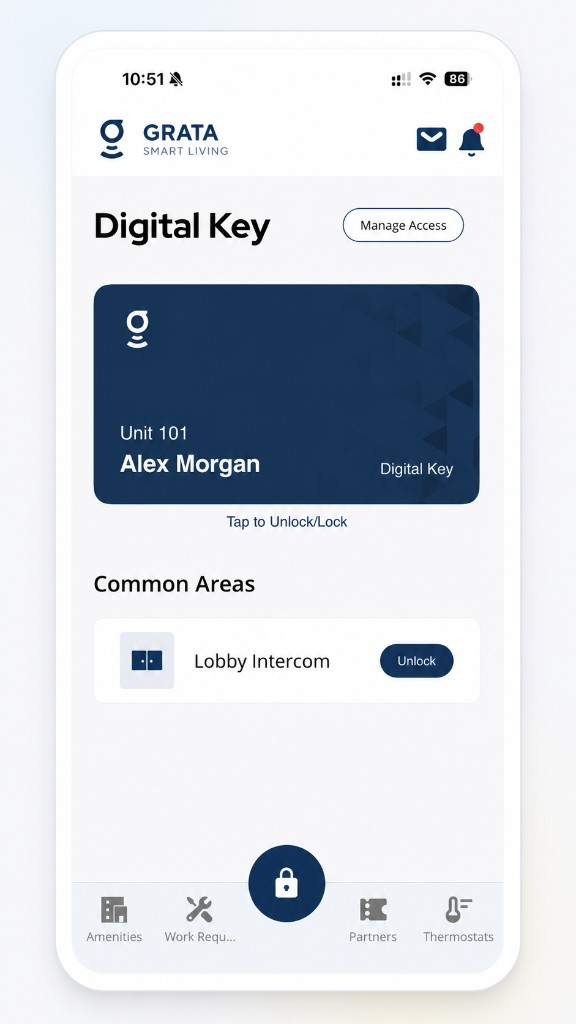
Start from the signed-in Grata Smart Living home screen.
2Step 2: Open Profile from the home screen
- Tap the top-left icon on the home screen to open Profile.
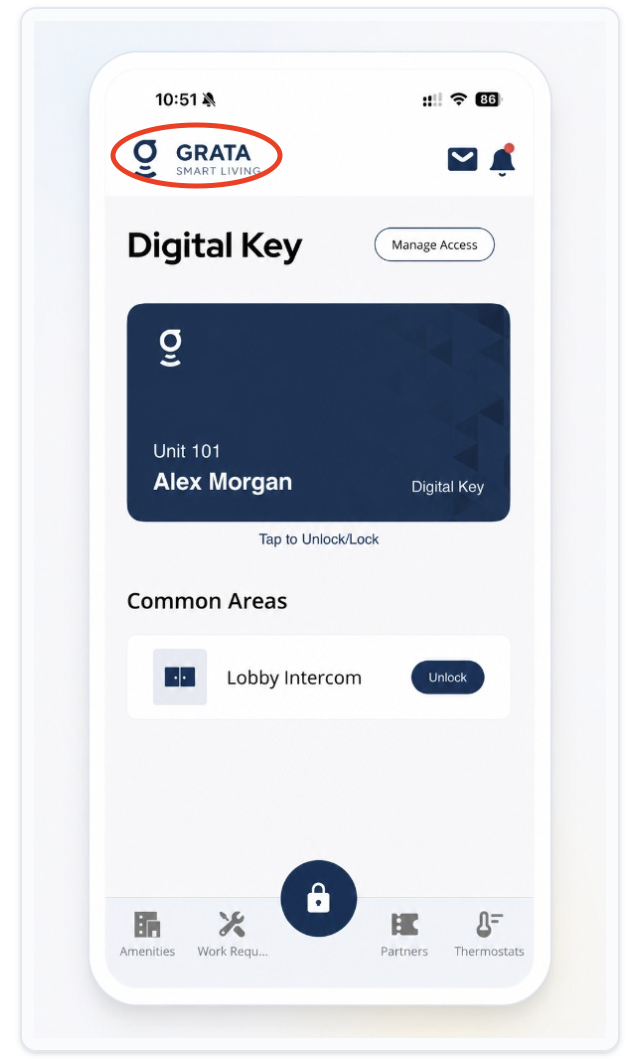
Tap the top-left icon to open Profile.
3Step 3: Open Notifications from the Profile menu
- On the Profile screen, tap Notifications.
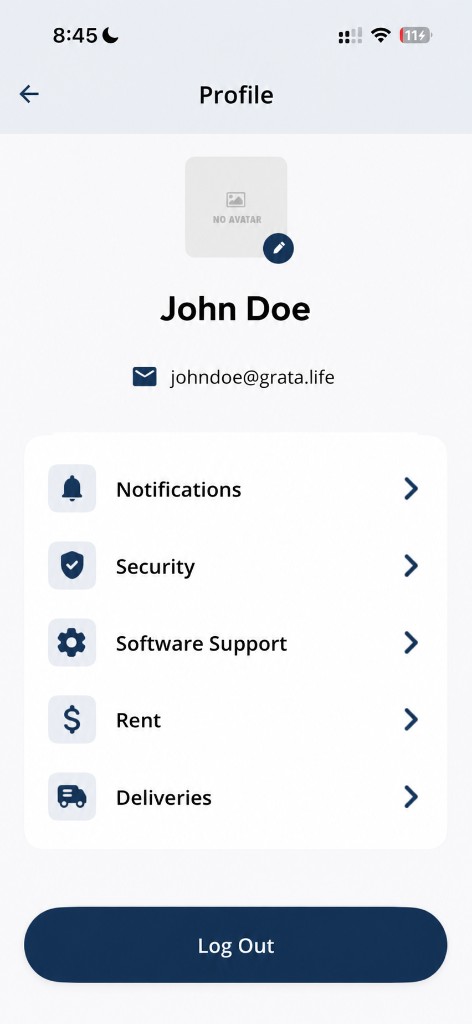
Tap Notifications from the Profile screen.
4Step 4: Review notification settings and turn categories back on
- Turn on the categories your building uses — Messages, My Doors, Deals, News, and Deliveries when shown.
- Confirm push, email, or text toggles are on for the alerts you expect.
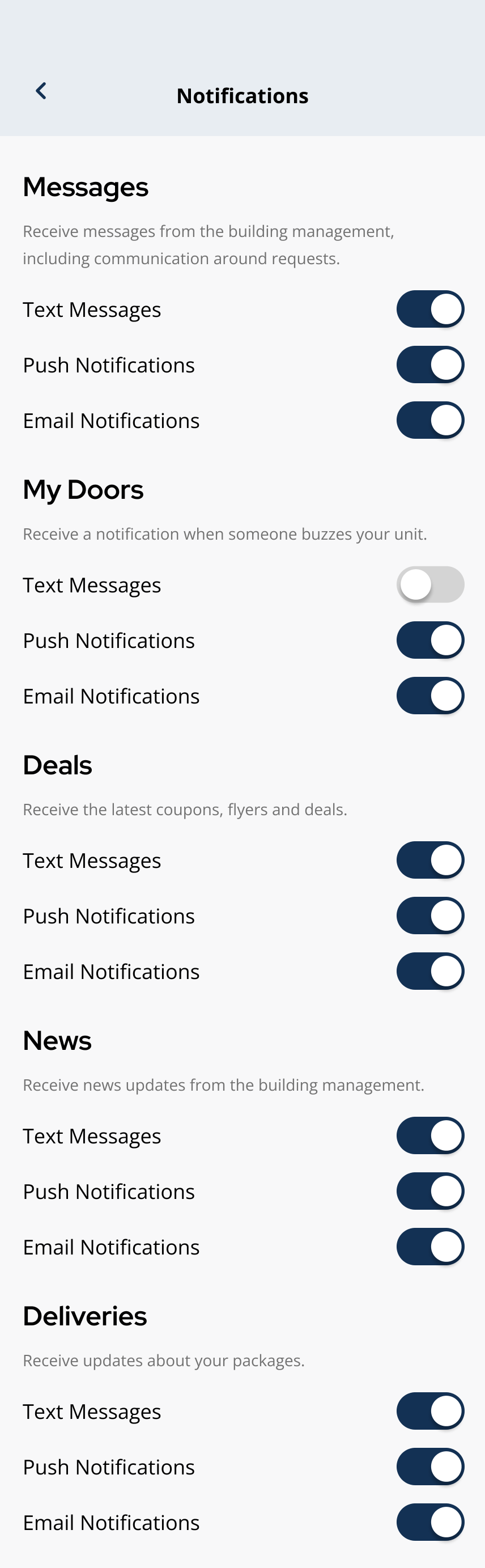
Review notification categories and channel toggles on the Notifications screen.
5Step 5: Check phone-level permissions
- On your phone, open Settings > Notifications > Grata Smart Living and allow alerts, banners, and sounds.
- Turn off Do Not Disturb, Focus modes, or battery-saver restrictions that may block alerts.
- See phone-level permissions for device-level notification settings on i Phone and Android.
6Step 6: Test after a short wait
- Ask your property team for a test notice, or trigger a known alert type if one exists at your building.
- Allow a few minutes for push or email delivery after you change settings.
What to expect
- Push alerts require both in-app toggles and permission in your phone's Settings app.
- Email and text alerts use the contact information saved on your resident profile.
- Your building controls which categories are enabled — you may not see every category listed in the app.
- If categories are on and permissions look correct but alerts still do not arrive, contact your building team to confirm they are sending notices to your unit.
Related articles
Manage Notification Preferences
1 min read
Choose notification categories and turn text, push, or email alerts on or off from Profile > Notifications.
Notifications Overview
2 min read
Read alerts from the bell icon and manage push, email, and text preferences under Profile > Notifications.
View Notifications in the Grata App
1 min read
Tap the notification bell on the home screen to open and review your notifications list.