
Open Grata Plus Details from a News Feed Item
Summary
Step-by-Step Instructions
1Step 1: Open the Grata app
- From the Grata app home screen, tap the mail icon (or the announcements entry your building uses).
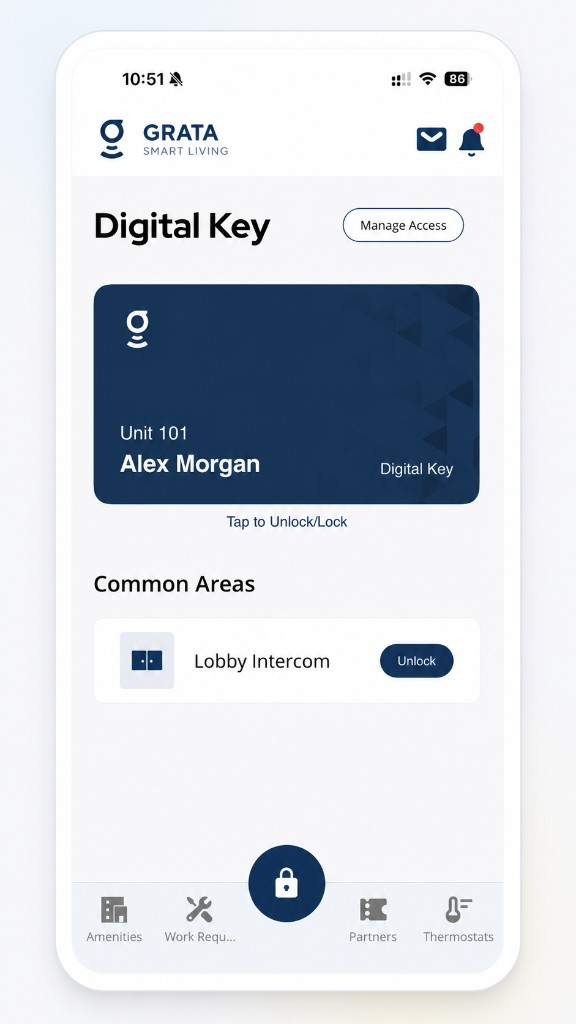
Tap the mail icon on the Grata app home screen.
2Step 2: Open the News Feed item
- Select the announcement related to Grata Plus.
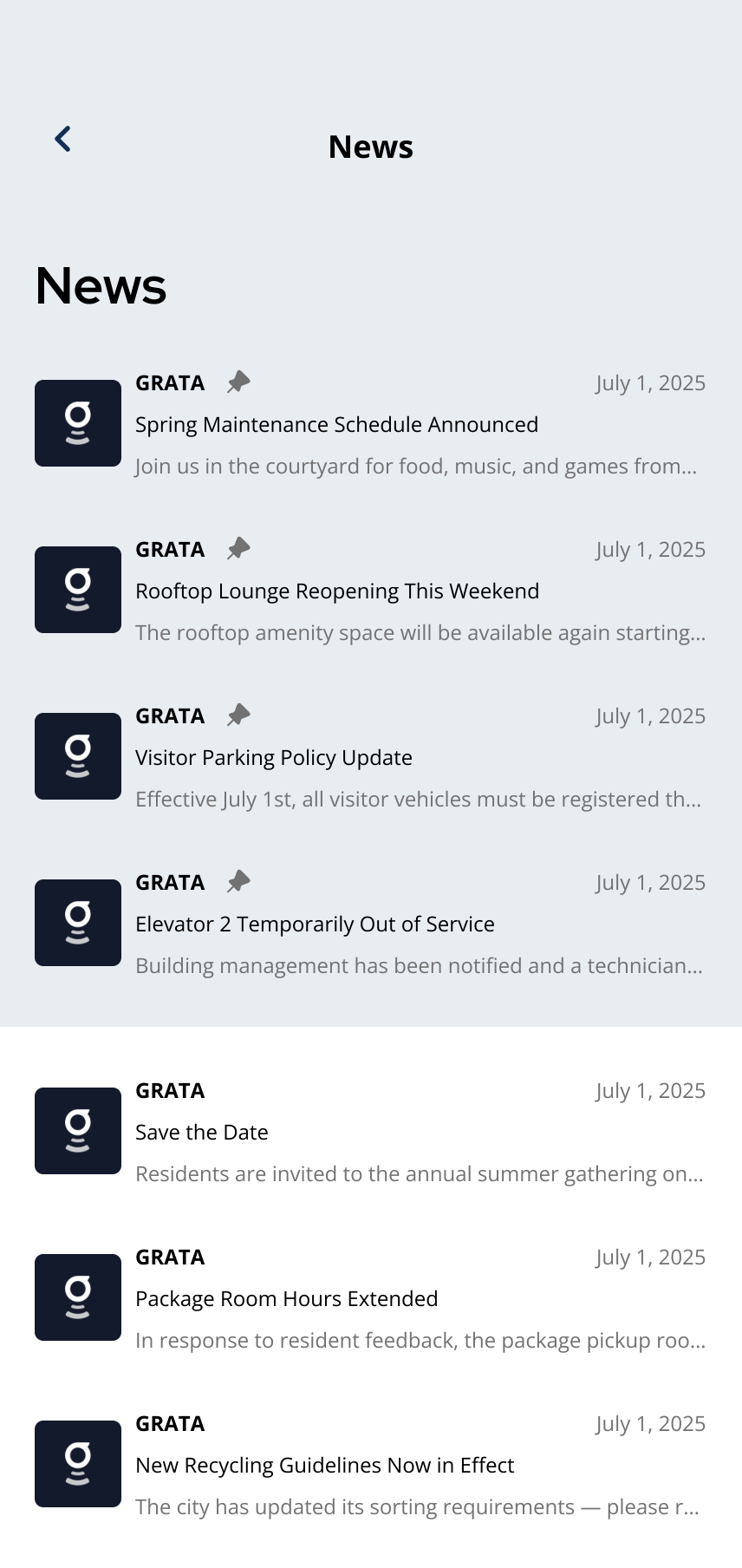
Open the Grata Plus-related News Feed item.
3Step 3: Tap Details on Grata Plus
- On the notice detail screen, tap Details on Grata Plus when your building includes that link.
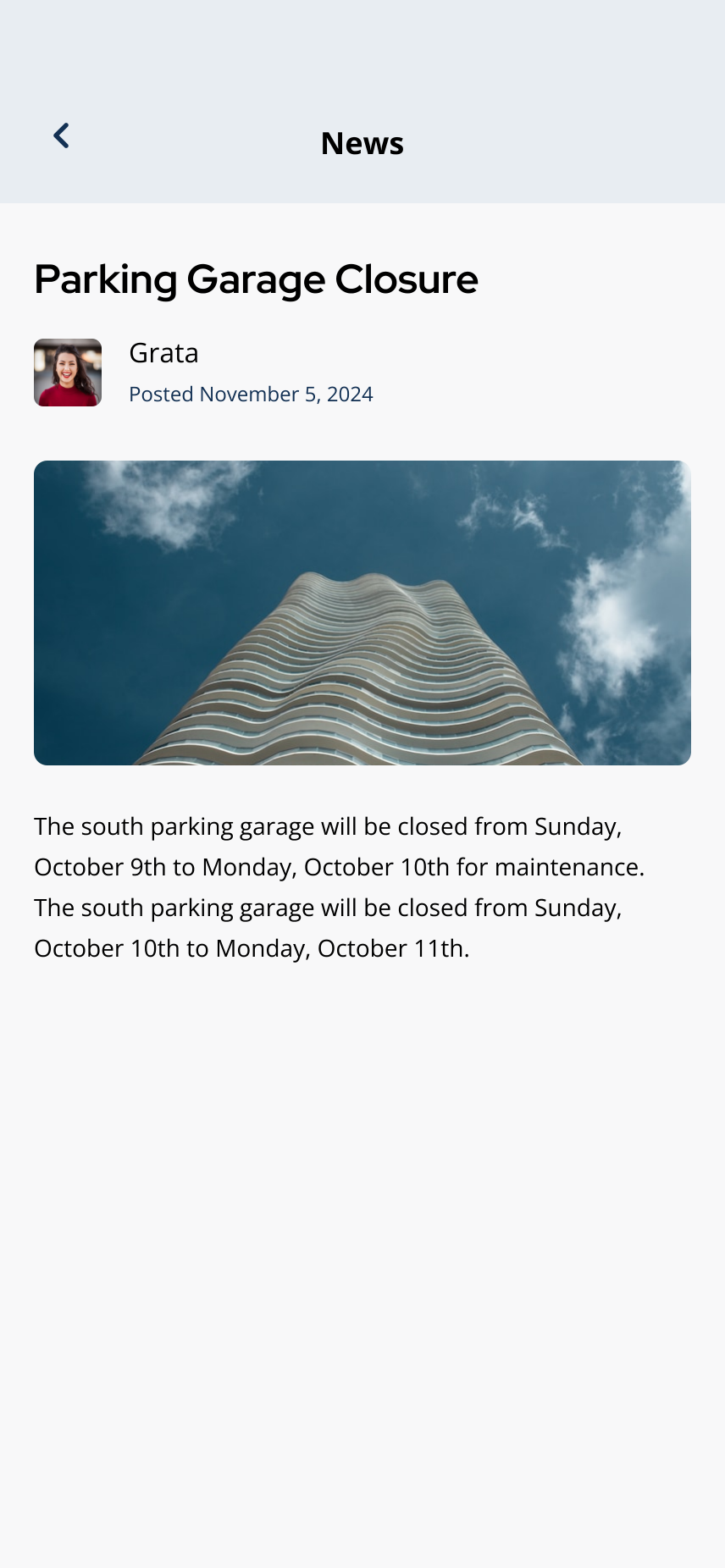
Tap Details on Grata Plus when shown on the notice.
4Step 4: Review the Grata Plus details
- Review the linked Grata Plus or offer page.
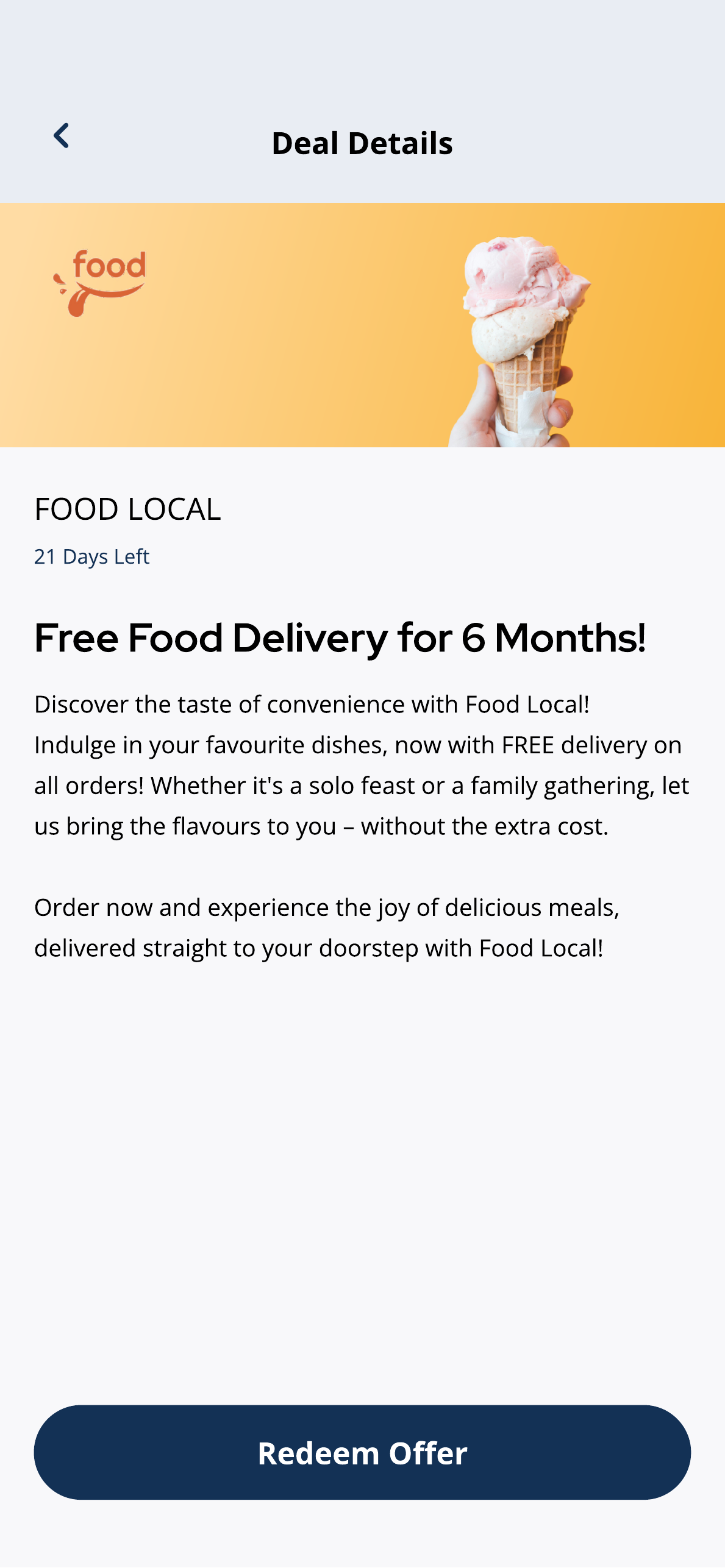
Review linked deal details when a News Feed item opens a Grata Plus offer.
- Not every notice includes Details on Grata Plus.
- This article only covers the link from News Feed; use Browse Grata Plus Deals to explore all offers.
If the Grata Plus link does not appear
- The link does not appear when your property said it would.
- The linked page does not load.
Related articles
Open News Feed from the Mail Icon in Grata App
1 min read
Tap the mail icon, if shown, to jump straight to the News Feed for your building’s announcements.
Grata Plus Overview
2 min read
Resident deals, RentCafe, EV chargers, and connected services when your property enables Grata Plus.
Browse Grata Plus Deals
1 min read
Browse Grata Plus deals in the Grata app when enabled — review offers, expiry dates, and terms before redeemin...
Open Grata Plus Deal Details
1 min read
Tap Learn More on a deal to review the description, expiry information, and available action button.
Redeem a Grata Plus Offer
1 min read
From deal details, tap Redeem Offer or the shown call-to-action and follow the next steps.
Building Notices & News Feed Overview
1 min read
Find building announcements in News or the mail icon—and troubleshoot when the feed looks empty.