
Package Arrived Notification in the Grata App
Section: DeliveriesCategory: PackagesHow-to1 min read
Summary
Some buildings surface a package arrived notification in the app. The message may tell you to collect the package from the mailroom and use a special pickup code.
Step-by-Step Instructions
1Step 1: Start from the Grata Smart Living home screen
- From the Grata Smart Living home screen, stay on the home screen until you locate the notice.
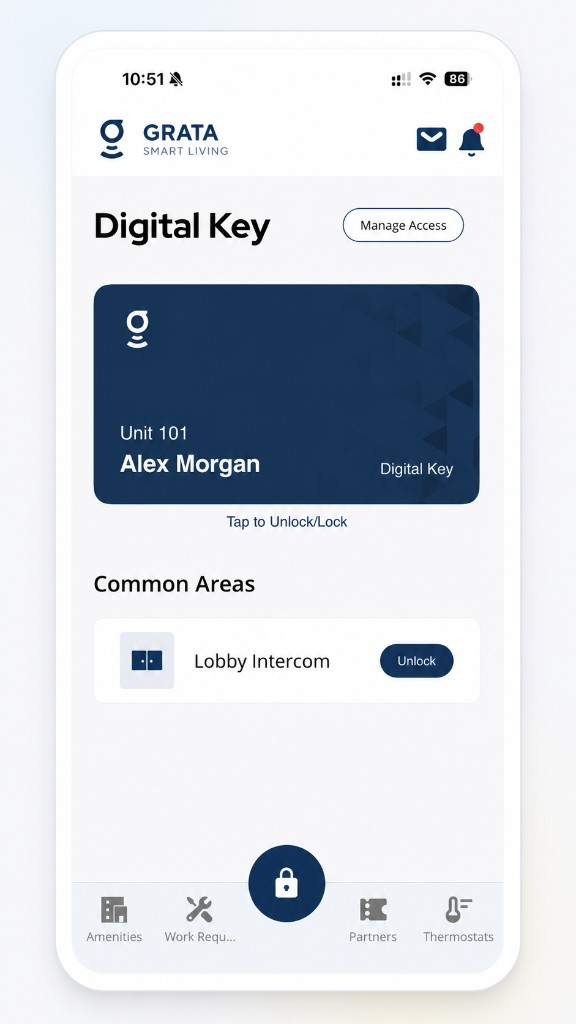
Start from the Grata Smart Living home screen.
2Step 2: Read the package notification
- Read the full message so you know what the building expects.
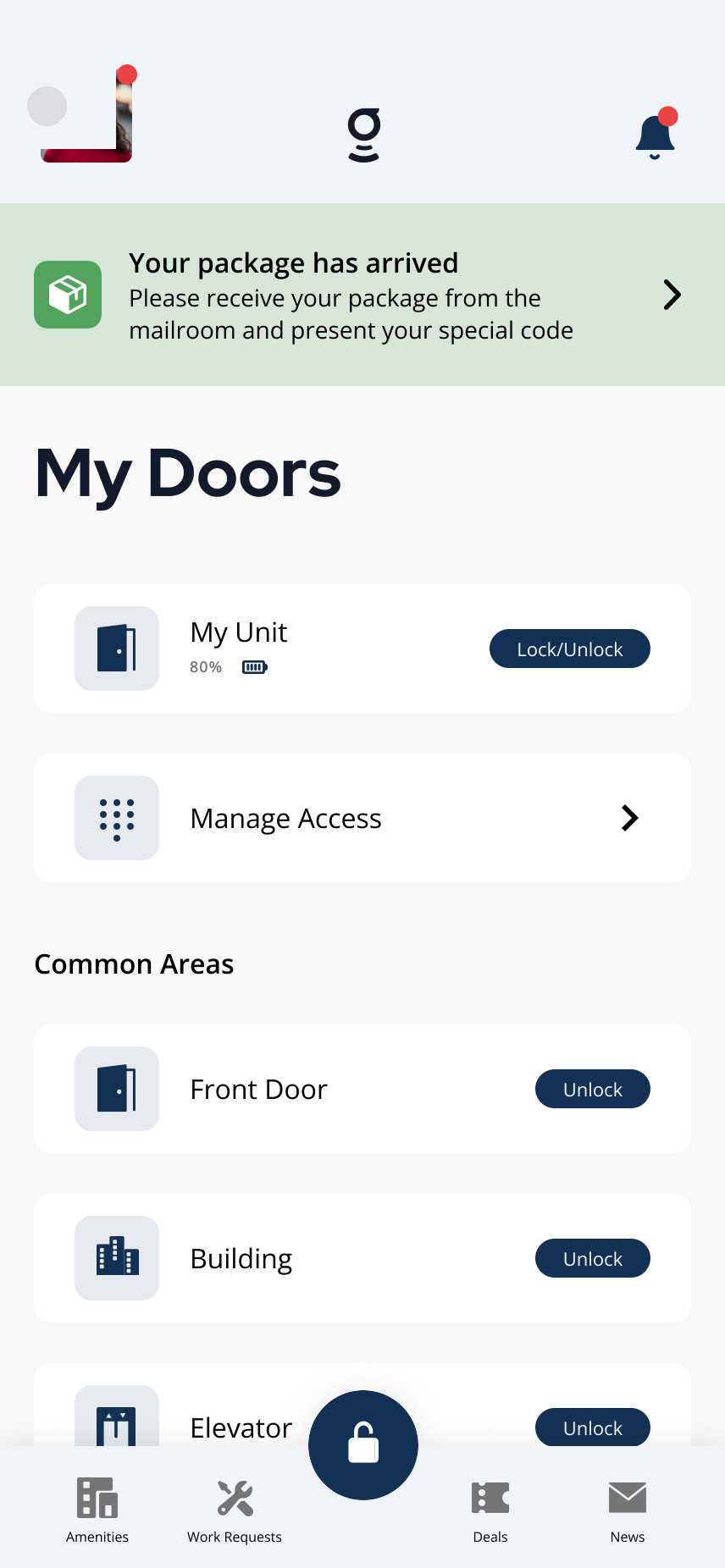
Example package-arrived notification on the Grata Smart Living home screen.
3Step 3: Open the Profile menu
- From the Grata Smart Living home screen, tap the top-left icon.
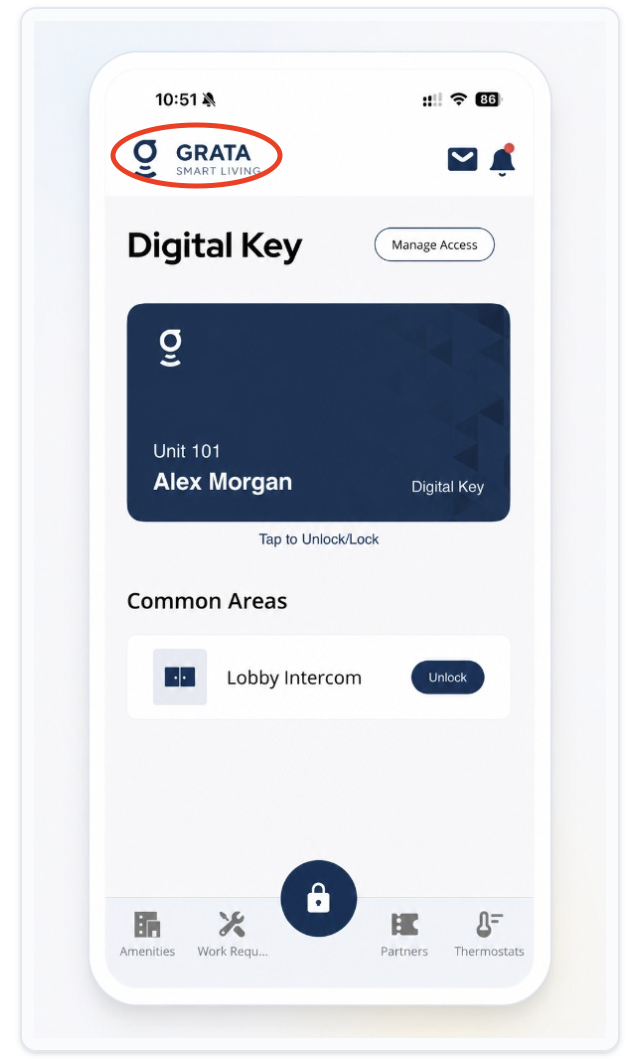
From the Grata Smart Living home screen, tap the top-left icon.
4Step 4: Open Deliveries from the Profile menu
- On the Profile screen, tap Deliveries.
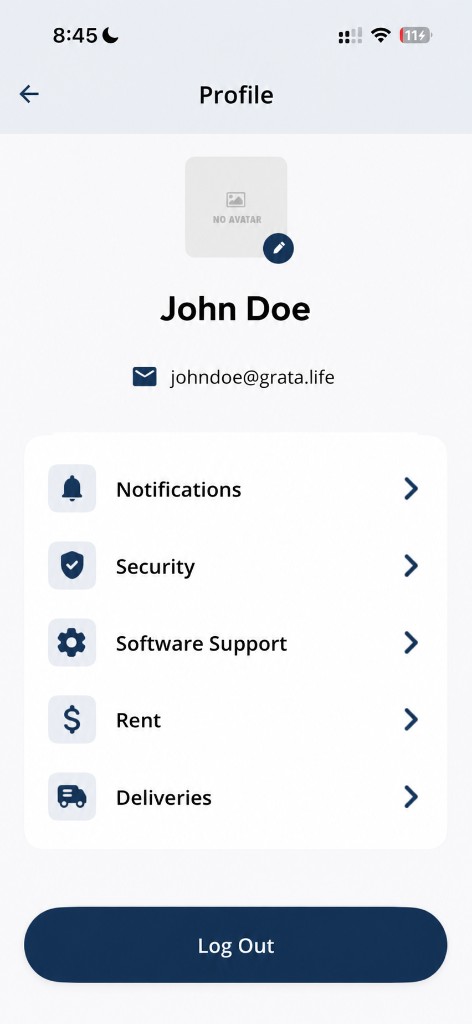
Tap Deliveries from the Profile screen.
5Step 5: Review the package details
- On the Your Packages screen, open the package (tap Open if needed, then View Details beside the package) and follow pickup instructions your building provides.
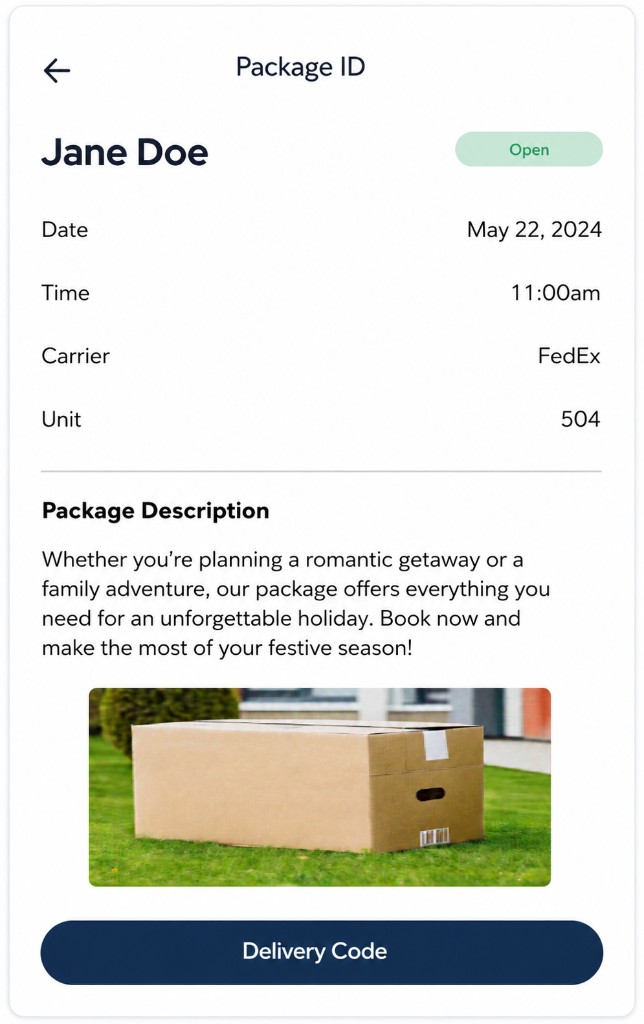
Example package details screen in the Grata app.
Related articles
View Deliveries in the Grata App
1 min read
From the Grata Smart Living home screen, open Profile > Deliveries to review Open and Closed packages, details...
Confirm Package Pickup in the Grata App
1 min read
Home → Profile > Deliveries → package details: review Package Ready for Pickup, then tap Confirm Pickup only a...