
Search or Filter Grata Plus Deals
Section: Grata PlusCategory: DealsHow-to1 min read
Summary
Use the search field and category chips on the Deals screen to narrow Grata Plus offers when you want a specific type of offer or the deal list is long and you want to filter results.
Step-by-Step Instructions
1Step 1: Open the Grata app
- From the Grata app, open Deals, Partners, or your Grata Plus entry point.
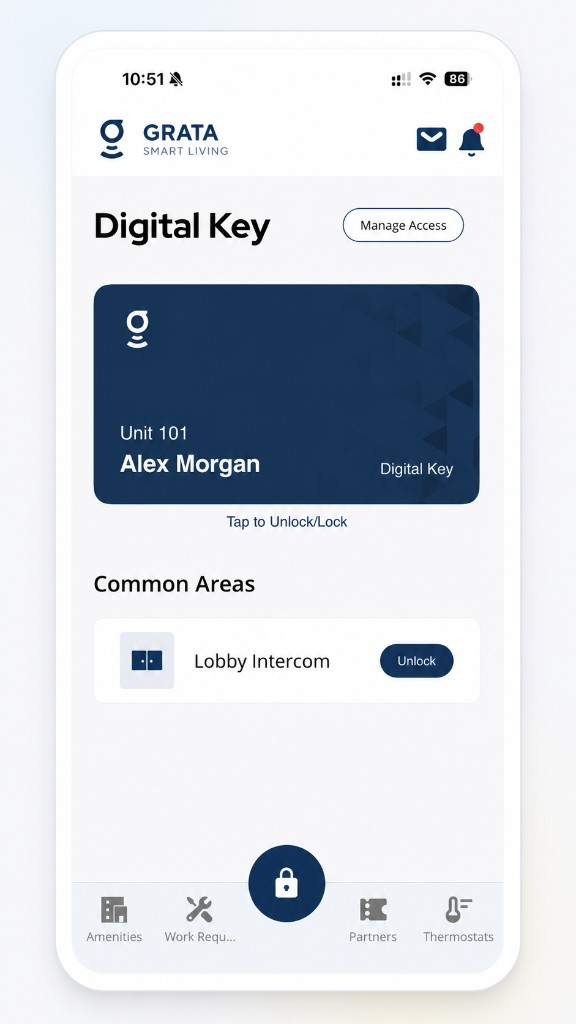
Tap Partners or Deals in the Grata app to reach the Deals screen.
2Step 2: Open the Grata Plus deals list
- Review featured offers and the full list.
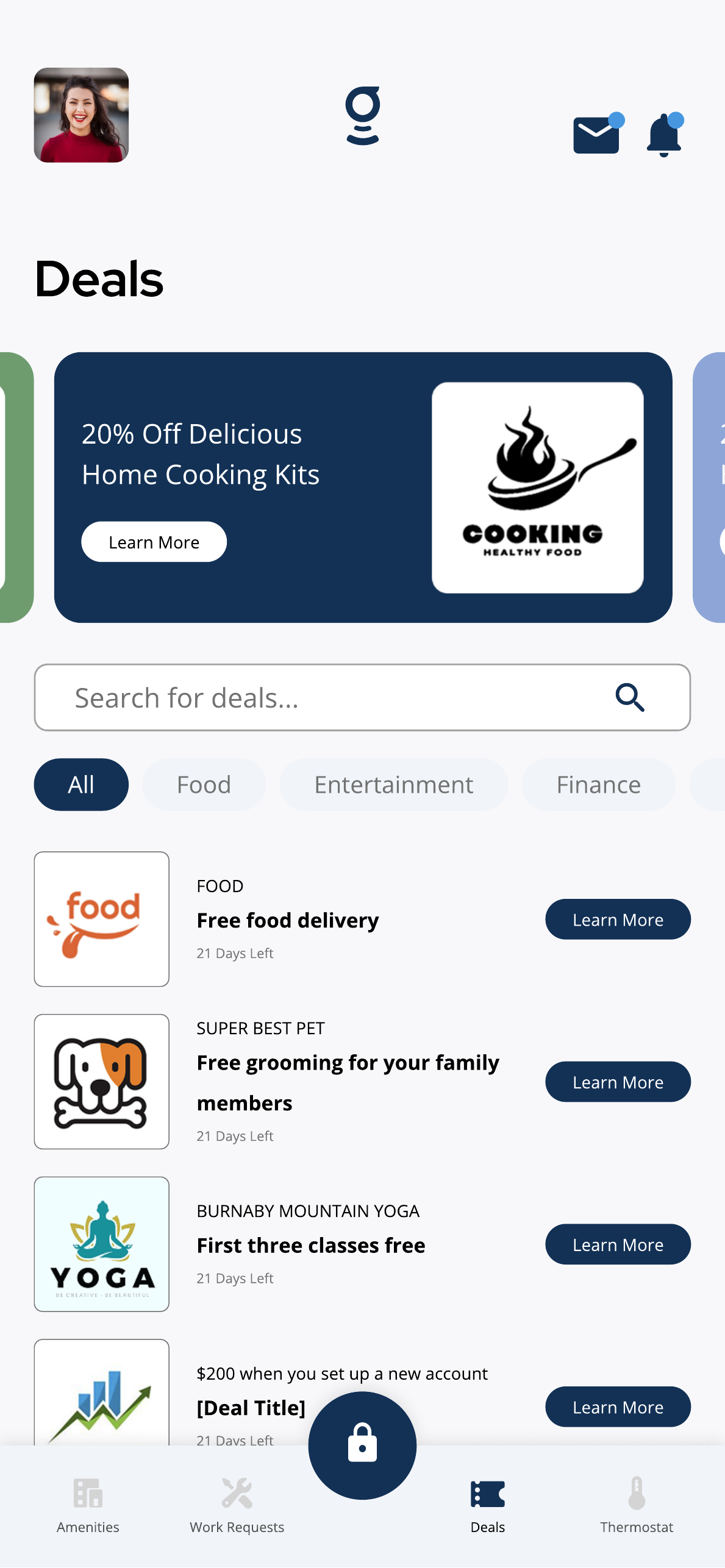
Review available deals, categories, and offers in Grata Plus.
3Step 3: Use search or filters
- Use Search for deals, category chips (such as All, Food, Entertainment, Finance), or other filters your app shows.
Use search and category filters to narrow the deals shown in Grata Plus.
4Step 4: Select a filtered result
- Tap Learn More or the deal row for an offer from your narrowed list.
- Categories and search depend on active offers and App Version.
- If results are empty, try another keyword or choose All.
If search or filters are missing
- Search or filters are missing when your building said deals are available.
- Filtered results look incorrect.
Related articles
Grata Plus Overview
2 min read
Resident deals, RentCafe, EV chargers, and connected services when your property enables Grata Plus.
Browse Grata Plus Deals
1 min read
Browse Grata Plus deals in the Grata app when enabled — review offers, expiry dates, and terms before redeemin...
Open Grata Plus Deal Details
1 min read
Tap Learn More on a deal to review the description, expiry information, and available action button.
Redeem a Grata Plus Offer
1 min read
From deal details, tap Redeem Offer or the shown call-to-action and follow the next steps.