
Open a Notification or Announcement Detail
Summary
Step-by-Step Instructions
1Step 1: Open the Grata app and tap the notification bell icon on the home screen.
- Open the Grata app and tap the notification bell icon on the home screen.
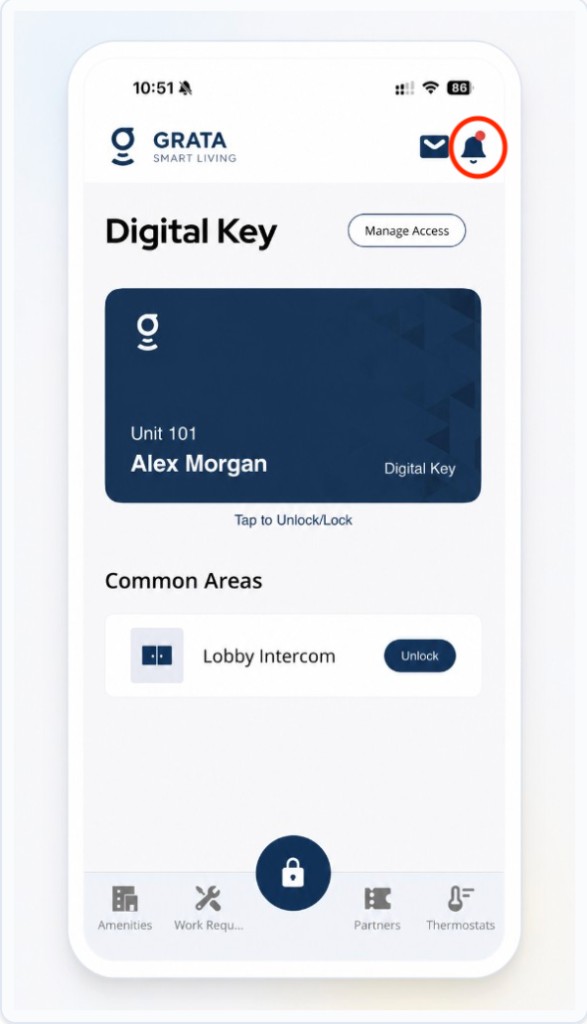
Tap the notification bell on the Grata app home screen.
2Step 2: Review the notifications list
- Scroll through recent alerts and building notices.
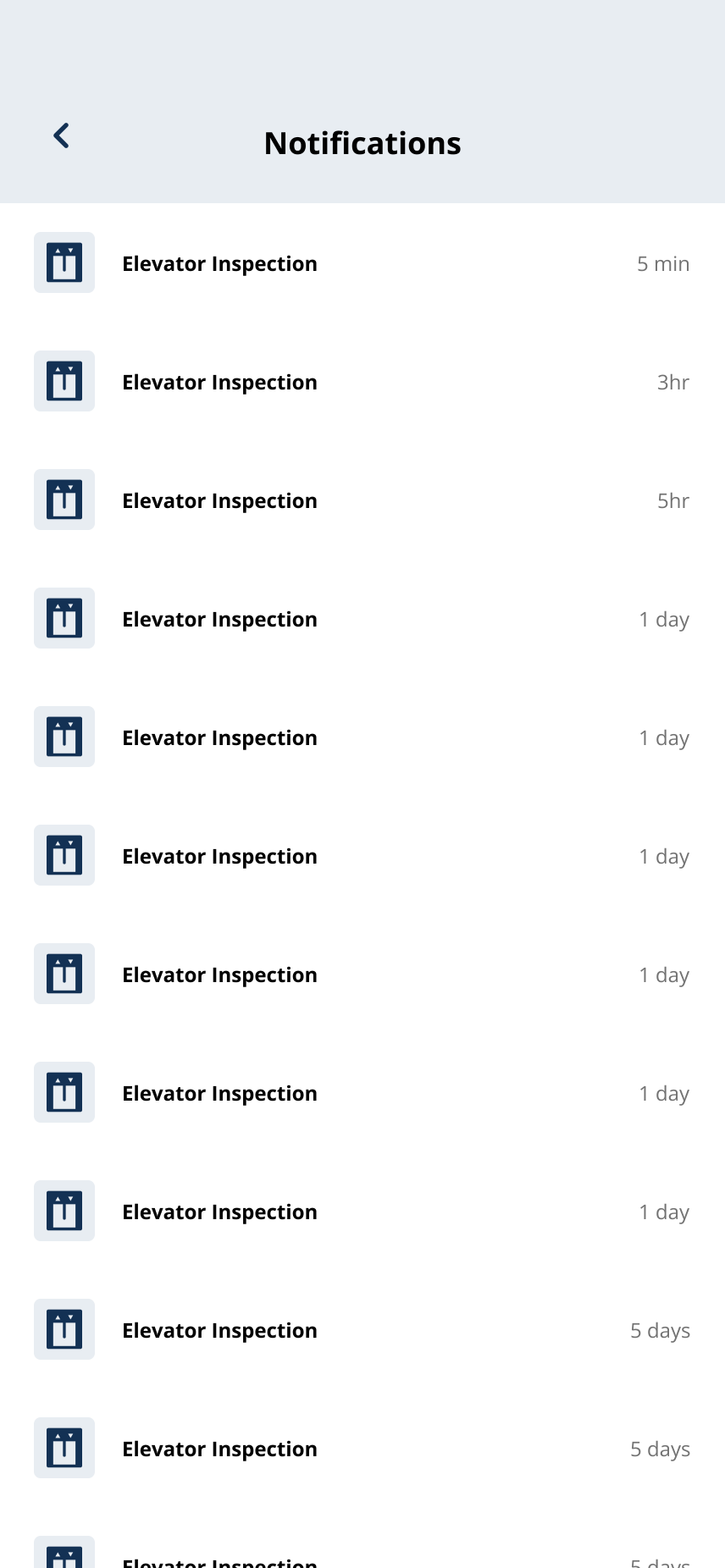
Review recent alerts and building notices from the Notifications list.
3Step 3: Tap the notification you want to read
- Tap the notification you want to open.
4Step 4: Review the announcement detail page
- Read the title, posted date, and full message on the detail page.
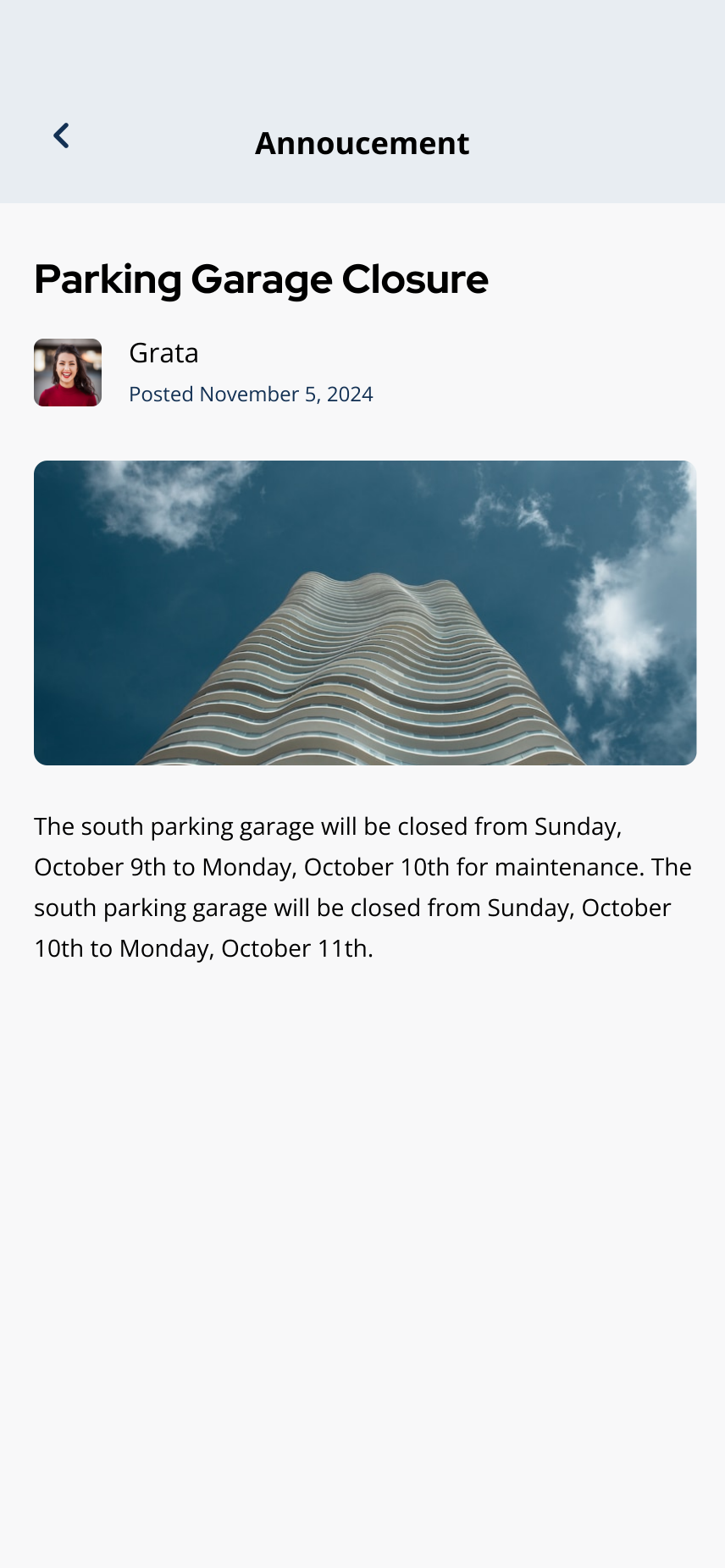
Open an announcement to read the full message, date, and details.
5Step 5: Use the back arrow to return
- Tap the back arrow to return to the notifications list.
Related articles
Find Building Notices and Announcements
1 min read
Open Notifications for building announcements—tap a notice for details; if one is missing, check account, conn...
Notifications Overview
2 min read
Read alerts from the bell icon and manage push, email, and text preferences under Profile > Notifications.
Building Notices & News Feed Overview
1 min read
Find building announcements in News or the mail icon—and troubleshoot when the feed looks empty.
View Notifications in the Grata App
1 min read
Tap the notification bell on the home screen to open and review your notifications list.